Browse help topics
Fix billing blockers
A reference for the reasons a charge needs reconfirmation, and the fix for each.
Last updated · 3 July 2026
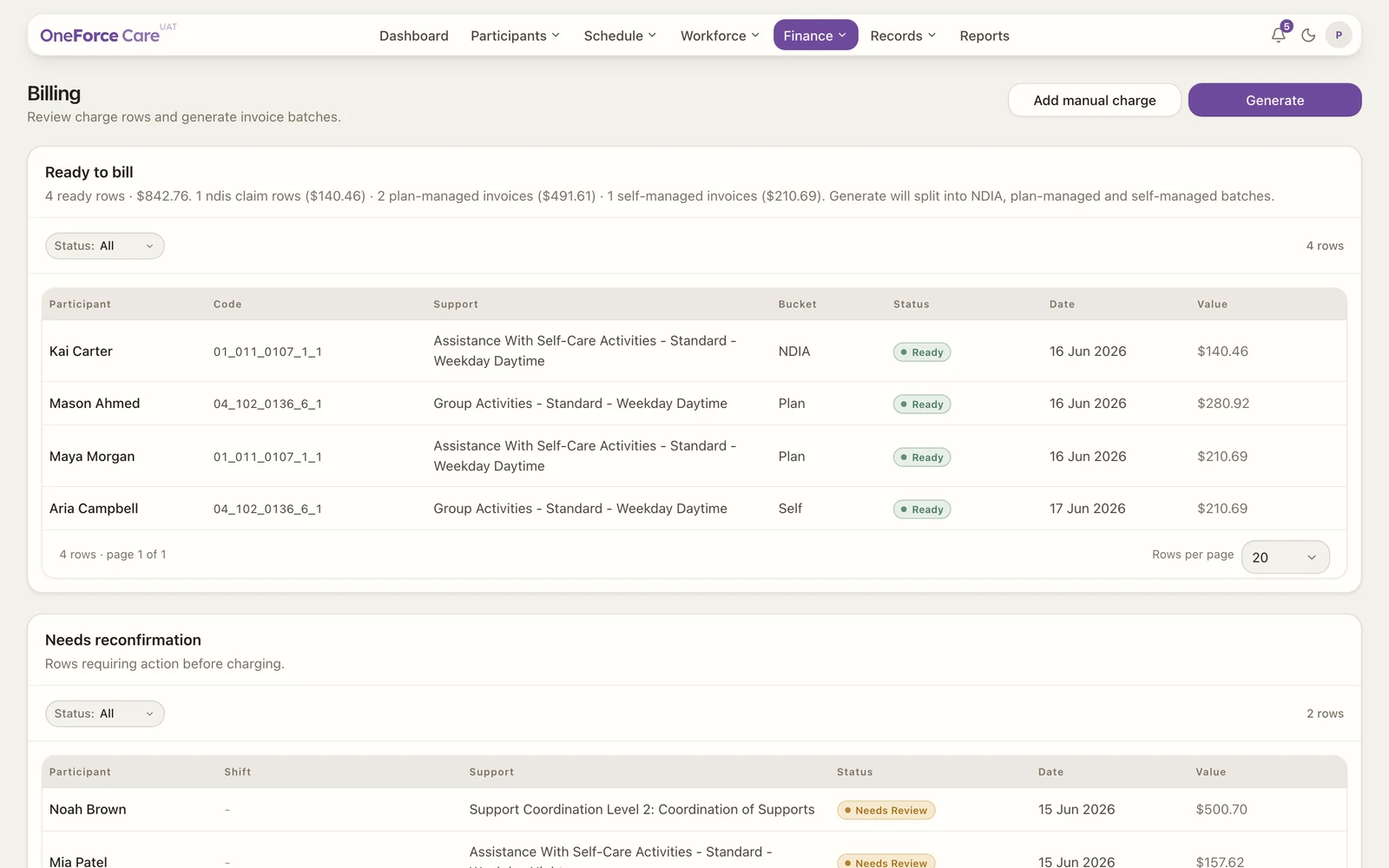
When a charge row has a problem, it lands in the Needs reconfirmation table on Finance ›Billing with the status Needs Review and a reason. Select the row to open its drawer. The drawer shows the reason as a heading and a short list of numbered steps to fix it. Fix the underlying cause and the row moves to Ready to bill on its own.
For a shift-backed row, some reasons also add an Open shift → link that jumps straight to the shift. Reasons that point you to a service agreement or an NDIS plan don’t carry an automatic link yet, so use the path given in the steps (for example Participants , then the participant, then the tab named) to get there yourself.
 1 2
1 2 A row can carry more than one reason. The reasons below are the full set, grouped by the kind of fix.
Billed time and support codes
“Billed time doesn’t match the worked time.” The minutes billed do not add up to the time the worker recorded. Open the shift and the worker assignment timesheet, then adjust the billable minutes per support code so they sum to the worked time.
“No NDIS support code is linked.” The charge has no support code to claim against. Open the shift, open the support picker in the worker assignment, select the delivered support code for the participant, and save. The charge regenerates with the code.
Attendance
These reasons come from what the worker recorded against the shift, not from pricing or agreements.
“The worker marked this participant as a no-show. Decide whether to claim it as a Short Notice Cancellation or not at all before billing.” Open the shift and the worker assignment. If the notice conditions are met, cancel the participant with a Short Notice Cancellation charge; otherwise mark it cancelled with no charge so it isn’t billed as delivered support.
“The worker recorded this participant leaving early. Confirm the delivered time before billing.” Open the shift and the worker assignment timesheet, confirm the delivered time (adjust the billable minutes to match the actual attendance), then approve the assignment to clear the review.
“No clock in / out was recorded, so this row is billing the scheduled duration. Confirm the delivered time before billing.” Open the shift and the worker assignment timesheet, enter or confirm the actual worked time (or confirm the scheduled duration is correct), then approve the assignment to clear the review.
Pricing and agreements
“Rate or pricing region isn’t valid.” The rate is above the current NDIS price limit, or the rate and pricing region are not valid for this participant. Open Participants , choose the participant, then the Service Agreements tab. Find the support and either lower the agreed rate to at or below the limit (or mark it quote-required if a higher rate is approved), or set a rate and region valid for the participant’s MMM classification. Save, and the charge re-checks automatically.
“This support can’t be claimed yet: its quote isn’t approved, it has no agreed rate, or its catalogue entry needs review. Fix it in the service agreement.” Open the participant’s Service Agreements, then add the quote approval to the support, or reconcile it against the current catalogue.
“Service agreement isn’t active.” The agreement is not signed, or has ended before the shift date. Open the participant’s Service Agreements, then sign or activate the agreement, or extend its end date to cover the shift date.
“Shift crosses a band the agreement has no code for.” The shift runs across a time band (for example into the evening) that the agreement has no support code for. Open the participant’s Service Agreements and add the matching time-band variant of the support.
“The service date predates the current NDIS catalogue prices, so the stored rate and cap were kept rather than re-priced. Confirm the historical price is correct before billing.” The shift’s service date is older than the NDIS catalogue prices currently loaded, so the platform couldn’t re-check the rate against a price list for that date. Check the support’s stored rate against the NDIS price limit that was in force on the service date. If it’s correct, use Include in billing to confirm it; if it’s wrong, correct the rate on the agreement or the charge before billing.
“Public-holiday data could not be loaded, so the shift was not re-priced. Retry once the connection recovers.” The shift needed re-pricing (for example a public-holiday loading) and the lookup failed. Check your connection and try saving the shift again; if it keeps failing, contact support.
Funding and invoice contact
“Funding type not set. Set it to NDIA, plan, or self-managed on the NDIS plan.” The budget does not have a concrete funding type, so the row cannot be bucketed. Open Participants , choose the participant, then the NDIS Plans tab, and set a concrete funding type on the budget (NDIA, plan or self-managed, not Mixed).
“Invoice contact incomplete. Add the recipient name and email to the service agreement.” A plan-managed or self-managed invoice has nowhere to go. Open the participant’s Service Agreements, open the active agreement, go to Invoicing, and add the invoice recipient name and email for the funding type.
“This support is self-managed but its budget is plan-managed (or the reverse). Align the funding type on the participant’s NDIS plan before billing.” Open Participants , choose the participant, then NDIS Plans, and set one consistent funding type (NDIA, plan or self-managed) across the budget and its linked supports. Save, and the charge re-checks automatically.
“The service date falls outside the participant’s funded NDIS plan period (or the plan isn’t active). Move the shift into the plan window, or record the plan that covers this date before billing.” Open Participants , choose the participant, then NDIS Plans, and confirm the plan start and end dates cover the service date, and that the plan is current. If the participant was reassessed, record the successor plan that covers this date with Start new plan, or move the shift into the funded window.
Travel
“Agreement doesn’t permit this travel claim.” The agreement does not allow the kind of travel on the shift. Open the participant’s Service Agreements and enable the relevant travel terms (provider travel time, return-to-base, activity transport, or transport actual costs).
“Travel details are incomplete or mis-coded.” Open the shift and review the travel capture. Select the correct 590 or 799 travel support code, set the destination MMM, confirm the worker was paid, and enter the kilometres or duration.
“Receipt required for actual-cost transport.” Actual-cost transport must have evidence. Open the shift travel review and attach a receipt for each actual-cost category (tolls, parking).
Manual charges
“Manual charge needs an approved quote.” The manual charge uses a quote-required code with no approved agreement support behind it. Open the participant’s Service Agreements and add a quote-approved support, or change the manual charge to a non-quote code.
“Confirm this manual charge’s budget draw-down.” A manual charge is not linked to a plan budget, so every new one carries this reason. Check the participant’s plan budget has capacity, then use Include in billing in the row drawer to confirm the draw-down and make it billable. This is the one blocker you clear by confirming rather than by fixing data at source.
Group and 1:1 supports
“This is a Group Activities support code on a direct (1:1) shift. Its rate is the per-participant share of a group price. Select a 1:1 support code, or change the shift to Group Support.” Open the shift and the worker assignment support picker, then replace the Group Activities code with a 1:1 support code, or change the shift type to Group Support.
Registration requirements
These reasons show up when a support needs a level of NDIS registration your workspace hasn’t switched on yet.
“Intensive and Complex Behaviour Supports need your organisation to be registered for Practice Standards Module 2A. Turn it on in Settings > Features > Compliance once registered, or change the support.” Confirm your organisation is registered and assessed for NDIS Practice Standards Module 2A, then open Account ›Features , find the Compliance group, and turn on Registered for Module 2A (Behaviour Support Plans). If you’re not registered yet, choose a different support instead.
“High-intensity supports need your organisation to be registered for NDIS registration group 0104 (High Intensity Daily Personal Activities). Turn it on in Settings > Features > Compliance once registered, or change the support.” Confirm your organisation is registered for NDIS registration group 0104, then open Account ›Features , find the Compliance group, and turn on Registered for High Intensity Daily Personal Activities (0104). If you’re not registered yet, choose a different support instead.
Include in billing (the override)
Some rows can be pushed through rather than fixed at source. When a row has a blocker and has not yet been batched, its drawer offers an Include in billing button. Selecting it opens a confirm dialog titled “Include in billing?” with the warning “This confirms the values and moves the row into Ready to bill for the next generated batch.” On success you see “Row included in billing.”
Watch out
Include in billing confirms the charge as-is. Use it where the values are correct but the platform cannot verify them itself, such as confirming a manual charge’s budget draw-down or an old catalogue price. It does not fix bad data, so do not use it to skip a genuine pricing or agreement problem.
Tip
Once every row sits in Ready to bill, move on to Generate invoice batches. A few reasons (for example a claim over the NDIS 2-year payment-request limit) aren’t caught until you generate, where you can exclude just that row and bill the rest of the batch.