Browse help topics
Recurring shifts and copying
Use Repeat to make a series, or Copy shift to duplicate one.
Last updated · 3 July 2026
There are two ways to avoid rebuilding a shift by hand: make it repeat when you create it, or copy an existing one to a new time.
Make a shift repeat
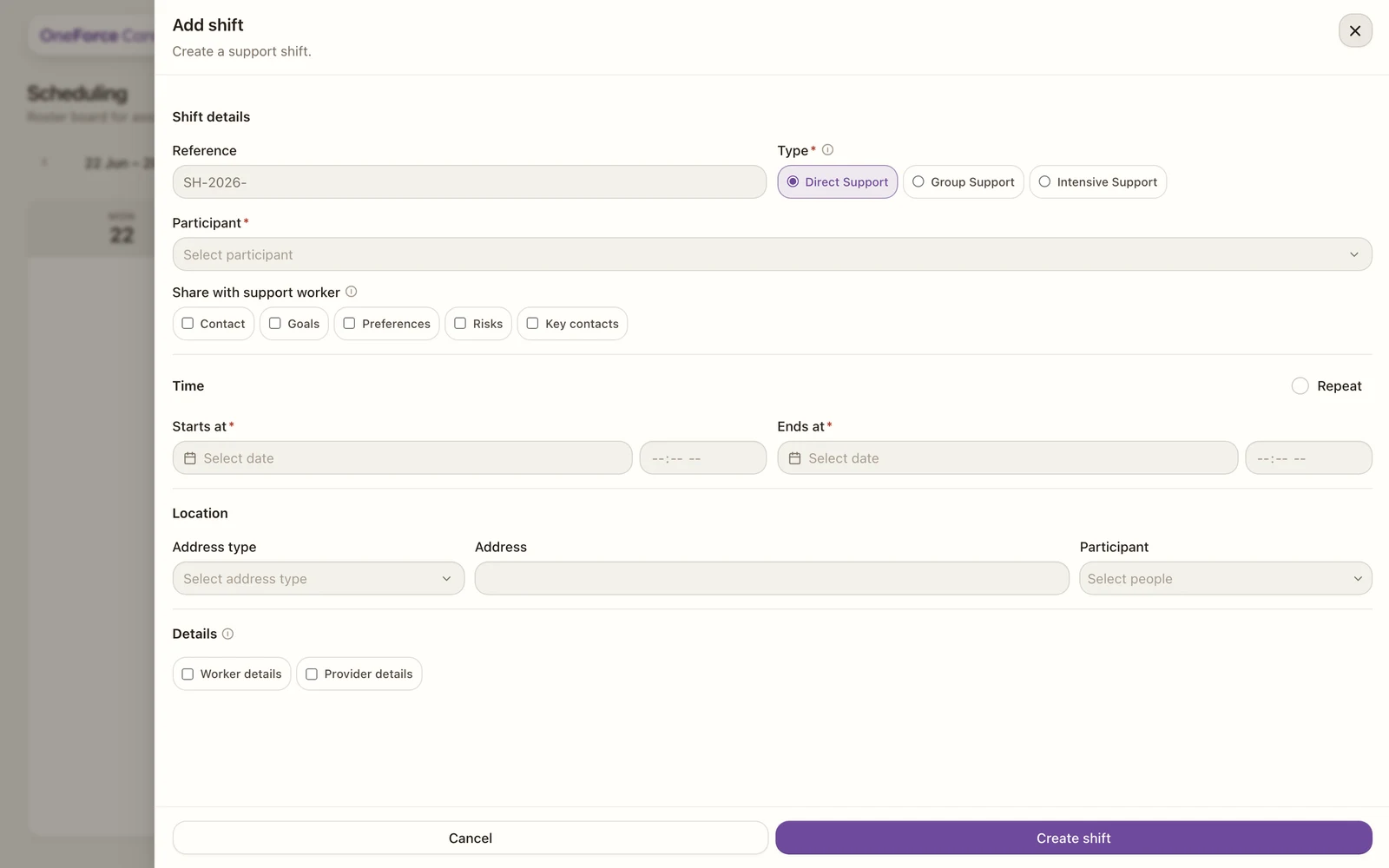
Recurrence is set on the create form only. While creating a shift, tick Repeat in the Time section header. Two more fields appear:
- Frequency: Daily, Weekly, Fortnightly or Monthly.
- End date: the last date in the series.
The platform then creates a separate shift for each occurrence. Both fields are required once Repeat is ticked.
 1
1 Note
You cannot edit the recurrence after the shift is created. Cancel, restore and archive act on the single occurrence you opened, not the whole series.
Copy a shift
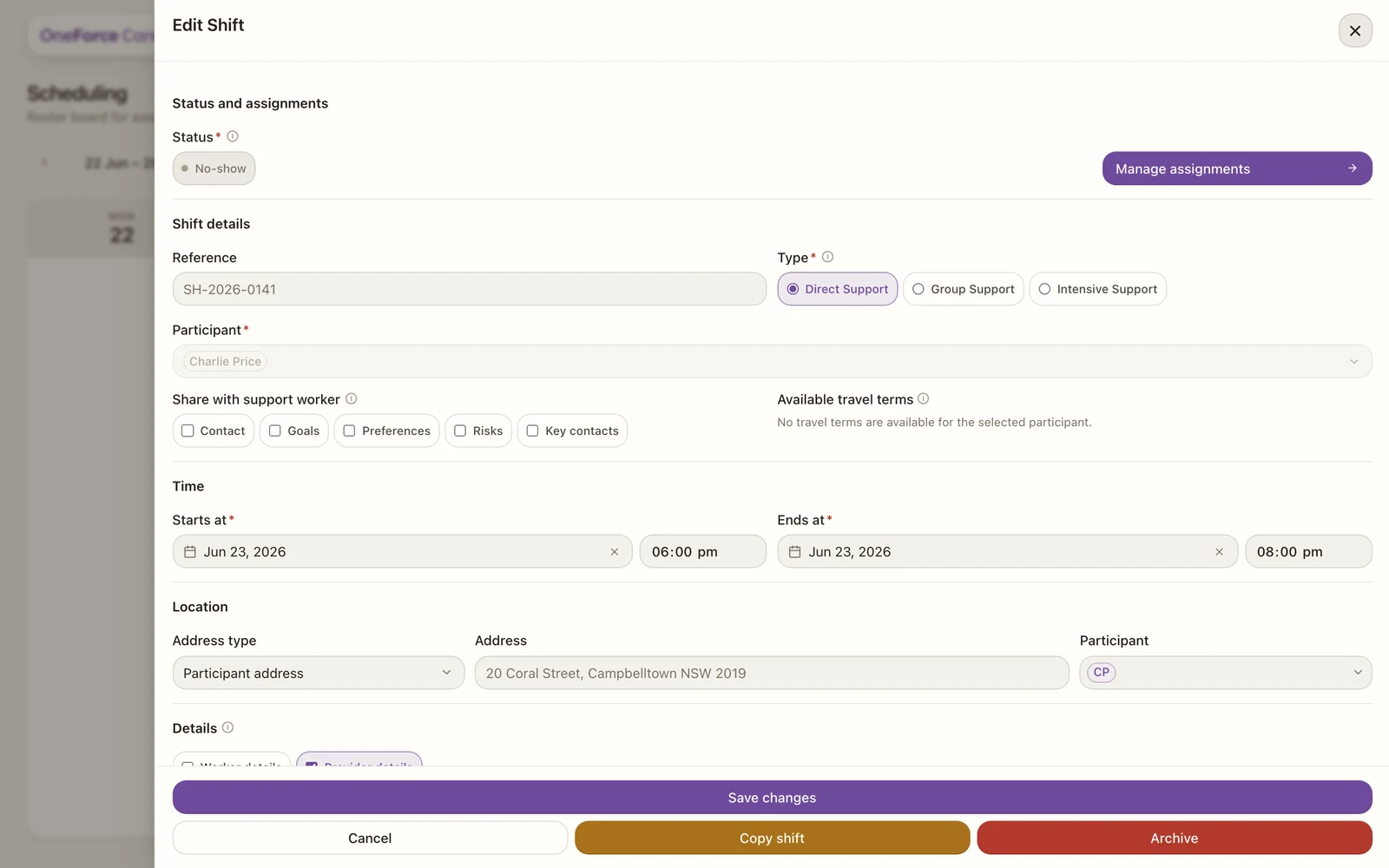
To reuse a shift at a different time, open it and select Copy shift at the bottom of the Edit Shift drawer.
 1
1 A Copy this shift? dialog appears with a Start date and time picker. Set the new start and confirm with Copy shift. The copy keeps the participants, support selections, location, notes and assignments, and carries the worker over unpublished. It shows as Copied on the board until you open it and publish it.
Watch out
Copying always makes a single shift. Any recurrence on the original is dropped.