Browse help topics
The participant profile
How the profile drawer is laid out, and how to edit the Details tab.
Last updated · 3 July 2026
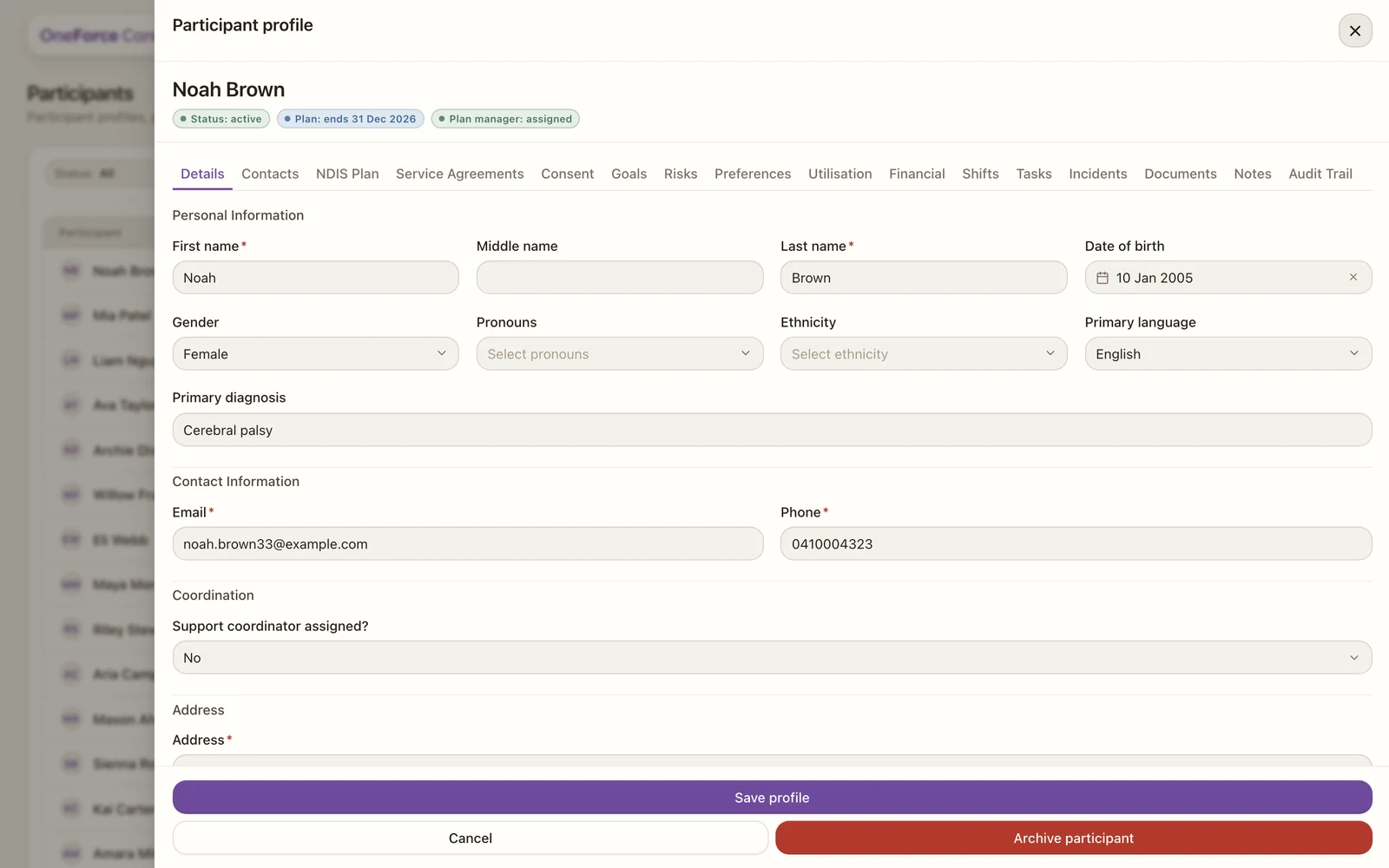
Open a participant from Participants by selecting their row. Their profile slides in as a drawer over the register. It opens on the Details tab, with a row of tabs across the top for every part of the record. Each tab is its own section and saves on its own, so you can build the record up gradually.
 1 2 3
1 2 3 The tab rail
The tabs always appear in this order:
| Tab | What it is for |
|---|---|
| Details | Personal, contact, coordination and address fields (the tab you land on). |
| Contacts | Family, guardians, plan managers and clinicians. |
| NDIS Plan | The plan number, dates, funding type and budgets. |
| Service Agreements | The supports you have agreed to deliver, and signing. |
| Consent | Capturing the participant’s consent. |
| Goals | The NDIS goals they are working towards. |
| Risks | Risks your workers should know about. |
| Preferences | How they like to be supported. |
| Utilisation | Read-only. Budget spend against allocation. |
| Financial | Read-only. Finance items on the way to a claim. |
| Shifts | Read-only. The participant’s shifts. |
| Tasks | Read-only. Tasks linked to the participant. |
| Incidents | Read-only. Incidents involving the participant. |
| Documents | Files attached to the record. |
| Notes | Internal notes for your team. |
| Audit Trail | Read-only. The change history. |
The Shifts, Tasks and Incidents tabs are read-only views of records from those modules. You create and manage them from their own areas of the platform.
Edit the Details tab
The Details tab holds the same personal, contact, coordination and address fields as the create form, so see Create a participant for the full field list and which ones are required. Change anything you need, then select Save profile at the bottom of the drawer. You will see Participant updated.
If your role does not have edit access, the tab shows Read-only. Your role does not have edit access. and the fields are locked.
Note
Each tab saves independently. Saving the Details tab does not save anything you have changed on another tab, and vice versa, so save each tab as you finish with it.
The red Archive participant button appears when your role can delete participants. It is for participants who are no longer active: Archive a participant.