Browse help topics
Your profile
Update your name, phone and sign-in email on the Account tab.
Last updated · 3 July 2026
The Account tab holds your own profile: how your name appears across the app and the email you sign in with. Your password and two-factor authentication live further down the same tab; see Password and two-factor authentication.
Open the Account tab
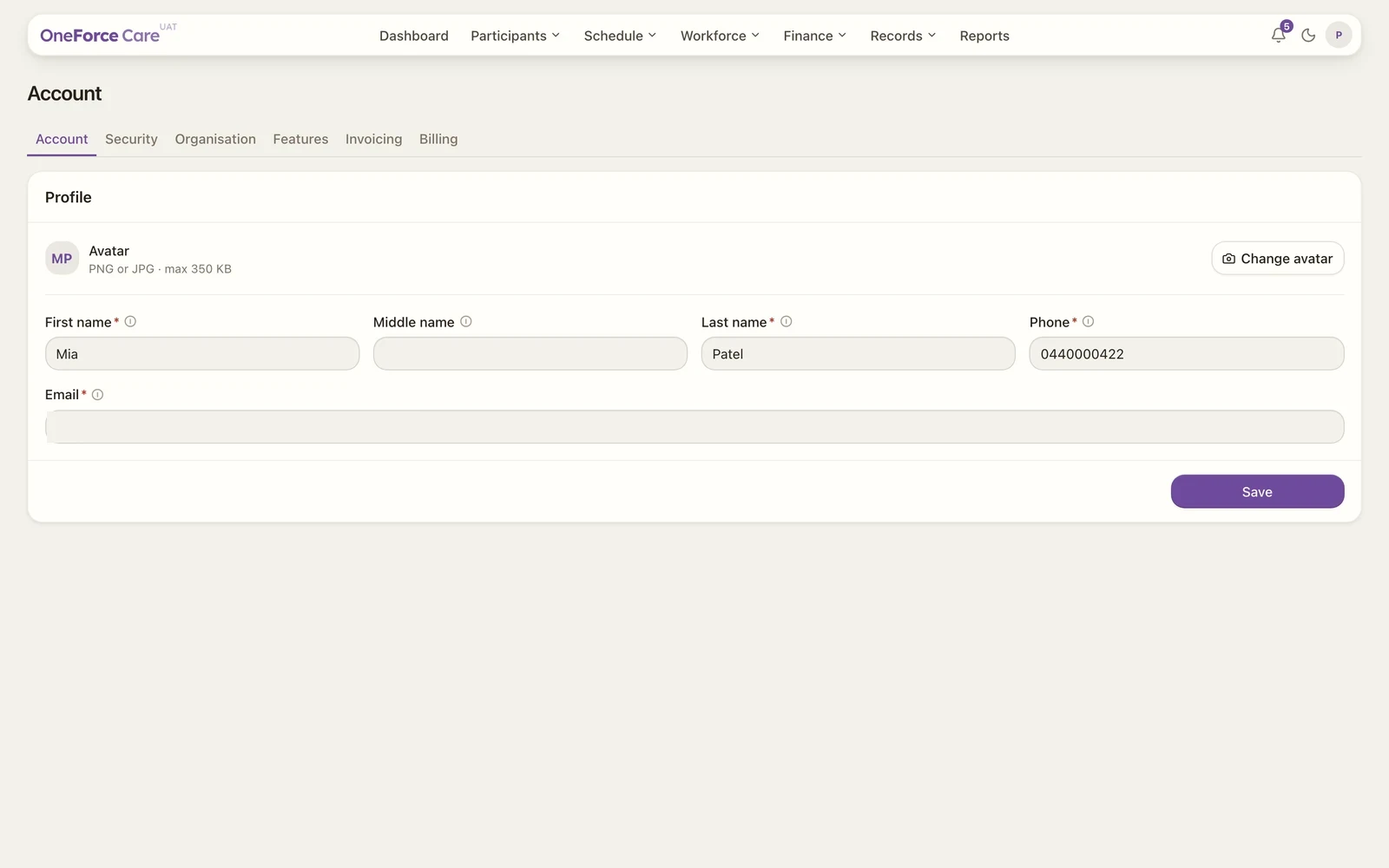
Select your initials at the top right, choose Account, then open the Account ›Account tab (it’s the one that opens by default). It starts with a Profile card.
 1 2 3
1 2 3 Edit your details
The fields are:
| Field | Required | Notes |
|---|---|---|
| First name | Yes | |
| Middle name | No | |
| Last name | Yes | |
| Phone | Yes | Australian format, for example 04XX XXX XXX |
| Yes | The address you sign in with |
Save
Select Save. If you changed nothing but your name or phone, you see Profile saved.
If you changed your Email, that address is your sign-in identity, so the change is not final until you confirm it. The toast reads Profile saved. Confirm the link sent to <email> to update your sign-in email. Open that email and select the link to finish the change.
Note
A wrong entry is shown as a message at the top of the screen, for example Enter a valid Australian phone number or Enter a valid email address. Fix the field and select Save again.
Tip
Set your password and two-factor security next: see Password and two-factor authentication.