Browse help topics
Review and approve assignments
Use the Assignments page to approve each worker after the shift.
Last updated · 3 July 2026
After a worker has clocked in and out, an admin checks the times and approves the assignment. Approving is the sign-off that lets the work be claimed.
Open the Assignments register
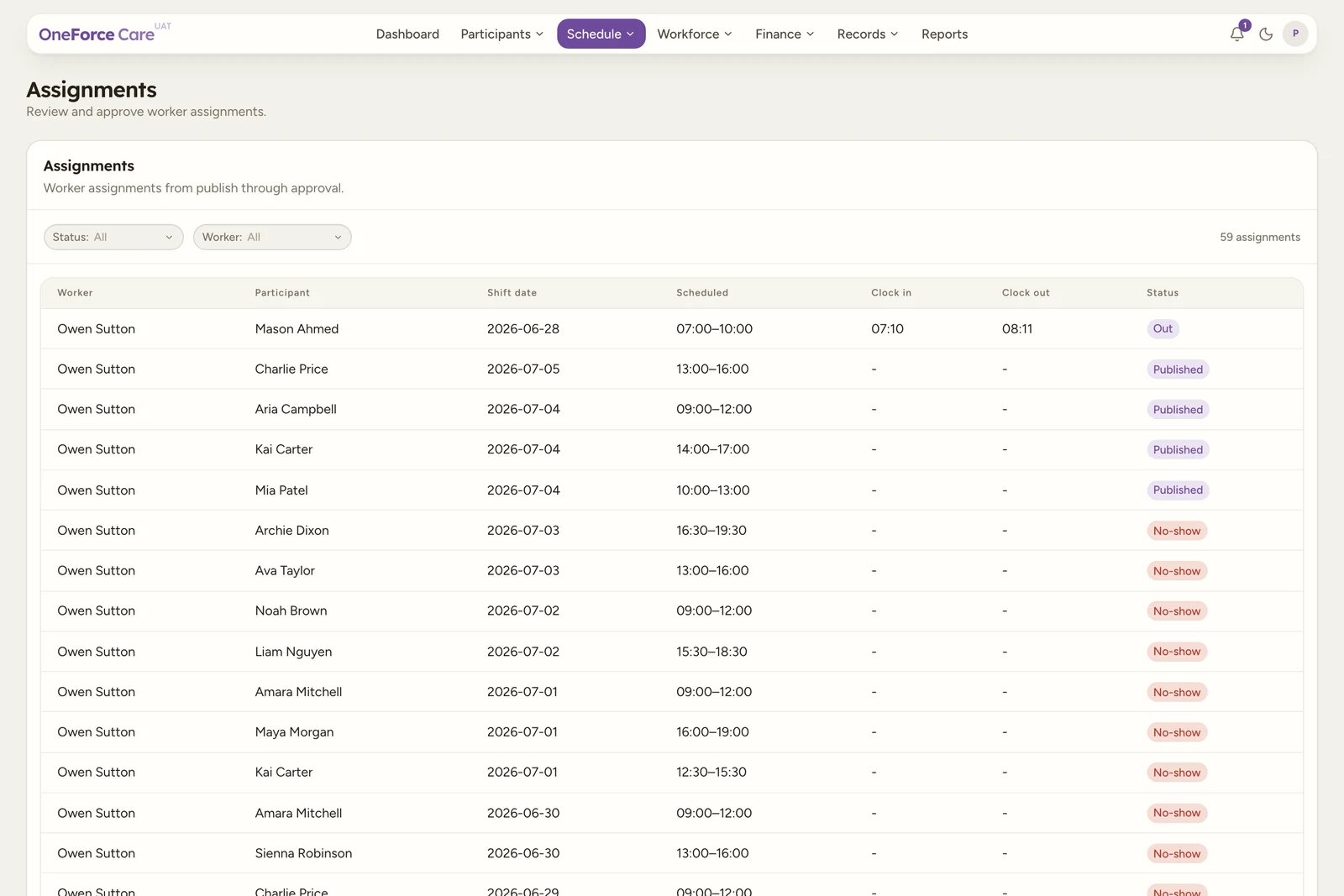
Go to Schedule ›Assignments . The register lists every assignment from the moment it is published, newest first, with its scheduled and actual times.
 1 2 3
1 2 3 Review the assignment
Select a row to open the review drawer. It is the same Worker assignments drawer used to manage the shift, scoped to that one worker. Its Timesheet section shows Clock in, Clock out, Total time worked and Workflow status, followed by Participants serviced. A Progress notes section below it shows the worker’s submitted note (or “No progress note submitted yet.”), any Shift summary text, and a Photos gallery of anything the worker added on mobile.
If the assignment has open claim-risk warnings, a yellow Claim review block appears above Progress notes, headed “This assignment has claim-risk warnings.”, listing each one with “Review each warning before approving.” underneath.
Approve
Select Approve, then confirm Approve in the Approve assignment? dialog. When there are no claim-risk warnings it reads “This confirms the actual clock times have been checked by an admin.”; when there are, it reads “This assignment has claim-risk warnings. Review each warning before approving.” and lists them. When every worker on a shift is approved, the shift becomes Approved; while only some are done it shows Part approved.
How approval feeds billing
Approving is the gate to claiming. An approved assignment confirms the times and support that were delivered, which is what billing and claiming draw on. Until an assignment is approved, it is not ready to claim.
Tip
You can also approve from the shift itself: open it, select Manage assignments, and use the same Approve action there.