Browse help topics
Worker access
Account type, creating a login, resending invites and password resets.
Last updated · 3 July 2026
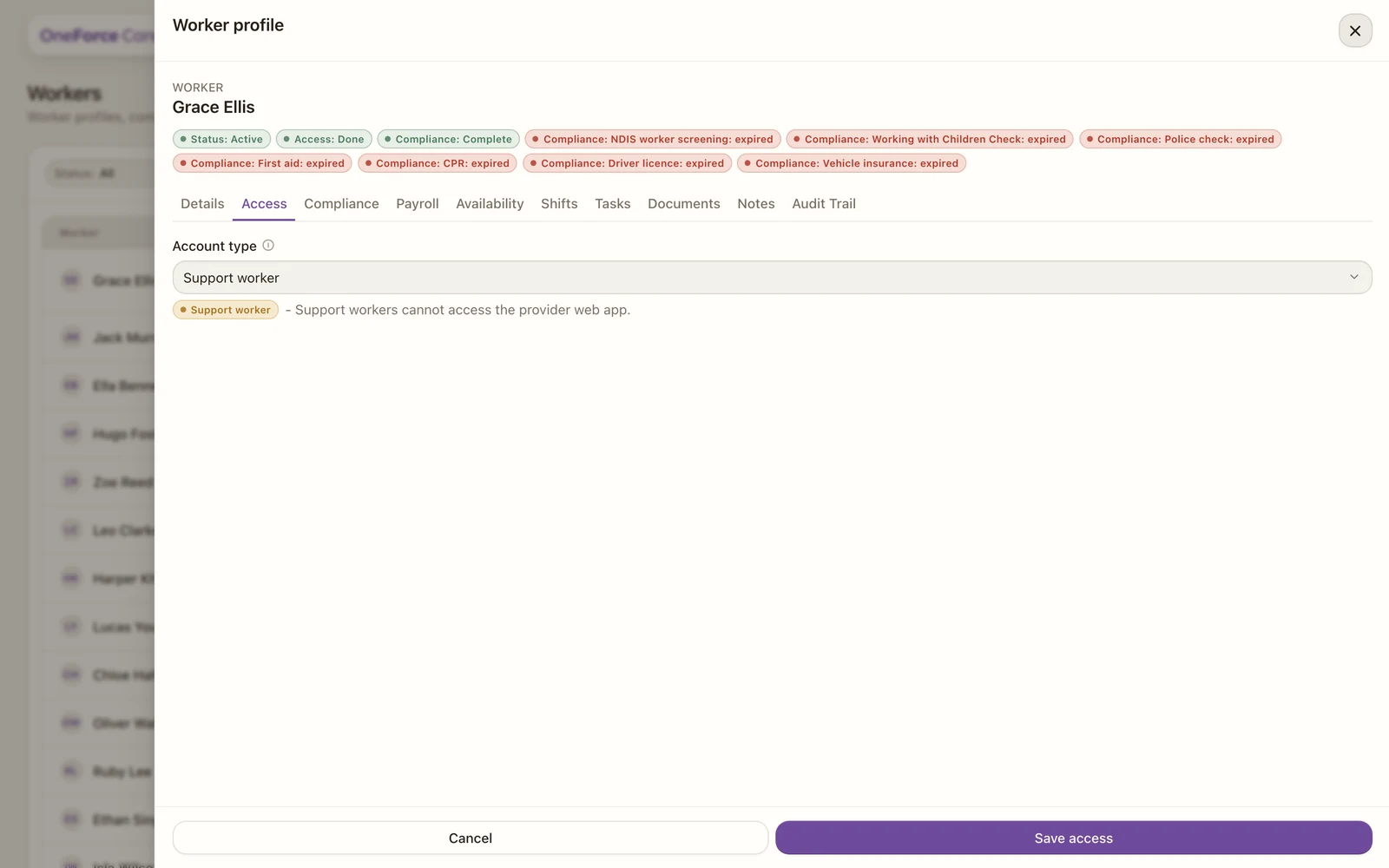
The Access tab controls how a worker signs in and what they can see. Only an owner or admin can change it.
 1 2
1 2 1 Account type: Support worker, Provider or Admin. The line below explains what the choice allows.
2 Save access applies the change. For a worker with no login yet, this button reads Create login.
Account types
- Support worker: cannot reach the provider web app; they use the mobile app for their shifts.
- Provider: signs in to the web app and sees only the screens their access role permits. Pick the role that fits, or create one.
- Admin: sees and changes every provider screen. Offered to owners only.
Creating a login
- If the worker has no login yet, you will see “This worker has no linked provider login yet.” Set the account type (and role), then select Create login. This sends them an invite email. Every worker created by bulk import starts in this state.
- If they already have a login, change the account type or role and select Save access.
Resend an invite or reset a password
These two live on the register, as quick actions at the end of the worker’s row:
- Send invite (paper-plane): resends the login invite while it is still pending.
- Require password reset (key): sends a password reset email and suspends the worker’s access until they set a new password. Confirm with Send email.
Note
Resetting a password suspends the worker until they choose a new one. Use it when an account may be compromised, or to re-issue access to a suspended worker.