Browse help topics
Billing overview
The two charge tables, where rows come from, and the Generate and Add manual charge actions.
Last updated · 3 July 2026
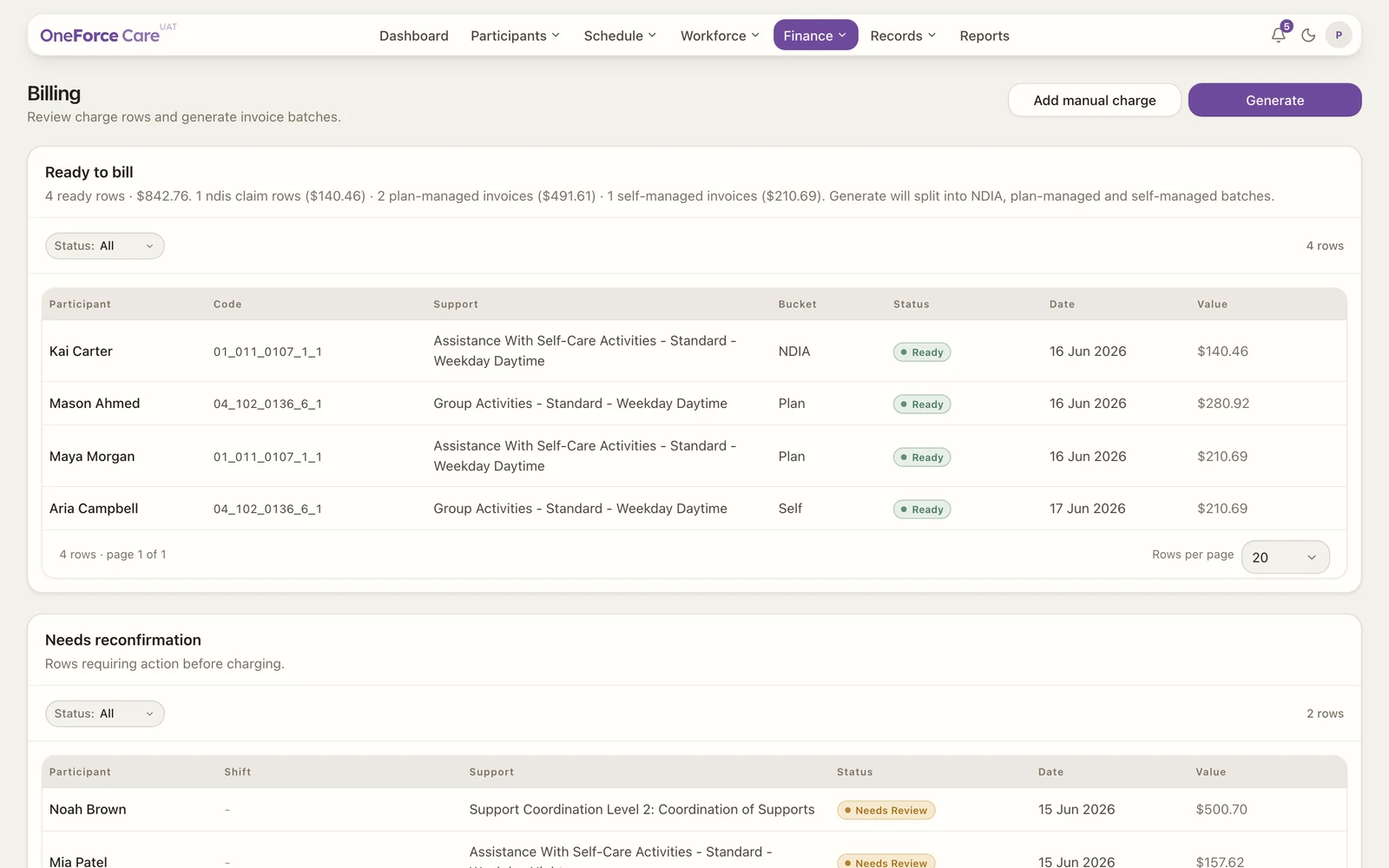
The Billing screen is your charge work queue. Every approved shift and every manual charge lands here as a row, and your job is to clear anything that needs attention, then Generate the rows that are ready into invoice batches and NDIS claims.
Open it from Finance ›Billing .
 1 2 3 4
 The page title is Billing and the subtitle reads “Review charge rows and generate invoice batches.”
Where rows come from
A charge row arrives on Billing in one of two ways:
- From a shift. When a shift is approved, the platform turns the delivered support into one or more charge rows automatically. These rows carry the shift, worker and support details.
- By hand. You can add a one-off charge that is not tied to a shift with Add manual charge (see Add a manual charge).
Each row then sits in one of the two tables, depending on whether it is clear to bill.
The two tables
| Table | What is in it | Status shown | Columns |
|---|---|---|---|
| Ready to bill | Rows that are clear to charge | Ready | Participant, Code, Support, Bucket, Status, Date, Value |
| Needs reconfirmation | Rows with a blocker to resolve first | Needs Review | Participant, Shift, Support, Status, Date, Value |
Each table has its own Status filter (All, Needs review, Ready), so you can narrow a long list.
In Ready to bill, the Bucket column shows where each row will land when you generate: NDIA, Plan or Self. The summary line above the table counts the ready rows and totals, and notes that Generate will split them into NDIA, plan-managed and self-managed batches.
Select any row to open its drawer. Shift-backed rows open the Shift assignments drawer (the timesheet and support lines behind the charge); manual rows open the Manual charge drawer.
The two actions
- Add manual charge adds a charge by hand. A new manual charge always starts in Needs reconfirmation until you confirm its budget draw-down.
- Generate turns the ready rows into batches. NDIA rows produce an NDIS claim CSV; plan-managed and self-managed rows produce PDF invoices. See Generate invoice batches.
Note
If your role cannot create or finalise charge rows, the page shows a read-only banner and the action buttons are hidden. You can still review both tables.
Tip
Work the Needs reconfirmation table first so nothing is left behind, then generate. Start with Fix billing blockers. Once batches are generated you record money in against them on Payments.