Browse help topics
Worker availability
Availability windows and leave that scheduling uses when rostering.
Last updated · 28 June 2026
The Availability tab records when a support worker can and cannot work. Scheduling reads it when rostering, so keeping it current avoids clashes. It appears for support workers only.
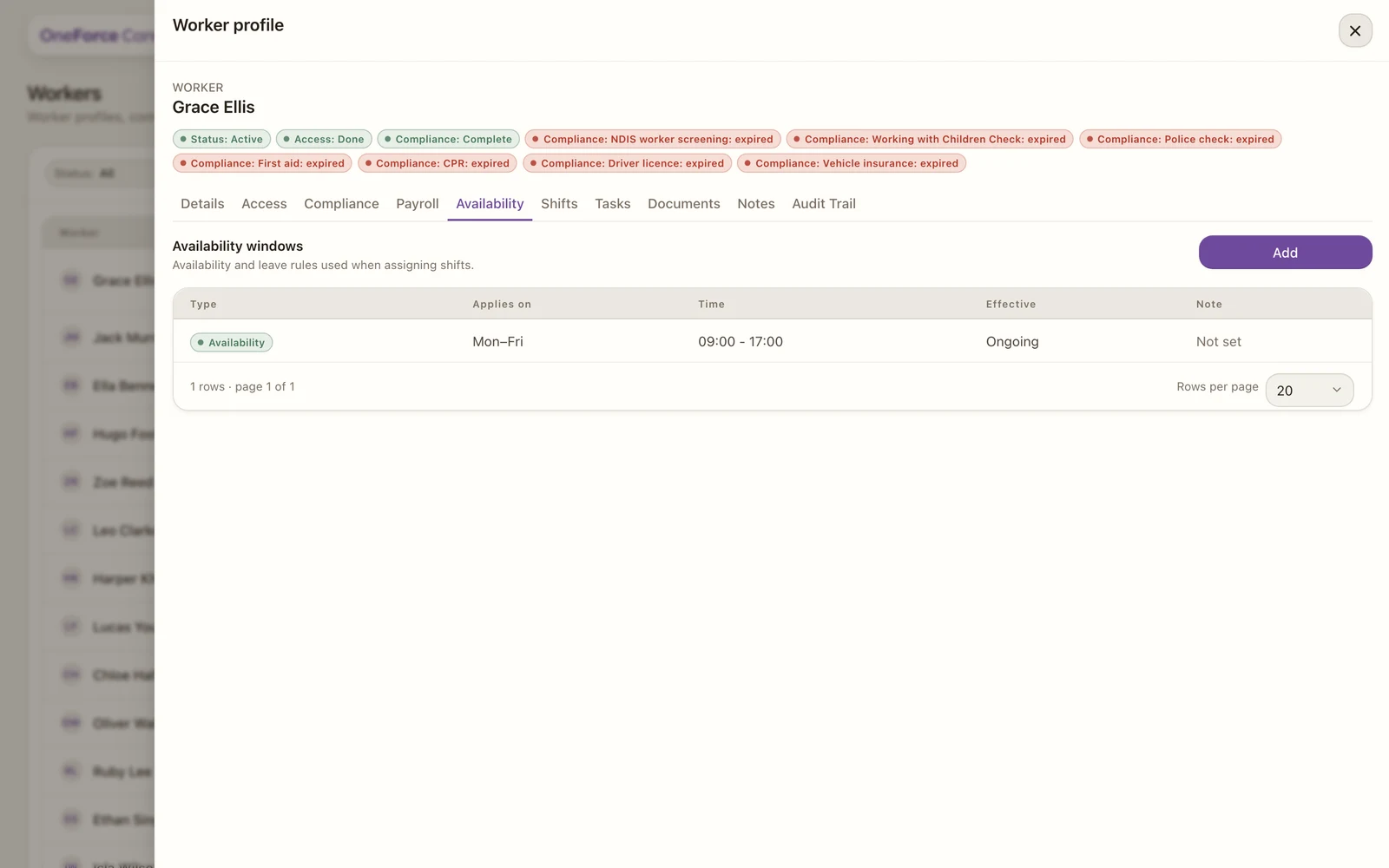 1 2
1 2 1 Add opens the availability form.
2 Each row shows the type, days, time, period and note. Select a row to edit it.
Add a window
Open the form
Select Add. A small form opens.
Choose the type
Pick a Type:
- Availability: a window when the worker prefers to work.
- Annual leave, Sick leave, Personal/carer’s leave, Unpaid leave or Other: a leave window that hides the worker from any overlapping shift.
Set the details
- Applies on (Availability only): All days, Weekdays (Mon to Fri), Weekends (Sat to Sun), or Custom days (then tick the days).
- Effective from / Effective to: required for leave, optional for an availability window.
- Start time / End time: leave both blank for all day.
- Note: optional.
Save
Select Add for a new window, or Save changes when editing an existing one. Editing also offers a Delete availability action.
If a window already exists with the same settings, the app will not add a duplicate.