Browse help topics
Intake overview
The intake list, switching between table and board, and filtering by stage.
Last updated · 3 July 2026
Intake is where you manage referrals from first contact through to acceptance or decline. Open it from Participants ›Intake .
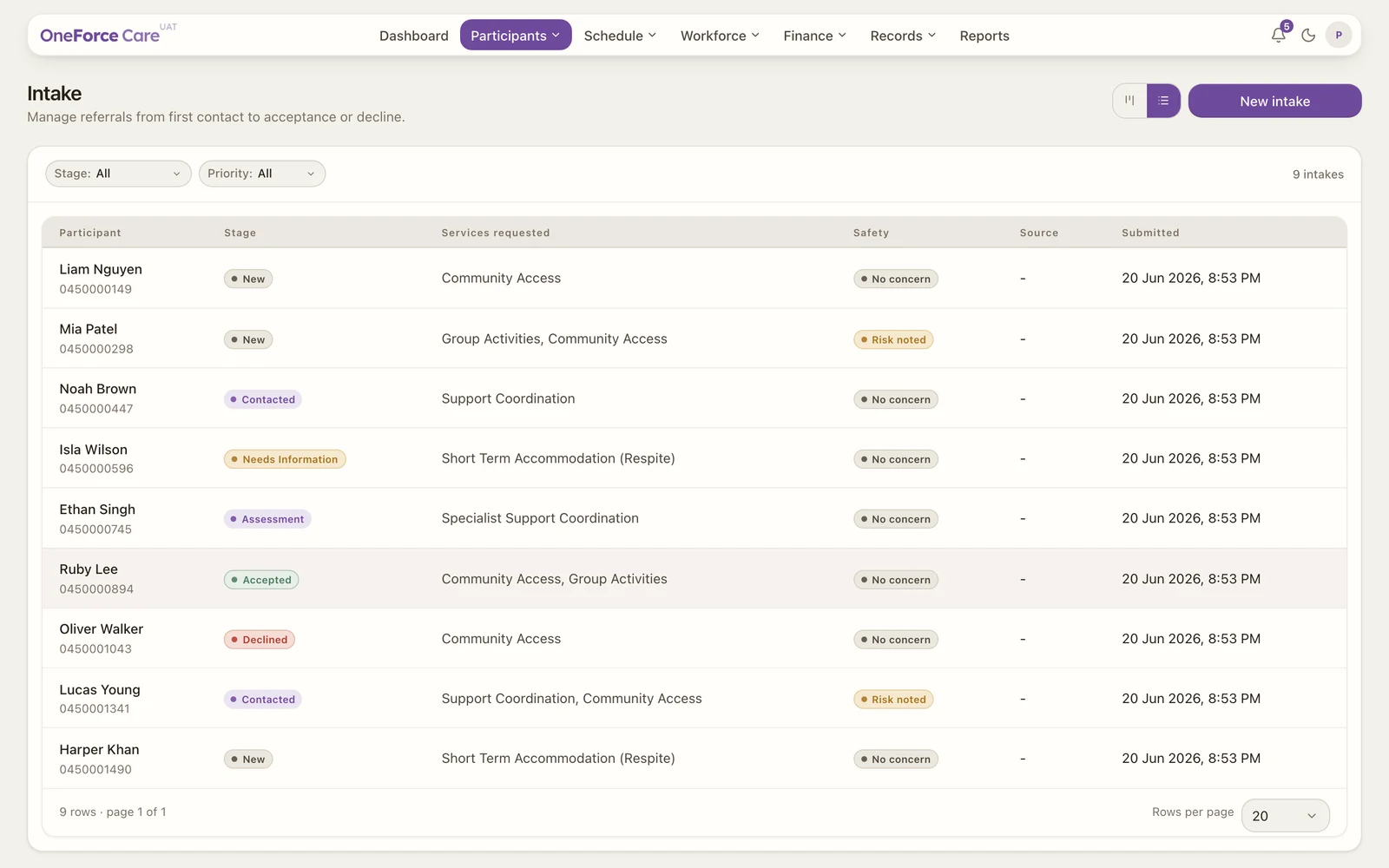 1 2 3
1 2 3 The list
Each enquiry is one row. The columns are:
| Column | Shows |
|---|---|
| Participant | The person’s name, with their phone or email underneath. If neither is recorded it reads Contact not set. |
| Stage | Where the enquiry sits in your pipeline. |
| Services requested | The services the person asked about. |
| Submitted | When the enquiry was created. |
Use the Stage filter at the top left to show a single stage, or All. The count on the right tells you how many match, for example 9 intakes.
Table or board
The two icon buttons at the top right switch between the table above and a board. The board shows one column per stage with a count on each, so you can see your whole pipeline at a glance. Drag a card from one column to the next to move the enquiry along (see Intake stages). An empty column reads No enquiries.
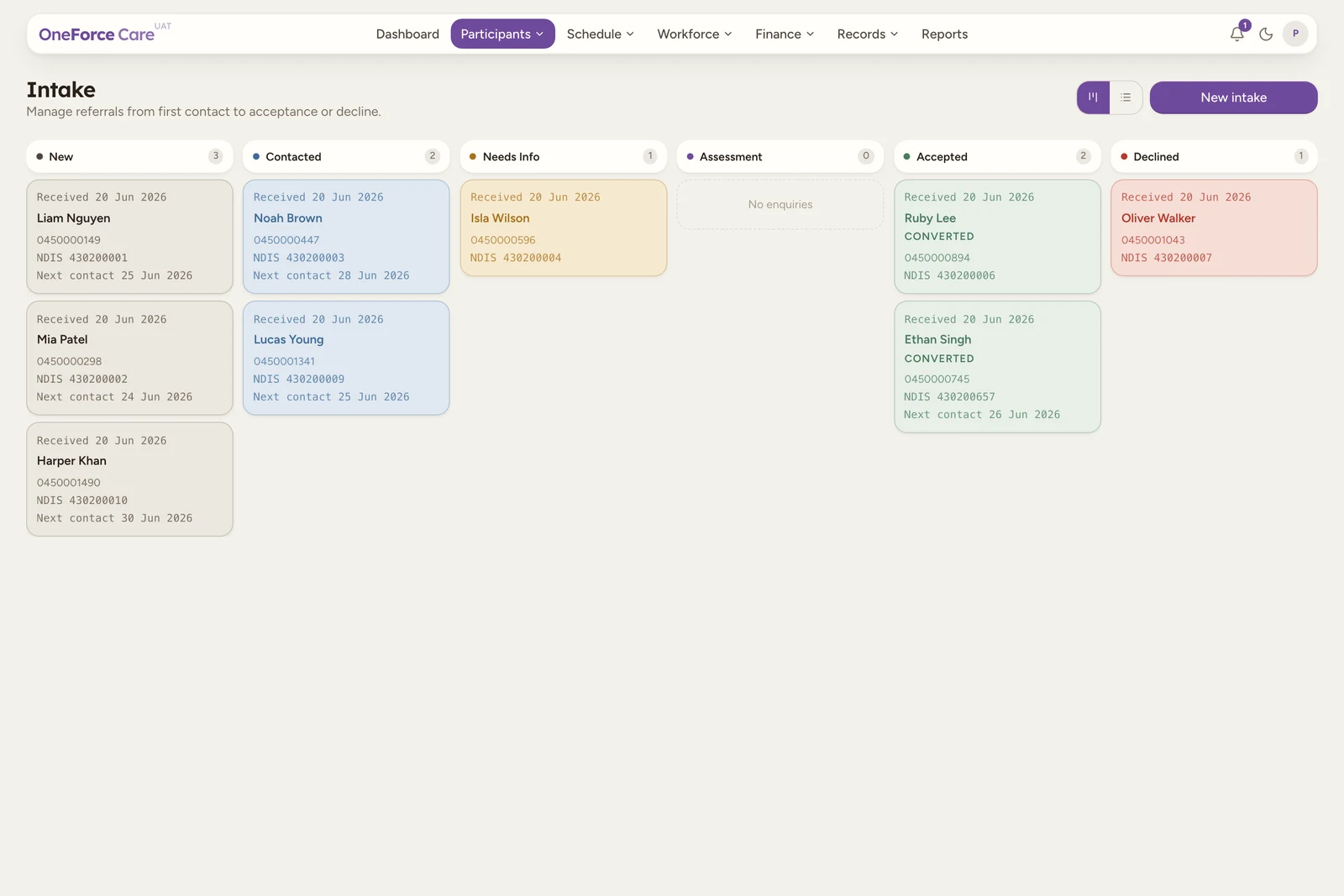
Each board card shows when the enquiry was received, the person’s name, their contact and NDIS number, and any scheduled next contact. A card that has been turned into a participant carries a Converted tag. The Accepted and Declined columns show only the ten most recent enquiries; older ones appear as +N older in table view, so switch to the table to see every one.
Note
Intake was previously called Referrals. An old link to /referrals now opens Intake.
Good to know
What you can do here depends on your role’s Intake permissions, set under Roles and permissions: create to see New intake, edit to open and change an enquiry (including dragging a card between board columns), and delete to archive one. Converting an enquiry to a participant is gated separately, by the Participants screen’s create permission.
Tip
To log a new enquiry, select New intake at the top right. See Add a new intake.