Browse help topics
Incidents overview
The incidents register, the table and board views, the statuses, and the Reportable and NDIS deadline columns.
Last updated · 3 July 2026
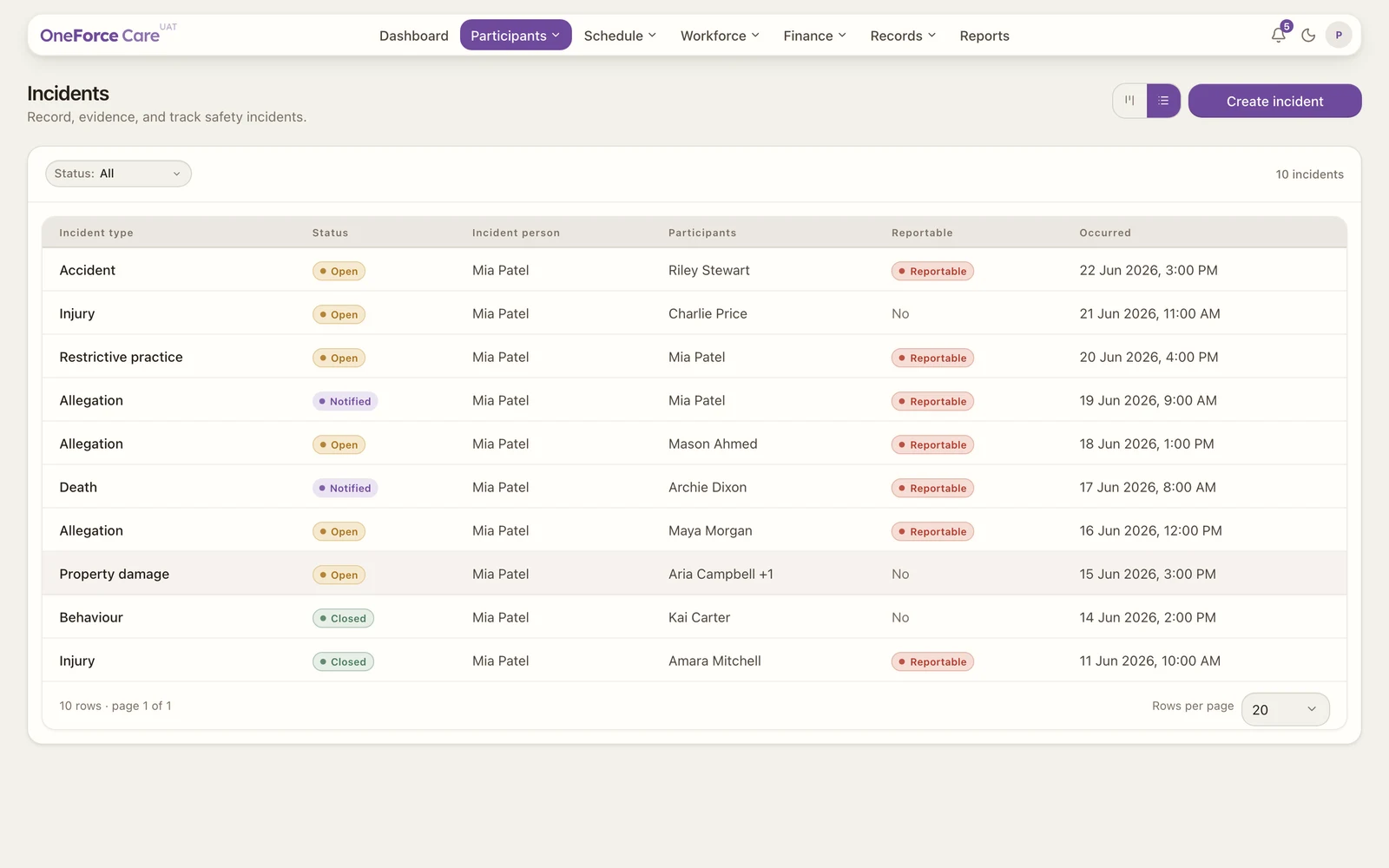
Incidents is your register for recording, evidencing and tracking safety incidents. You will find it under Participants ›Incidents . Every report sits on the same record as the participant and the workers involved.
 1 2 3 4 5
 The register
Each row in the table shows seven columns:
| Column | What it shows |
|---|---|
| Incident type | The operational type you chose, for example Fall or Medication error. |
| Status | Open, Notified or Closed. |
| Incident person | The person who reported it. |
| Participants | The participant or participants involved. A single name shows in full; several show as the first name plus a count. |
| Reportable | Yes (red) if the incident must be notified to the NDIS Commission, otherwise No. |
| NDIS deadline | For a reportable incident: the notify-by date and time, Overdue (red) if it has passed while the incident is still Open, or Pending if Occurred at has not been set yet. A dash for a non-reportable incident. |
| Occurred | When the incident happened, or Not set. |
The count above the table reads, for example, “12 incidents” (or “1 incident”), scoped to whatever the Status filter shows.
Note
Reportable and NDIS deadline are never typed in. Reportable follows the category you choose, and the deadline is worked out and saved automatically from that category and Occurred at the moment you save. See Reportable incidents.
Table and board views
Use the toggle at the top right to switch between two ways of working:
- Table is the default. Filter it by status and select any row to open the incident.
- Board lays the incidents out in three columns, Open, Notified and Closed. Each card shows the occurred date and time, the incident type, an Overdue or Reportable label when it applies, a one-line description, the participants and workers involved, and the location. Drag a card from one column to another to change its status. The Closed column shows the most recent incidents first, up to 20.
Statuses
An incident moves through three statuses:
- Open, reported and being worked through. A reportable incident past its deadline shows Overdue here.
- Notified, the NDIS Commission has been notified (shown as Notified (Commission) inside the incident). Moving to Notified clears the Overdue flag even if the deadline has already passed.
- Closed, the incident is resolved.
Note
Whether an incident is reportable is set by the category you choose, not by how serious it is. See Reportable incidents.
Select Create incident to record one. See Report an incident. If you cannot see this button, you do not have the incidents create permission.
Also on the participant’s profile
Every incident linked to a participant also shows on their profile, under the Incidents tab: incident type, status, when it occurred and whether it is reportable. It is a read-only summary; open the record here on the Incidents register to change anything.
Tip
The Dashboard’s Operations tab has an Open incidents KPI and an incidents-by-status chart, a read-only summary of this register. See Dashboard overview.