Browse help topics
Workers overview
The Workers register, its filters, columns and row actions.
Last updated · 3 July 2026
A worker record holds everything about a person who delivers support or helps run your service: their details and login, compliance and credentials, payroll classification, availability, and the shifts and tasks they are linked to. You will find everyone under Workforce ›Workers .
The register
Each row is one worker. Open a worker by selecting their row; the profile opens in a side drawer over the list.
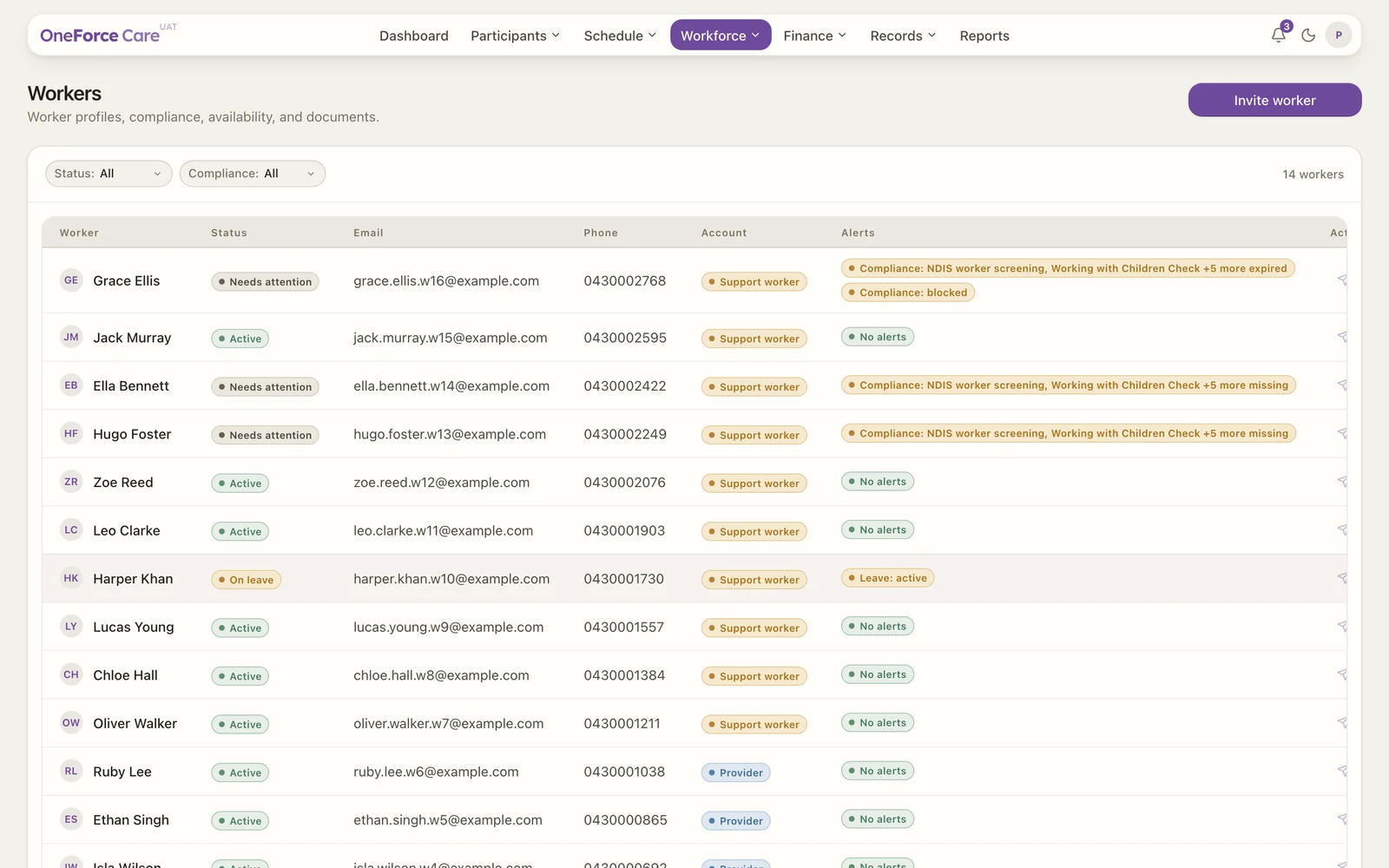 1 2 3
1 2 3 Columns
| Column | What it shows |
|---|---|
| Worker | The worker’s full name. |
| Status | Active, Needs attention, On leave or Inactive, worked out from the record. |
| Their email, or “Not set”. | |
| Phone | Their phone, or “Not set”. |
| Account | How they sign in: Owner, Admin, Provider, Support worker or No login. |
| Alerts | A badge for each thing missing or due, or a green “No alerts”. |
The status is worked out for you:
- Inactive: the record has been set inactive.
- Needs attention: something actionable is missing, such as a phone, email, NDIS screening, availability, or a compliance issue.
- On leave: the worker has an active leave window.
- Active: no gaps.
Filters
Two dropdowns sit above the table, and they narrow the rows already loaded:
- Status: All, Active, Needs attention, Inactive.
- Compliance: All, Current, Expiring, Blocked, Missing.
Note
The register has no free-text search. Use the Status and Compliance filters to narrow the list.
Row actions
At the end of each row are two quick actions:
- Send invite (paper-plane): resends the login invite to a worker whose invite is still pending. Enabled only once they have a login and a saved email.
- Require password reset (key): sends a password reset email and suspends the worker’s access until they set a new password.
Adding a brand-new worker is a separate flow, from the Invite worker button at the top right (see Invite a worker), or from Import next to it to add many workers at once from a spreadsheet (see Bulk import workers).