Browse help topics
Cancel a shift
Cancel with the right party and reason, see the charge, and restore if needed.
Last updated · 3 July 2026
When a shift will not go ahead, cancel it rather than deleting it. The record stays on file, and any short-notice charge is worked out for you.
Open the cancel form
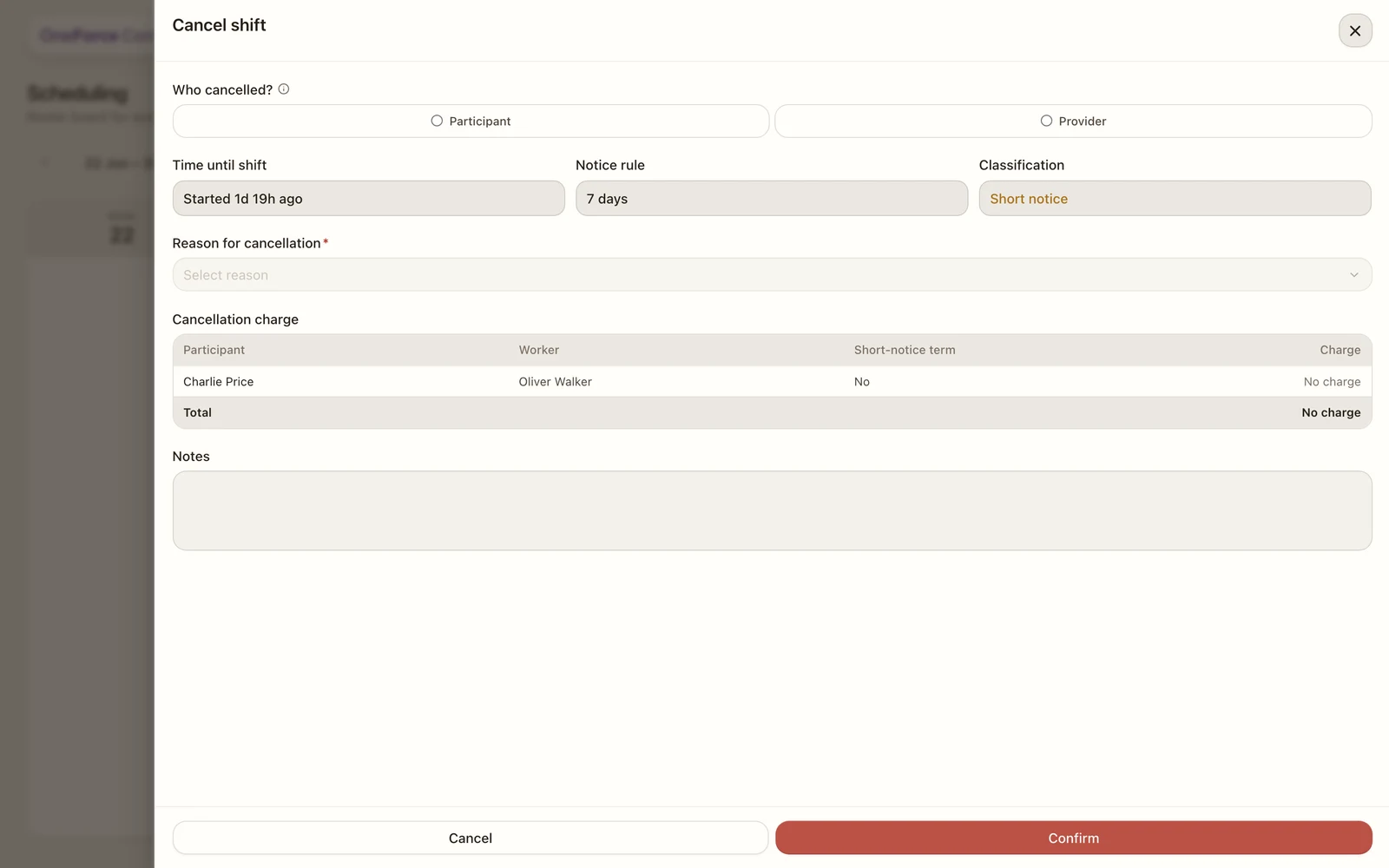
Open the shift and select Cancel shift in the danger zone at the bottom of the Edit Shift drawer. The text there explains what happens: “Cancel this shift if the participant has called off. A cancellation charge will be raised automatically if short notice applies.” Selecting it opens the Cancel shift drawer.
 1 2 3 4
 Note
On a group shift, the drawer opens with a Participants to cancel picker beside Who
cancelled?, letting you choose which participants to cancel. Leave everyone selected to
cancel the whole shift, or pick a subset to cancel just those participants while the shift
keeps running for the rest. The title changes to match: Cancel shift, Cancel
participants, or Cancel <name> for one.
Set the party, notice, and reason
Who cancelled? Select Participant (cancelled, no-showed or refused) or Provider (worker sick, transport, facility). This sets the reason list and whether a charge can apply.
When the participant cancelled, a Participant gave notice at field appears, defaulted to now; change it if you are recording the cancellation after the fact. It drives the notice breakdown below: a read-only Time until shift, Notice rule (7 days for disability-support-worker categories, 2 business days for everything else, worked out from the support item) and Classification (Short notice, Sufficient notice, or Shift already started).
Reason for cancellation is required. Participant reasons are NDIS codes; provider reasons are internal and never chargeable.
Handle any charge, then confirm
When a charge could apply, an Apply short-notice charge? choice appears: Yes, charge or No, waive (PAPL lets you waive a claimable fee at your discretion). A Cancellation charge table always previews the outcome, one row per participant (or per worker on an intensive shift), with Short-notice term (whether the agreement allows a charge) and the Charge amount or “No charge” with the reason.
A charge is only ever raised when all of these hold: the participant cancelled, it is short notice, the agreement includes the short-notice term, the support item itself permits a short-notice claim, the shift is not part of an NDIS program of support, and you tick the attestation below the table. Tick the checkbox that appears when charging, I confirm the short-notice charge conditions are met; on a group cancellation its description also asks you to confirm the seat could not be re-filled.
A yellow Cancellation review box explains anything relevant before you confirm, for example that the shift already started, that provider-side cancellations are never claimable, that sufficient notice was given, or that a participant’s agreement has no short-notice term. Add optional Notes, then select Confirm.
Note
Either way the shift (or the cancelled participants) then shows as Cancelled. A cancel without the attestation simply records no charge. It is never blocked.
Restore a cancelled shift
A cancelled shift shows a Restore shift button where Cancel shift used to be. Selecting it checks that the shift has not started and that none of its workers or participants are already booked on another overlapping shift; any conflict shows as a toast and the restore stops there. Confirming Restore this shift? then puts the shift back on the roster, re-activates its worker assignments, and removes any cancellation charge.
On a group shift, a cancelled participant instead shows a Cancelled chip in the Participants field with its own restore control. Restoring one checks the same start-time and booking conflicts, plus that the participant still has an active service agreement support for the shift’s date, then confirming Restore <name>? re-opens their seat and removes their cancellation charge.
Tip
A shift that has already started can no longer be restored, whole or per participant.