Browse help topics
Participant contacts
Add the right people with the right details, and connect a plan manager for invoicing.
Last updated · 3 July 2026
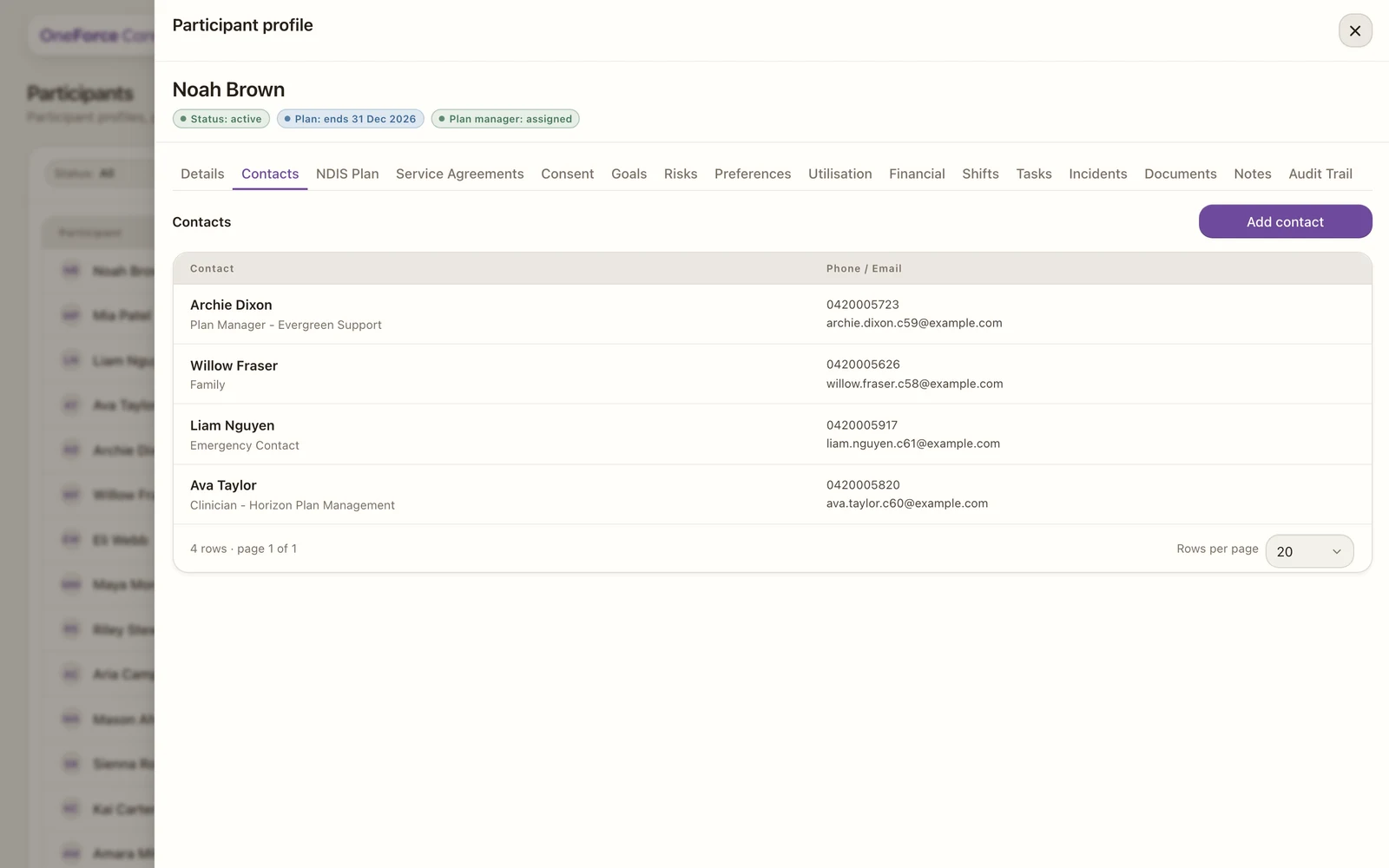
The Contacts tab holds the people around a participant: family, guardians, and the professionals on their plan. Each contact has a type, which decides what details you capture and how the contact is used elsewhere.
Open the Contacts tab
Open the participant, then select the Contacts tab. Select Add contact at the top right. Existing contacts appear in a table; select one to edit it.
 1
1 Choose the type and fill the details
Pick the Contact type first; it controls which other fields appear.
| Field | Required | Notes |
|---|---|---|
| Contact type | Yes | Nominee, Guardian, Family, Emergency contact, Plan manager, Support coordinator or Clinician |
| First name | Yes | |
| Middle name | No | |
| Last name | Yes | |
| Relationship | No | Shown for Nominee, Guardian, Family or Emergency contact (for example Mother) |
| Business name | No | Shown for Plan manager, Support coordinator or Clinician |
| Acts as plan manager? | Yes | Shown for Support coordinator only |
| Phone | Yes | |
| Sometimes | Required for Plan manager, Support coordinator and Clinician; optional otherwise | |
| Preferred contact | No | Phone, Email or SMS |
| Notes | No |
When you add a Plan manager, Support coordinator or Clinician, you can reuse an existing contact of that type from your directory instead of re-typing them.
Save the contact
Select Add contact to save a new one, or Save contact when editing. You will see Contact saved.
How contacts are used
- An emergency contact is who your workers reach if something happens on a shift.
- A plan manager can be selected as the invoice recipient on a service agreement.
- When you add a support coordinator, you set Acts as plan manager?. If yes, that coordinator can fill the plan-manager role for a plan-managed participant.
Note
To remove a contact, open it and select Archive contact, then confirm Archive. Archived records are hidden from active lists but stay on file.