Browse help topics
NDIS plan
Plan details, funding type, budget pools, and the Stated versus Flexible rule that drives everything downstream.
Last updated · 3 July 2026
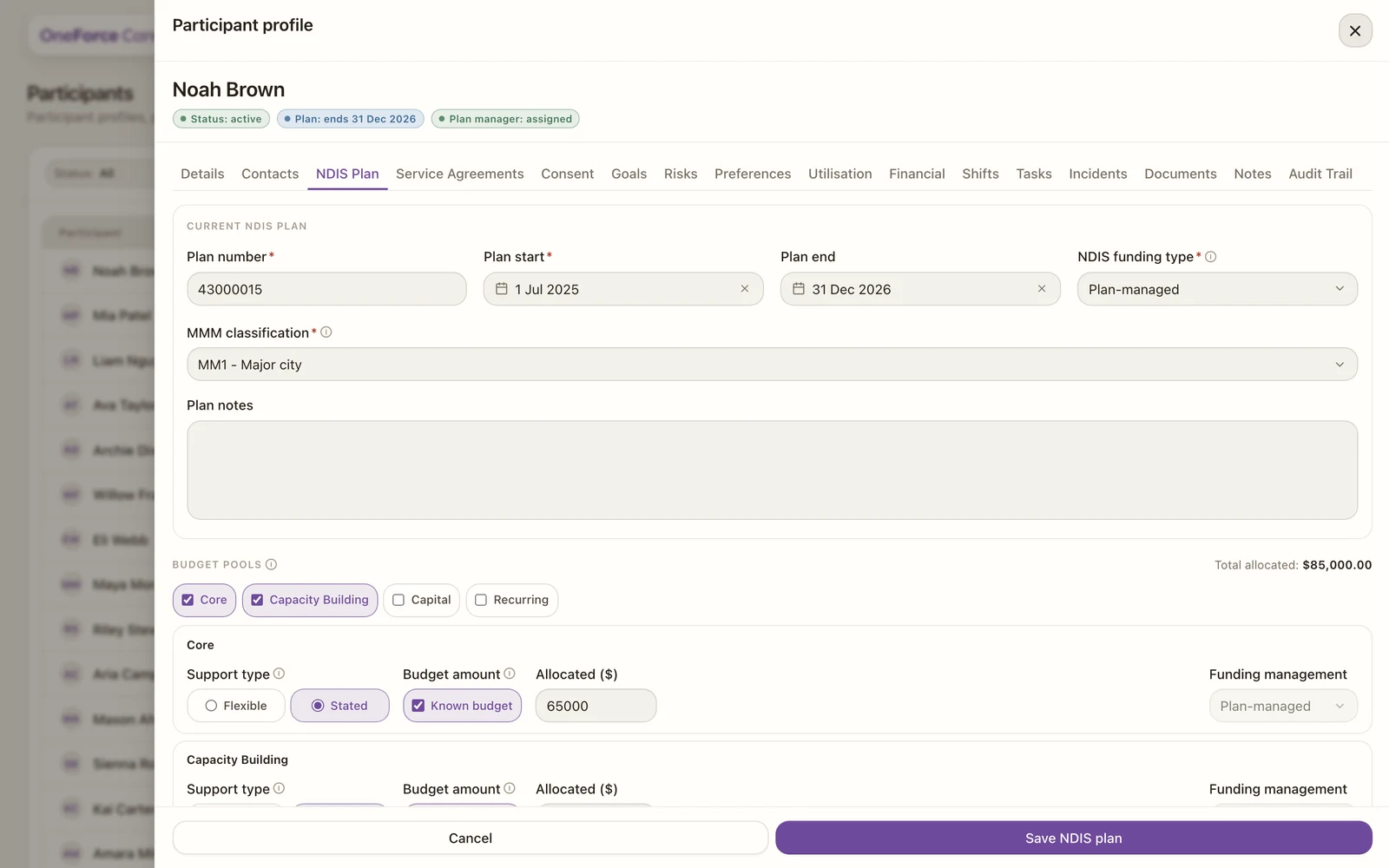
The NDIS Plan tab is the funding behind everything. Service agreements, the utilisation view and every claim read from what you enter here, so it is worth getting right. Open the participant, then select the NDIS Plan tab.
 1 2
1 2 Plan details
| Field | Required | Notes |
|---|---|---|
| Plan number | Yes | 8 to 11 digits, no letters |
| Plan start | Yes | Date picker |
| Plan end | No | Leave blank for an ongoing plan |
| NDIS funding type | Yes | How the plan is managed and paid |
| MMM classification | Yes | Modified Monash Model remoteness level |
| Plan notes | No | Internal notes about the plan |
NDIS funding type decides which invoice contacts a service agreement will need:
- Plan-managed: a plan manager pays your invoices, so you invoice the plan manager.
- Self-managed: the participant (or their nominee) pays your invoices, so you invoice them.
- NDIA-managed: you claim directly from the NDIA, so no invoice contact is needed.
- Mixed: different budget pools are managed differently. When you pick Mixed, you set the funding management on each pool below.
MMM classification is the remoteness level (MM1 major city through to MM7 very remote). It affects NDIS price limits and how much provider travel time you can claim.
Budget pools
Tick the pools this plan funds. At least one is required. A Total allocated figure adds up the known amounts.
- Core: flexible funding for everyday support, community participation, consumables and transport.
- Capacity Building: per-category funding to build independence and skills over time.
- Capital: equipment, home modifications and specialist disability accommodation.
- Recurring: ongoing or periodic supports that sit outside the main three.
For each pool you enable, set:
- Support type: Flexible or Stated (see below).
- Budget amount: tick Known budget and enter the Allocated value once you have the figure. Leave it unticked while the amount is still unknown.
- Funding management: only editable when the plan’s funding type is Mixed; otherwise it follows the plan’s funding type.
Stated versus Flexible (the one to get right)
This is the most important choice on the plan, because it changes what the service agreement requires.
Watch out
Flexible means any support in that category can be claimed, so you do not have to list specific support codes. Stated locks the budget to specific supports, so you must add the matching NDIS support codes on the service agreement. If a Stated pool has no codes, shifts that draw on it have nothing claimable and cannot be invoiced.
Save the plan
Select Save NDIS plan. You need a valid Plan number and at least one budget pool, or you will see Plan number is required., Plan number must be 8 to 11 digits. or Select at least one budget pool. Once saved, the plan can be linked to a service agreement and starts driving utilisation and claiming.