Browse help topics
Risks
What workers need to watch for before a shift, rated and with a management plan.
Last updated · 3 July 2026
The Risks tab records risks relevant to a participant’s support, so your workers know what to watch for and how each one is managed.
Open the Risks tab
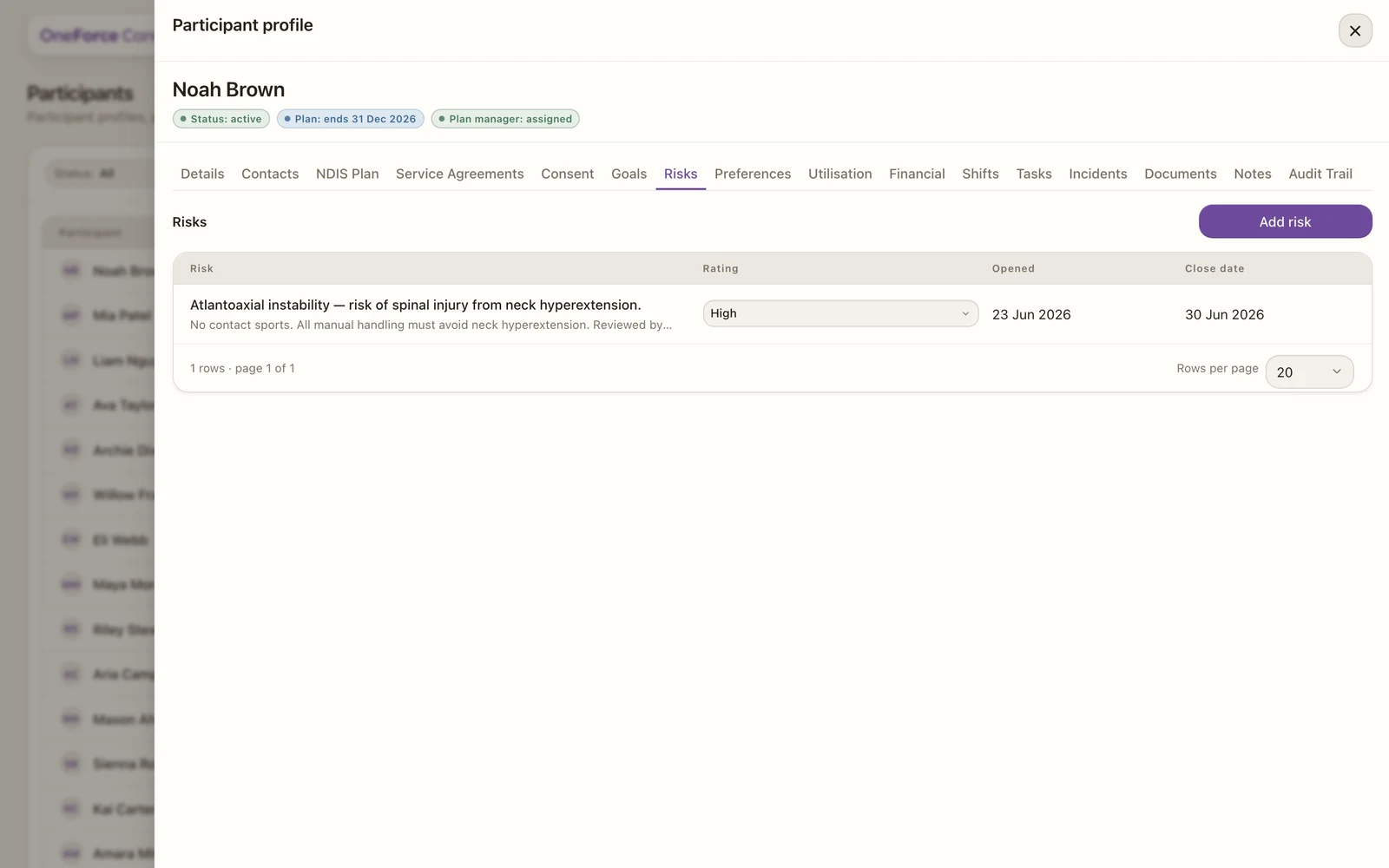
Open the participant, then select the Risks tab. Select Add risk at the top right. Existing risks appear in a table.
 1
1 Fill in the risk
| Field | Required | Notes | | --- | --- | --- | | Risk | Yes | The safety, support-delivery or safeguarding risk | | Rating | No | Low, Medium, High or Critical | | Close date | No | When the risk is reviewed or closed | | Notes | No | The control measures and how the risk is managed |
Save the risk
Select Add risk to save a new one, or Save risk when editing.
Once a risk is in the list, you can change its Rating inline from the row dropdown. The list also shows the Opened date and the Close date. Add a risk for anything a worker should be aware of before a shift, for example behaviours of concern, a health condition, or an environmental hazard. Risks travel with the participant, so everyone supporting them works from the same picture.