Browse help topics
Worker payroll
SCHADS classification, the agreed hourly rate and its annual sync, and worker travel pay.
Last updated · 3 July 2026
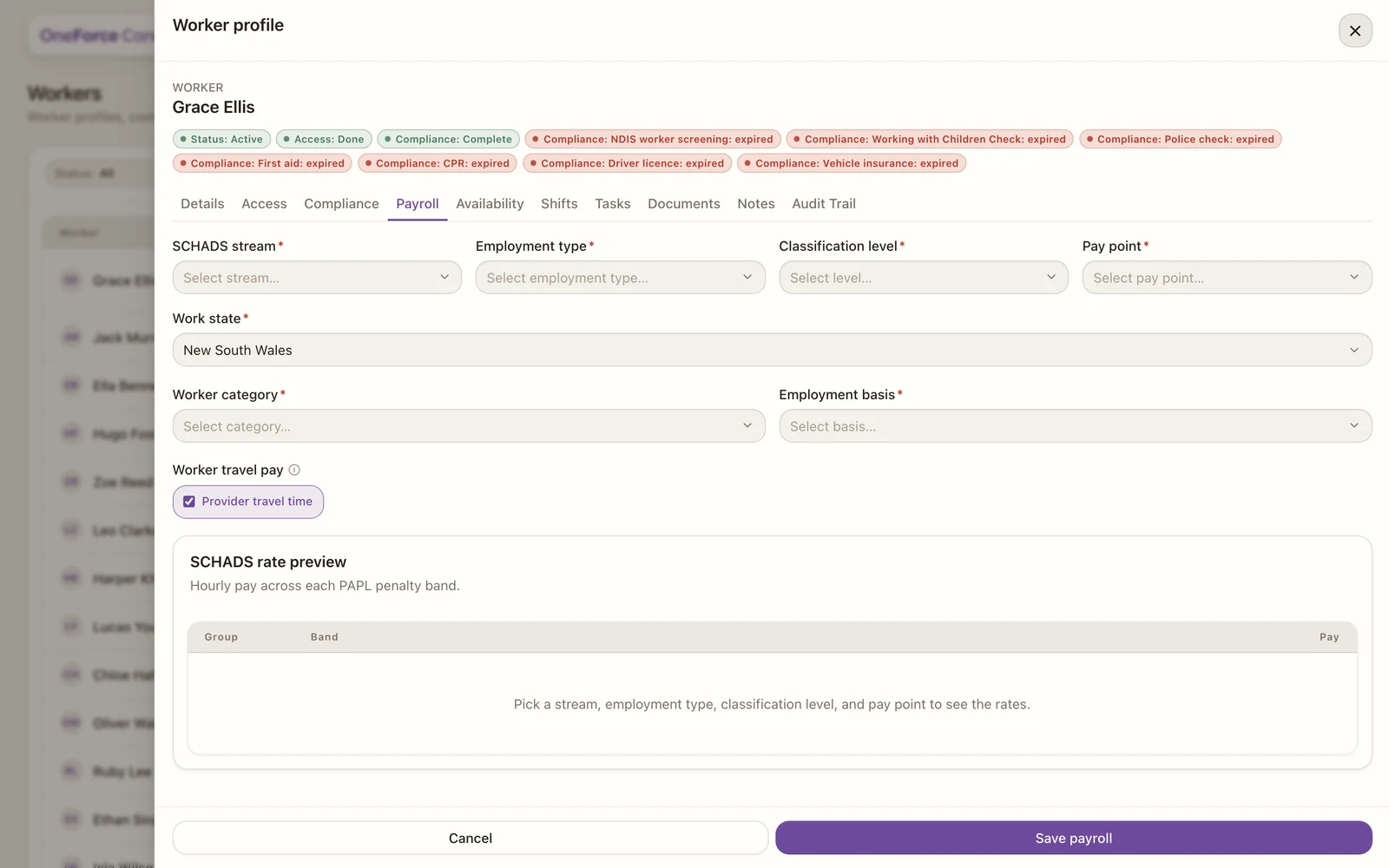
The Payroll tab sets a support worker’s SCHADS pay classification, their agreed hourly rate, and whether they are paid for travel. These choices drive the rates, penalties, overtime and travel pay applied to their shifts, so they need to be exact. The tab appears for support workers only; open it from the worker profile.
 1 2 3 4
 Set the SCHADS classification
Under SCHADS classification, fill in the five fields marked with a red asterisk:
| Field | What it drives |
|---|---|
| SCHADS stream | The award stream: Social and Community Services (SACS), Home Care: Disability, or Home Care: Aged Care. Sets which pay table applies. |
| Employment type | Full-time, Part-time or Casual. Drives minimum engagement, weekly overtime and the casual loading. |
| Classification level | 1 to 8, by the duties actually performed (SCHADS Schedule B). |
| Pay point | 1 to 4, within the classification level. |
| Work state | The state whose public holidays and 6am/8pm/midnight penalty boundaries apply to this worker’s pay. |
Stream, employment type, level and pay point together look up the base rate; work state decides whose public holidays and timezone the calc engine reads the penalty boundaries in.
Set worker category, hours and pay
Under Employment & pay:
- Worker category, required: Day worker (ordinary hours sit inside the day span, so anything outside 6am-8pm is overtime, cl. 28.2) or Shift worker (the afternoon or night shift loading applies to the whole shift instead, cl. 29.3). Support workers on rotating or evening rosters are usually shift workers.
- Agreed weekly hours: only shown, and required, when Employment type is Part-time. Maximum 38.
- Agreed hourly rate: once the classification above resolves to a published SCHADS rate, this field pre-fills with that award rate. See “The agreed rate and the annual sync” below for what to do with it.
- Worker travel pay: tick Provider travel time if you pay this worker for their travel to the participant (and the return trip to base where the participant’s plan allows it). This is the only place worker travel pay is set; it is no longer part of the Details tab.
Check the rate preview and save
Once the classification is complete, the SCHADS rate preview table below fills in with every band that applies to this worker (ordinary hours, Saturday, Sunday, public holiday, afternoon and night shift, plus the overtime and broken-shift variants for their stream), scaled to the agreed hourly rate you entered. A Provider travel time row shows “Paid at support hourly rate” or “Not paid” to match the toggle above. Some overtime bands are marked “(not auto-calculated)”: they are shown for reference, but the payroll grid prices those hours a different way (for example, overtime on a public holiday is already paid at the public holiday rate).
Select Save payroll. On success you see “Payroll classification saved.” Saving is blocked, with a toast, in any of these cases:
| Situation | Toast |
|---|---|
| No worker category chosen | ”Select a worker category (day or shift worker) before saving.” |
| No employment type chosen | ”Select an employment type (full-time, part-time, or casual) before saving.” |
| Part-time with no agreed weekly hours | ”Enter the agreed weekly hours for a part-time worker before saving.” |
| Agreed hourly rate entered but not a positive amount | ”Enter the agreed hourly rate as a positive amount, or leave it blank to pay the award rate.” |
| Agreed hourly rate below the SCHADS minimum for this classification | ”Pay rate too low: $[rate]/h is below the SCHADS minimum of $[award rate]/h.” |
| No work state chosen | ”Select the worker’s work state before saving.” |
Fix the field named in the toast and select Save payroll again.
The agreed rate and the annual sync
Every year the SCHADS award rates sync from Fair Work. The Agreed hourly rate field is where that sync meets what you actually pay this worker:
- Leave it exactly as pre-filled and the worker keeps following the annual sync automatically: when the award rate changes, theirs changes with it.
- Raise it to record an above-award pay deal. Every band in the rate preview, including all the penalty and overtime rows, scales up in the same proportion so it stays the correct award multiple of what you actually pay.
- You cannot lower it below the award figure. SCHADS is a legal floor, so a below-award entry is rejected on Save with the toast above rather than being saved.
Upload the signed employment contract as the evidence for an above-award rate; see below.
Employment contract
Under Employment contract, upload the worker’s signed employment contract: PDF, JPG, PNG, DOC or DOCX. Select Browse and the file uploads immediately, with no separate save step. You see “Employment contract uploaded.”, and it is listed in the table below the upload control, ready to view or replace.
Note
A worker’s gross pay in the Payroll run (under Workforce) stays greyed out until they have a saved SCHADS classification here. Saving it is what lets the pay engine calculate their pay.
Tip
Setting up many workers at once? Bulk import workers fills the same SCHADS columns from a spreadsheet, and the agreed hourly rate follows the same award-sync and below-award rules described above.