Browse help topics
The worker profile
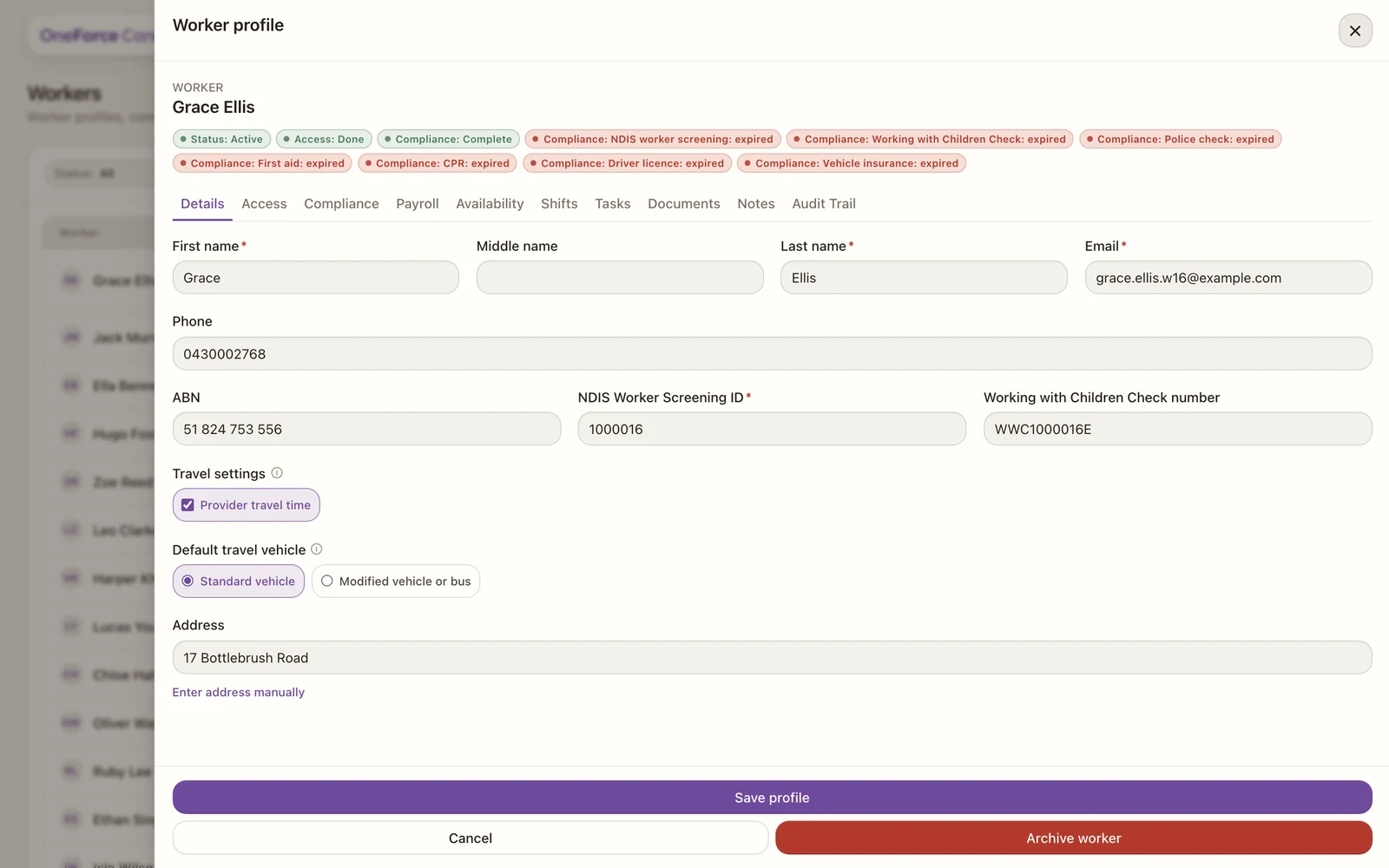
The readiness pills and the worker profile tabs.
Last updated · 28 June 2026
Open a worker from the register to see their profile. It opens as a side drawer over the list, not a separate page. The header carries readiness pills, and the detail sits across a row of tabs.
 1 2
1 2 1 Readiness pills: status, access and compliance at a glance, plus a pill for each open issue.
2 The tab rail. Which tabs show depends on the account type.
Readiness pills
The pills under the name summarise the worker:
- Status: Active, Needs attention, On leave or Inactive.
- Access: whether their login is set up (Done or Not Set).
- Compliance (support workers): Complete, Partial or Not Set, plus a pill naming any credential that is missing, expired or expiring.
The tabs
Some tabs appear only for support workers, because they cover work that office, admin and provider accounts do not do.
| Tab | Shown for | Covers |
|---|---|---|
| Details | Everyone | Name, contact, identifiers, travel |
| Access | Everyone | Account type and login |
| Security | Roles that enforce 2FA | Two-factor reset |
| Compliance | Support workers | Credentials and expiry |
| Payroll | Support workers | SCHADS classification |
| Availability | Support workers | Availability and leave |
| Shifts | Support workers | Rostered shifts |
| Tasks | Everyone | Linked and assigned tasks |
| Documents | Everyone | Attached files |
| Notes | Support workers | Internal notes |
| Audit Trail | Everyone | Change history |
Note
A worker’s tabs follow their account type. Change it on the Access tab and the support-worker tabs appear or disappear to match. A direct link to a worker does not open a page of its own; it returns you to the register, where the profile opens as a drawer.