Browse help topics
Participants register
Filter the register, read the columns and alerts, and open a profile.
Last updated · 3 July 2026
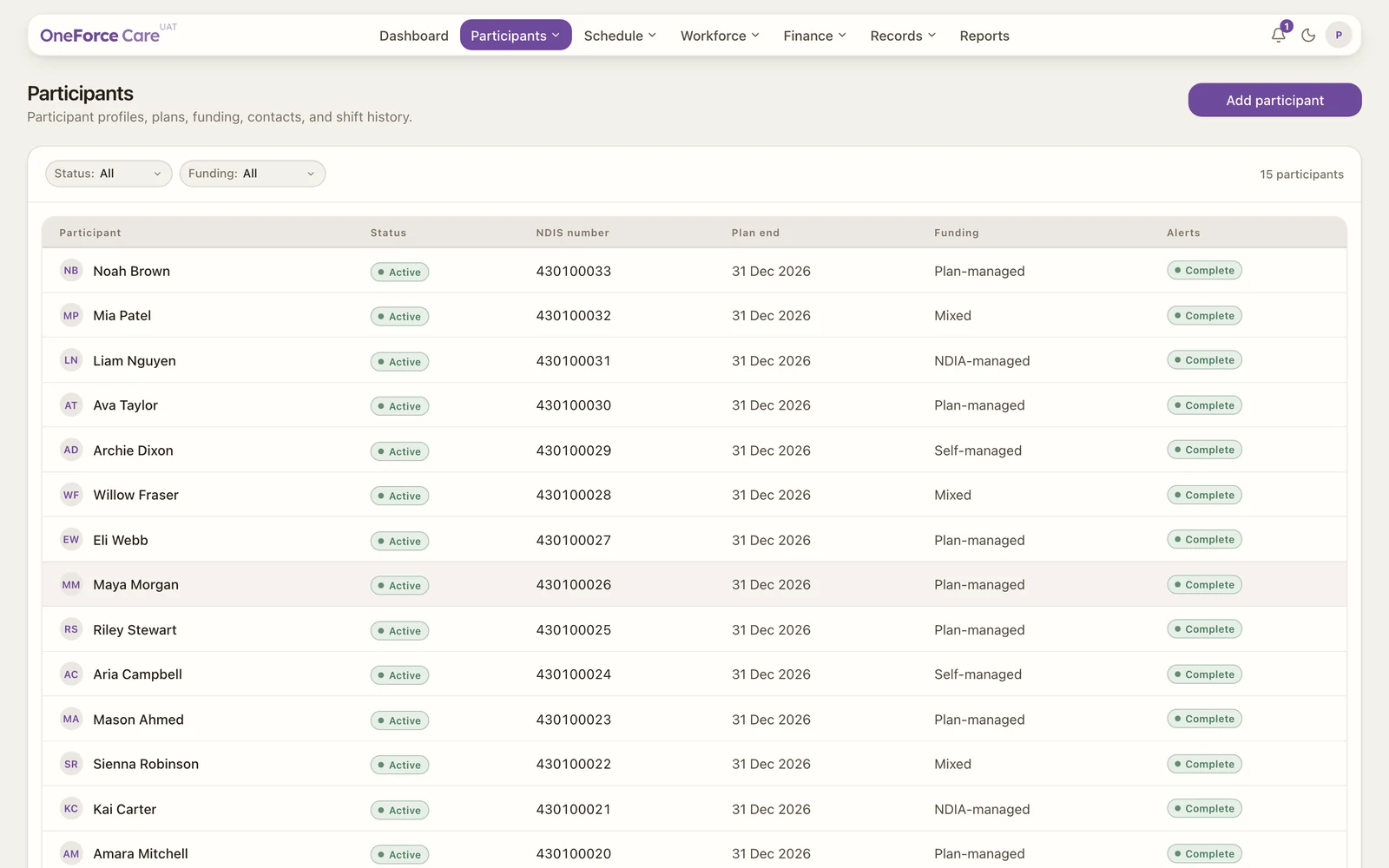
A participant record is the single source of truth for the person you support: their details, NDIS plan and funding, agreements, consent, goals, risks, contacts and notes. Shifts, invoices and claims all link back to it. You will find everyone under Participants , listed in the register.
 1 2 3 4 5
 Both buttons need your role to have permission to create participants; if it doesn’t, neither appears.
Filter the register
There is no search box. Two dropdowns narrow the list, and both apply instantly:
- Status filters by where the participant is up to: All, Created, Plan set, Agreement sent or Active. Archived participants are not in the register and there is no Archived option here.
- Funding filters by how the plan is managed: All, Plan-managed, NDIA-managed, Self-managed or Mixed.
The count at the top right (for example 16 participants) updates to match the filters.
The columns
| Column | What it shows |
|---|---|
| Participant | The participant’s full name. |
| Status | Created, Plan set, Agreement sent or Active. |
| NDIS number | The participant’s NDIS number. |
| Plan end | The current plan’s end date, or Not set if there is no plan yet. |
| Funding | Plan-managed, NDIA-managed, Self-managed or Mixed. |
| Alerts | Outstanding setup items, or a green Complete badge when there are none. |
The Alerts column
The Alerts column tells you, at a glance, what each participant still needs before they are ready for shifts and claiming. You may see:
- NDIS Plan: not started when the participant has been created but has no plan yet.
- Service agreement: not started once the plan is saved but no agreement exists.
- Coordinator: unassigned when a support coordinator is flagged but none is recorded.
- Plan manager: unassigned when a plan-managed participant has no plan manager.
- Stated support: missing codes when a Stated budget has no NDIS support codes on the agreement.
When none of these apply, the column shows a green Complete badge.
Open a profile
Select any row to open that participant’s profile. It slides in from the side as a drawer over the register, with a row of tabs for every part of their record. Closing the drawer returns you to the list.
Tip
Starting a new participant? Select Add participant at the top right: Create a participant. Setting up several at once? Select Import instead: Bulk import participants. To work through an existing record, see The participant profile.