Browse help topics
Shift statuses
Every status label, what it means, and the order they happen in.
Last updated · 3 July 2026
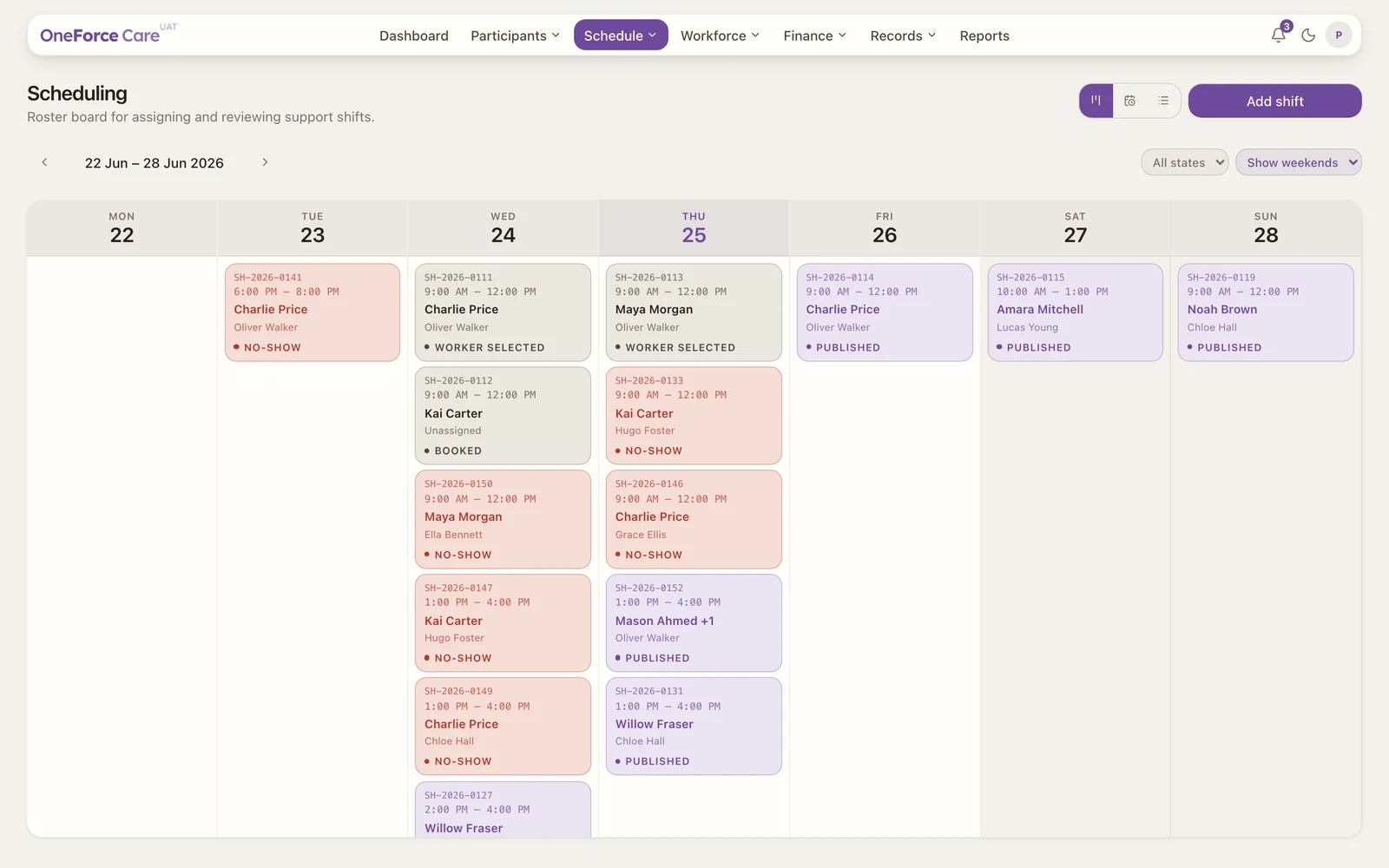
Every shift carries a status. It is worked out from the workers on the shift and what they have done, so it updates on its own as the shift progresses. The same label and colour appear on the Planner chip and the Table.
 1 2
1 2 The normal lifecycle
A shift usually moves through these in order:
| Status | What it means |
|---|---|
| Booked | Created, no worker yet. |
| Worker selected | A worker is assigned, but the assignment is not published. |
| Published | The assignment is published and visible to the worker on mobile. |
| In | The worker has clocked in. |
| Out | The worker has clocked out. |
| Submitted | A post-service progress note has been submitted. |
| Part approved | Some, but not all, workers on the shift have been approved. |
| Approved | Every worker has been approved. Sign-off is complete. |
Other statuses
| Status | What it means |
|---|---|
| Copied | A fresh copy of another shift that has not been published yet. |
| No-show | Published, nobody clocked in, and the scheduled end has passed. |
| Cancelled | The shift, or a participant on it, was cancelled. The chip also shows a lock icon. |
Note
Status is shown only by the label and its colour. There is no on-screen legend. On the Planner the labels appear in capitals, for example NO-SHOW and WORKER SELECTED, and only show at all once a chip is wide enough; a very short shift may show just its participant and time.
Tip
Publishing is the step that hands a shift to the worker, from the assignments drawer. Once a worker clocks in or provider travel starts, the shift locks: time, location, participants and support can no longer be changed, though you can still manage assignments or cancel.