Browse help topics
Add a manual charge
Add a charge that isn't tied to a shift, then edit or remove it.
Last updated · 3 July 2026
Most charge rows come from shifts, but you can also add one by hand, for example a cancellation charge, a transport correction, a non-face-to-face charge, an Irregular SIL claim, or a one-off adjustment. A manual charge is not tied to a shift.
Open the drawer
Go to Finance ›Billing and select Add manual charge at the top right. The Manual charge / adjustment drawer opens.
Complete the fields
Fields with a red asterisk are required. Some fields appear only for certain choices, so the drawer changes as you fill it in.
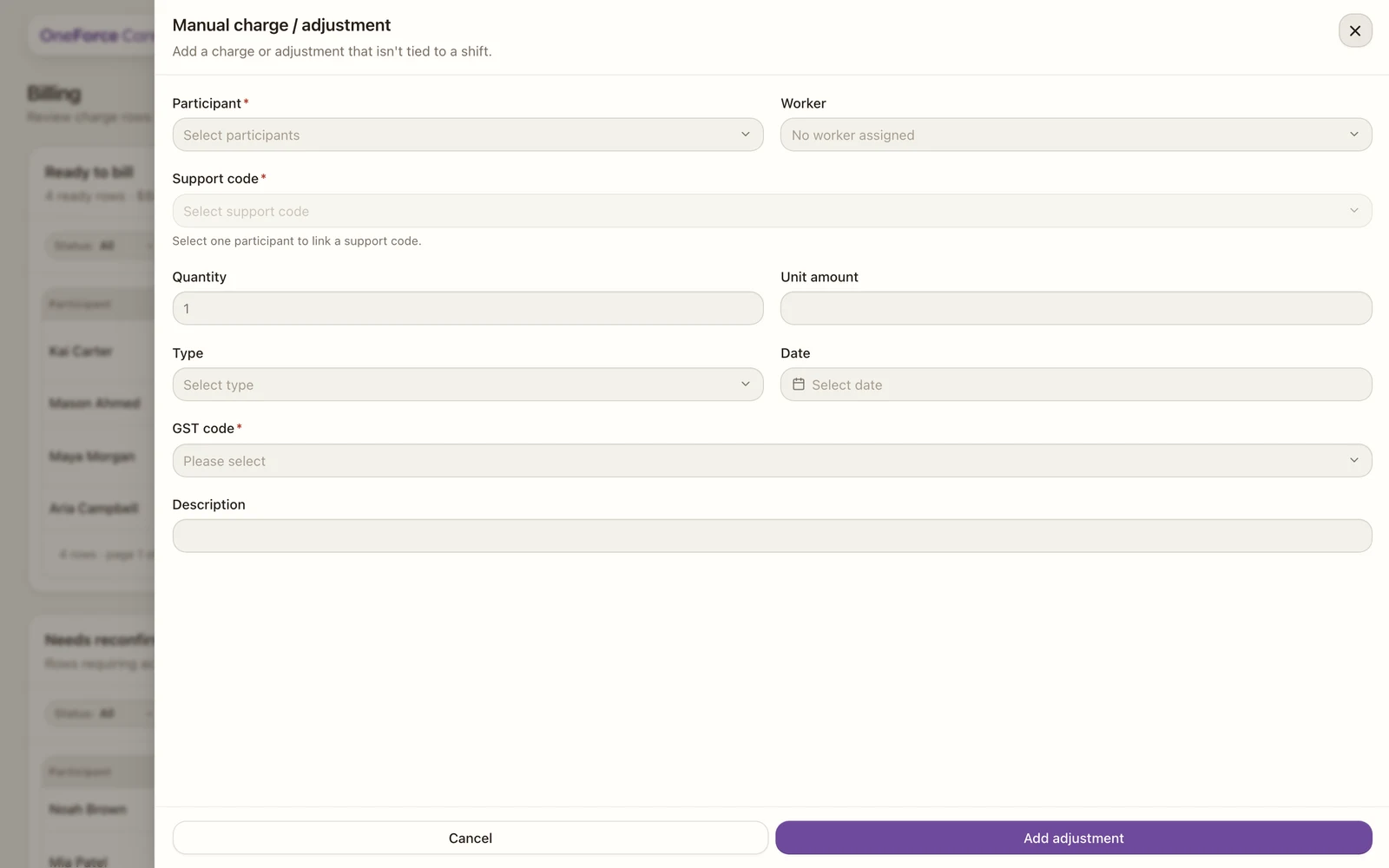 1 2 3
1 2 3 | Field | Required | Notes |
|---|---|---|
| Participant | Yes | Pick one or more. The charge is added once per selected participant. |
| Worker | No | Defaults to “No worker assigned”. Only support-delivery workers are listed. |
| Support code | Yes | Unlocks once a participant is chosen. Selecting a code fills the rate where the catalogue has one, and sets the unit. |
| Billable time and Hourly rate | Time required | Shown only when the support is charged per hour. |
| Quantity and Unit amount | Yes | Shown for non-hourly supports. Quantity defaults to “1”. Unit amount is locked when the catalogue sets a fixed price. |
| Type | Yes | One-off charge, Cancellation charge, Transport correction, Non-face-to-face charge, Extra billing item, Rate/quantity correction, or Irregular SIL claim. |
| Allowed purpose | Yes, when shown | Appears for One-off charge, Extra billing item and Rate/quantity correction. Support delivery correction or Billing reconciliation. |
| Date | Yes | The service date for the charge. |
| GST code | Yes | P2 - GST Free, P1 - 10% GST, or P5 - GST out of scope. Defaults from your provider invoicing settings. See Generate invoice batches for what each code means on the PDF. |
| Cancellation reason | Yes, when shown | Appears only for a Cancellation charge. NSDH, NSDF, NSDT or NSDO. |
| Irregular SIL preconditions confirmed | Yes, when shown | Appears only for an Irregular SIL claim. See below. |
| Description | No | Free text. |
Note
Picking Irregular SIL claim as the Type shows a checkbox, Irregular SIL preconditions confirmed: “I confirm this is not a Regular (planned) SIL support, the participant/nominee has had the requirement and other options explained, and has agreed to this claim before the payment request (PAPL p.35).” Tick it before saving. If the chosen support code isn’t flagged for Irregular SIL claims in the PAPL, a warning appears; choose a SIL support item that permits it.
Save
Select Add adjustment at the bottom of the drawer. On success you see “Manual adjustment added.” when you chose one participant, or “Manual adjustment added for N participants.” when you chose several. If some participants failed and others succeeded, you see “Added X of N charges. Failed for [names]: [reason]” instead; fix the failures and add them separately.
A new manual charge is not linked to a plan budget, so it lands in Needs reconfirmation with the reason “Confirm this manual charge’s budget draw-down.” Open the row and use Include in billing to confirm the draw-down before it can be batched. See Fix billing blockers.
Edit or remove a manual charge
Select the manual row in either table to open the Manual charge drawer, then use the footer buttons (shown only while the row has not been batched):
- Edit charge reopens the drawer as Edit manual charge. Change the values and select Save changes. On success you see “Manual charge updated.” The row re-validates on save, so it may return to Needs reconfirmation. Editing an Irregular SIL claim clears the preconditions checkbox, so re-tick it before saving again.
- Remove charge deletes the row. A confirm dialog warns “This permanently removes the charge row from the register.” On success you see “Manual charge removed.”
Watch out
The NDIS prohibits certain fees on invoices: gap fees, credit card surcharges, surcharges generally, late payment fees, late fees, exit fees and additional fees. The platform checks the description you enter and blocks the save with “NDIS rules prohibit [the fee] on invoices. Remove the prohibited fee before adding this manual adjustment.” if it matches one of these.