Browse help topics
Organisation settings
Business name, logo, ABN, NDIS registration and address; the Organisation tab also holds Role-based access.
Last updated · 3 July 2026
The Account ›Organisation tab holds your business details. They appear on your invoices and claims, so keep them accurate. Below the business details, the same tab holds the Role-based access section; see Roles and permissions.
Note
The Organisation tab is shown to the provider owner and admins, but they see different things on it. Only the owner sees the Business details card below. Owners and admins both see Role-based access.
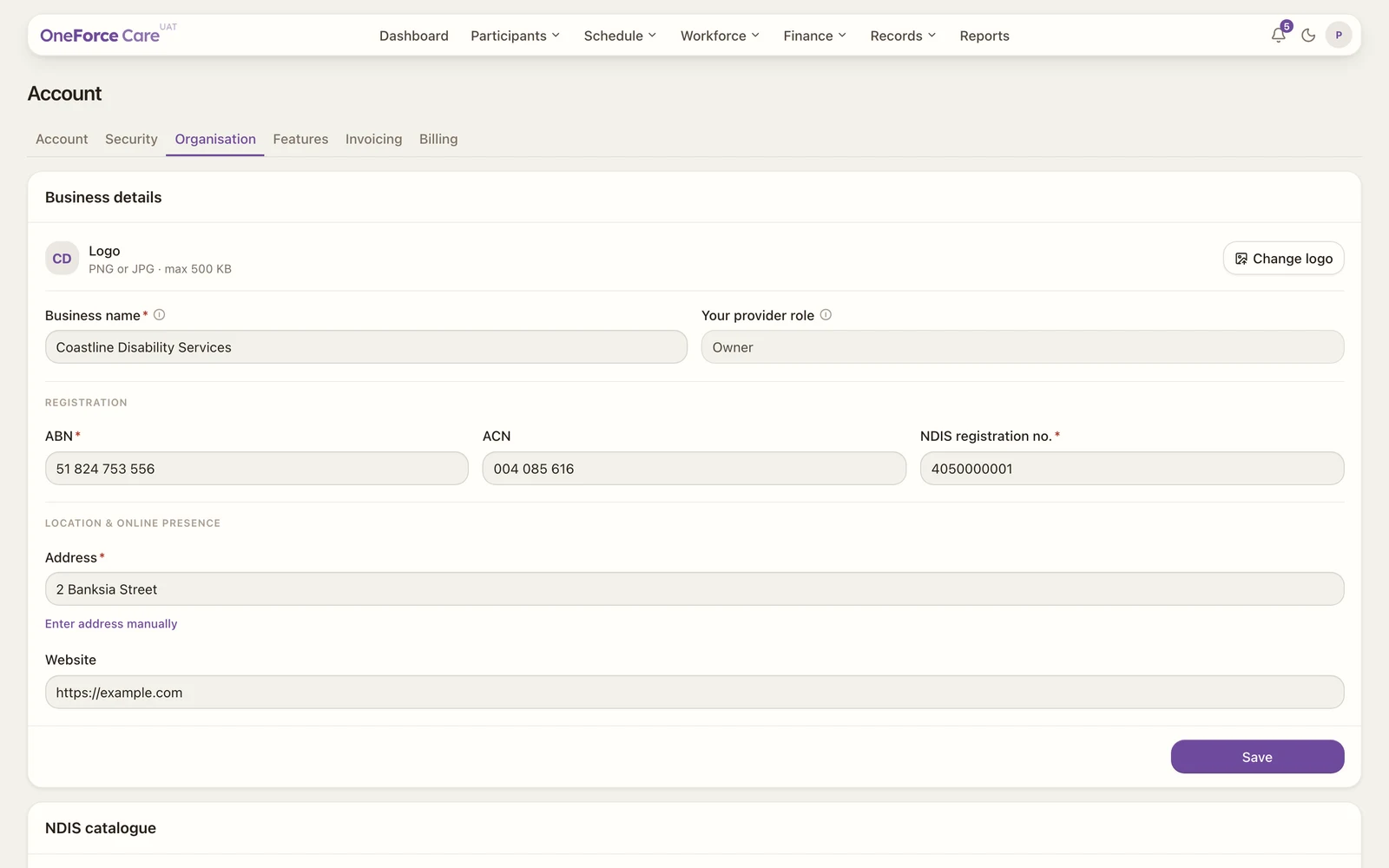 1 2 3
1 2 3 Business details
| Field | Required | Notes |
|---|---|---|
| Logo | No | Select Change logo, then a PNG or JPG up to 500 KB. It saves the moment you pick the file. |
| Business name | Yes | |
| Your provider role | Read-only | Shows your role, for example Owner. |
| ABN | Yes | 11 digits, validated against the ATO checksum. |
| ACN | No | 9 digits when present. |
| NDIS registration no. | Yes | 8 to 11 digits. |
| Address | Yes | Start typing and choose the match, or select Enter address manually. |
| Website | No | A full URL, for example https://example.com |
Select Save. You see Business details saved. If a field is wrong, the first problem is shown as a message, for example Enter a valid ABN.
The logo is the one exception: it saves on its own when you choose the file, with the toast Logo saved. It does not wait for Save.
Tip
Scroll down for Role-based access: see Roles and permissions to create roles and assign provider employees to them. If you’re an admin rather than the owner, Role-based access is all you’ll see on this tab.