Browse help topics
Notifications
Mark notifications read, set notification preferences, and message all workers.
Last updated · 18 July 2026
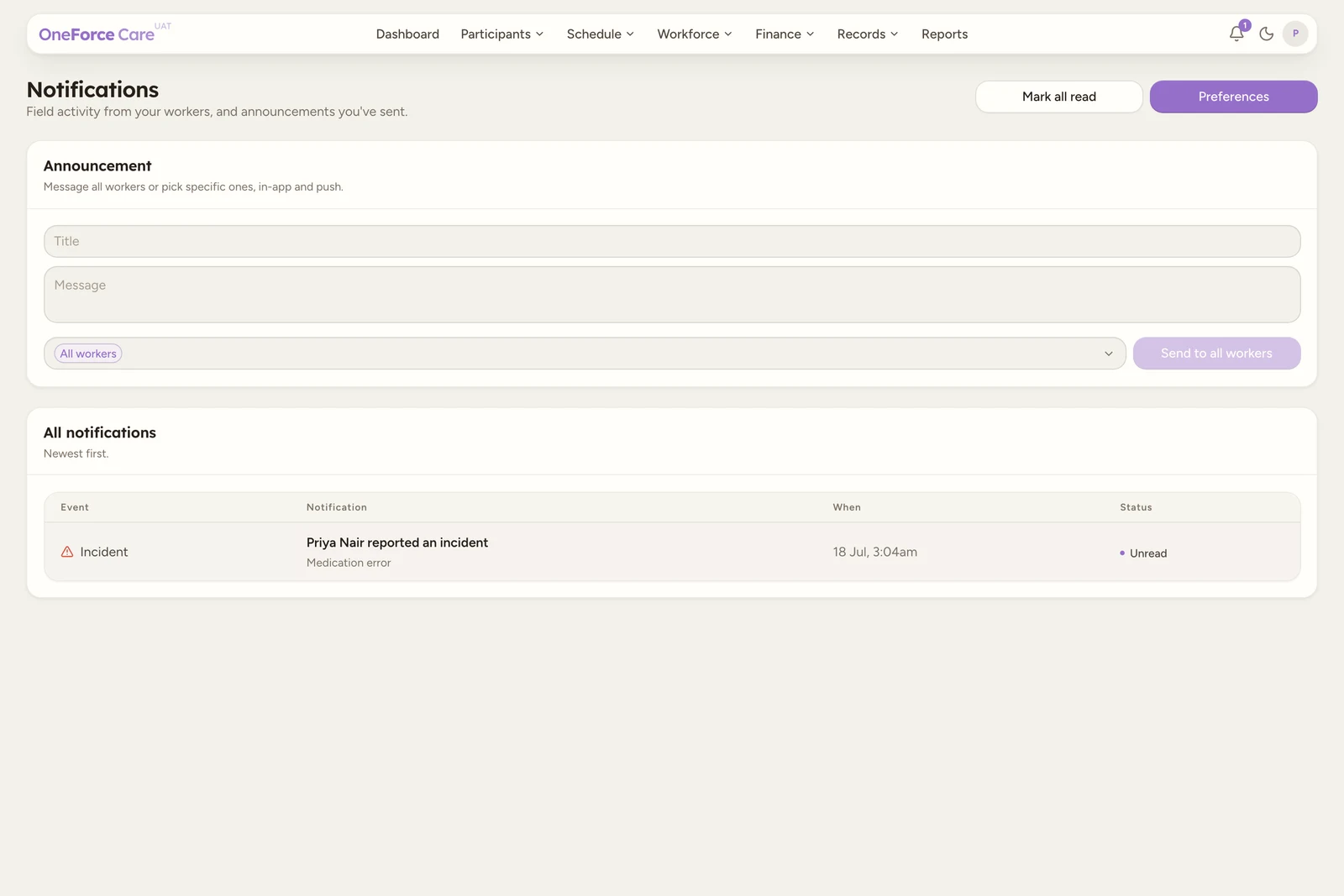
The bell icon at the top right keeps you across field activity from your workers, plus any announcements you have sent. Select the bell to see the five most recent items, or open the full page from Notifications .
 1 2 3 4
 Read and clear notifications
The All notifications table lists items newest first, with the Event, the Notification text, When it happened, and a Status of Read or Unread.
- Select Mark all read to clear every unread item at once. It is greyed out when nothing is unread.
- Select any Unread row to mark just that one read.
Notification preferences
Select Preferences to choose which field events notify your office team. These apply to everyone in your workspace, and new events are on by default, so you only turn off what you do not want.
The toggles are grouped:
| Group | Events |
|---|---|
| Attendance | Clock in; Clock out |
| Travel | Travel started; Travel ended |
| Participants | Pickup; Drop-off |
| Notes | Progress note submitted |
| Breaks | Break started; Break ended |
| Reminders | Late clock-in; Missed clock-out; Progress note overdue |
| Incidents | Incident reported |
There is no Save button: each toggle saves on its own, with a toast such as Clock in notifications off.
Note
Incident reported is always on and cannot be turned off, so a reported incident never goes unseen.
Send an announcement
If you have Settings edit access, the Announcement card lets you message your workers in their app and as a push notification. It reads Message all workers or pick specific ones, in-app and push.
Choose who it goes to
Leave the Recipients picker empty to reach every active worker, shown as an All workers chip. To target specific people, search the picker (Search workers) and add them; each one becomes a chip. The picker is a searchable multi-select, so you can add as many as you need.
Write the message
Enter a Title (up to 120 characters) and a Message (up to 1000 characters). The send button stays greyed out until both have text.
Send it
The send button reflects who it reaches: Send to all workers when the picker is empty, or
Send to workers when you have chosen specific people. Select it, and a Send announcement?
dialog confirms the audience: This goes to every active worker in your workspace, in their app
and as a push notification. for everyone, or This goes to N selected worker(s), in their
app and as a push notification. when you targeted people. Select Confirm. You see
Announcement sent to N worker(s). and the fields clear. If nobody matched, you see No
matching workers to notify. instead.
Watch out
An announcement cannot be recalled once sent. Check the recipients, title and message before you select Confirm.