Browse help topics
Directory overview
Everyone connected to your provider in one place: business, workers, participants, and contacts.
Last updated · 2 August 2026
The directory is a single page that lists every person and organisation connected to your provider workspace. It is partly a read-through view of records that live elsewhere (your business, your workers and your participants) and partly a contacts register you build here (plan managers, support coordinators, clinicians, and other external contacts).
Open it from Records›Directory.
Switch between four views
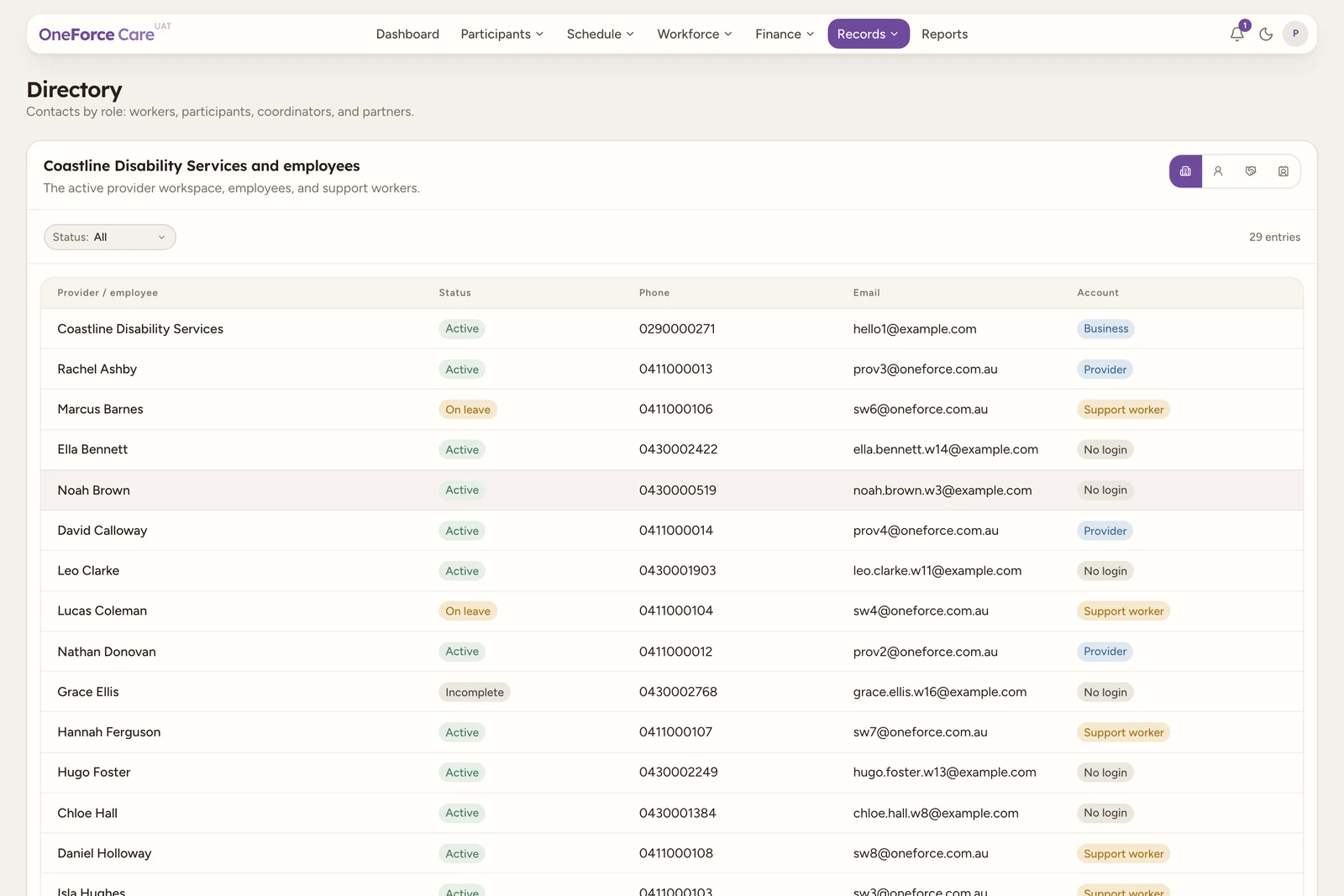
One page holds four views. Use the icon toggle at the top right of the panel to switch between them. Hover an icon to see its name. The directory opens on Business and employees.
| View | What it shows | Columns |
|---|---|---|
| Business and employees | The active provider workspace, employees, and support workers. This is the default view. | Provider / employee, Status, Phone, Email, Account |
| Participants | Participants connected to this provider workspace. | Participant, Status, State, Phone, Email |
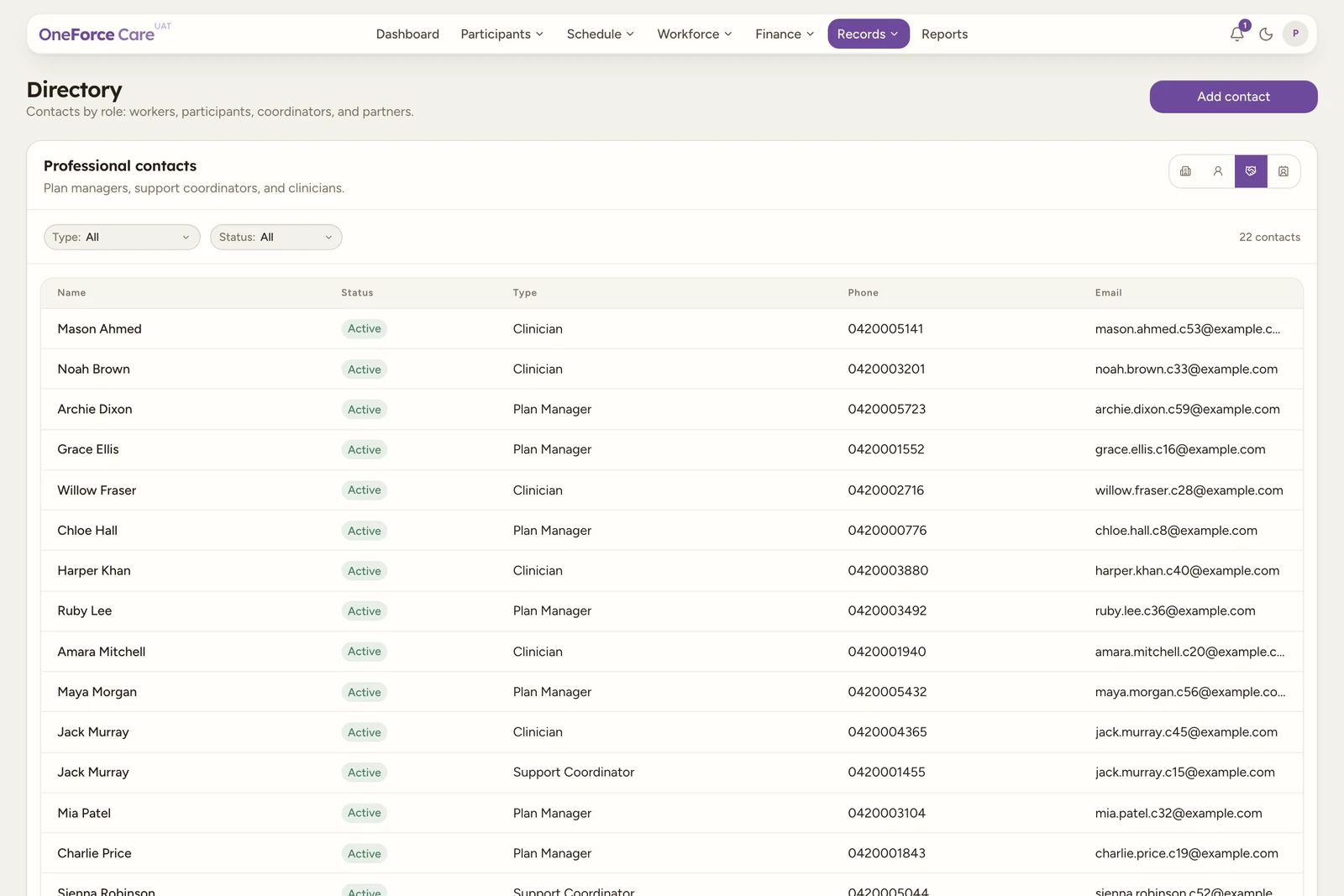
| Professional contacts | Plan managers, support coordinators, and clinicians. | Name, Status, Type, Phone, Email |
| Contacts | External contacts not in another category: nominees, guardians, family, advocates, government, provider partners, emergency contacts, and others. | Name, Status, Type, Subtype, Linked to, Phone, Email |
Each view has its own Status filter and a Search box that matches any text in the row, so you can find a person by name, phone or email without leaving the view you are in. Long lists page 20 rows at a time, with the pager under the table.
The panel title above the table names your provider (for example “Acme Care and employees”) on the Business and employees view. Empty Phone, Email or State cells read Not set. On Contacts, Subtype shows the business name for organisation-type contacts and is blank for personal ones (nominee, guardian, family, emergency contact); Linked to shows the participant’s name if the contact is linked to one, or Provider if it isn’t.
Note
A plan manager, support coordinator or clinician linked to more than one participant still only needs entering once per participant, but Professional contacts shows it as a single row rather than one row per participant. See Add a contact for how that matching works and why an email matters for these three types.
Where records come from
The first two views are read-only roll-ups. Workers come from the Workers page and participants come from the Participants page, so you add and edit them there, not here.
New records are only created in the two contact views. When you switch to Professional contacts or Contacts, an Add contact button appears at the top right, provided your role has permission to create directory contacts; if it doesn’t, the button doesn’t appear.
If a view has nothing in it yet, you see an empty state instead of a table:
| View | Empty state |
|---|---|
| Business and employees | “No provider employees yet” - Add workers from the Workers page. |
| Participants | “No participants yet” - Add participants from the Participants page. |
| Professional contacts | “No professional contacts yet” - Add plan managers, coordinators, or clinicians. |
| Contacts | “No directory contacts yet” - Add contacts for this provider. |
Opening a row
Selecting a row in Business and employees or Participants opens that worker’s or participant’s full profile if your role can read that area. Without read access, it opens a narrow read-only summary panel instead, showing a handful of key fields; if your role can also archive workers or participants, the summary panel adds an Archive worker or Archive participant button that takes you to the Workers or Participants page with the archive prompt for that record already open. Selecting a row in Professional contacts or Contacts always opens that contact’s own edit drawer, since Directory owns those records directly.
Note
Everything in the directory is scoped to the provider workspace you have selected. If a person you expect is missing, check you are in the right workspace.
Tip
Ready to add a plan manager, coordinator, clinician or other contact? See Add a contact.