Browse help topics
Organisation settings
Business name, logo, ABN, optional NDIA organisation ID and address; the Organisation tab also holds Role-based access.
Last updated · 10 November 2026
The Account›Organisation tab holds your business details. They appear on your invoices and claims, so keep them accurate. Below the business details, the same tab holds the Role-based access section; see Roles and permissions.
Note
The Organisation tab is shown to the provider owner and admins, but they see different things on it. Only the owner sees the Business details card below. Owners and admins both see Role-based access.
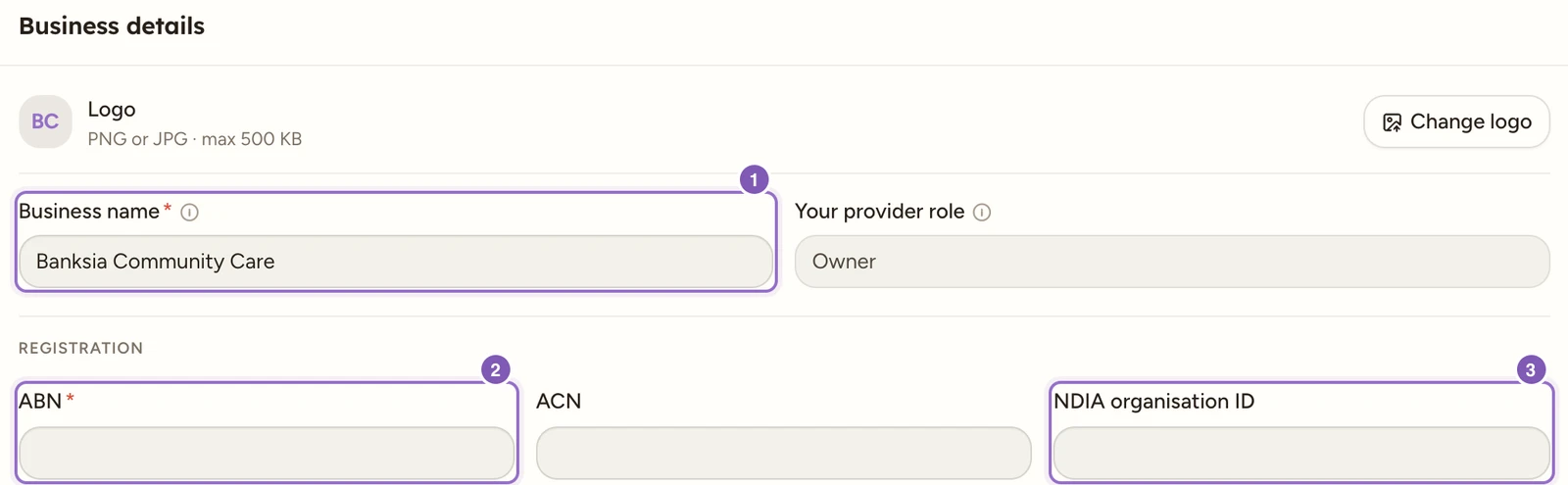
Enlarge screenshot
Swipe across the enlarged image to read each part of the screen.
Banksia’s saved name is shown with separate identifier fields. The fictional workspace leaves ABN, ACN and NDIA organisation ID blank; use your own verified identifiers.
Business details
| Field | Required | Notes |
|---|---|---|
| Logo | No | Select Change logo, then any image file up to 500 KB (PNG or SVG hold up best). It saves the moment you pick the file. |
| Business name | Yes | |
| Your provider role | Read-only | Shows your role, for example Owner. |
| ABN | Yes | 11 digits, validated against the ATO checksum. |
| ACN | No | 9 digits when present. |
| NDIA organisation ID | No | Enter the ID as issued. Required before saving an NDIA-managed plan. |
| Address | Yes | Start typing and choose the match, or select Enter address manually. |
| Website | No | A full URL, for example https://example.com |
Select Save. You see Business details saved. If a field is wrong, the first problem is shown as a message, for example Enter a valid ABN.
If you add an NDIA-managed plan, enter the provider’s NDIA organisation ID first. The plan form directs you back to Account›Organisation when it is missing or invalid.
The logo is the one exception: it saves on its own when you choose the file, with the toast Logo saved. It does not wait for Save.
Tip
Scroll down for Role-based access: see Roles and permissions to create roles and assign provider employees to them. If you’re an admin rather than the owner, Role-based access is all you’ll see on this tab.
Close or recover a workspace
The owner can use Danger zone > Delete workspace. Business access stops immediately after confirmation, followed by a 30-day (720-hour) recovery and download period. The owner can reactivate eligible closures from Workspace recovery before the displayed deadline and reconnect Xero separately. Read Close, recover or download a workspace before confirming. Closing does not settle financial obligations.
Check which business detail needs changing
Use Business name for the organisation, not your personal profile name. Your provider role is a read-only access label. ABN, optional ACN and NDIA organisation ID are different identifiers; copy each from its own verified source rather than entering the same number in all three fields. Registration choices under Features are a separate record of the supports the organisation is registered to deliver.
When using Enter address manually, complete Address, Suburb, State and Postcode and check them before Save. A logo change saves immediately on file selection, while the text fields use Save. After Business details saved., reopen the tab and inspect the saved values. Changes to current business details do not rewrite an issued invoice’s frozen information.