Browse help topics
Clock in and out
Open today's shift, then slide to clock in and slide to clock out. Your provider can set how early you can start and check you are at the address, so the slider may be locked or a clock-in refused.
Last updated · 2 August 2026
You clock in and out from inside the shift itself. The clock controls are slide actions, not buttons: you drag the handle all the way across the track. A clock-out cannot be undone, which is why it is a deliberate slide.
Two settings your provider controls can affect when and where you are able to clock in: a clock-in window (how early you can start) and a location check (being at the address). Both are covered further down, in When you can clock in and Where you can clock in.
Clock in to a 1:1 shift
Open today's shift
Open the shift from the Home tab (the card at the top, or a row under Up next), or from the Shifts tab by tapping the shift card. The shift opens in a sliding panel.
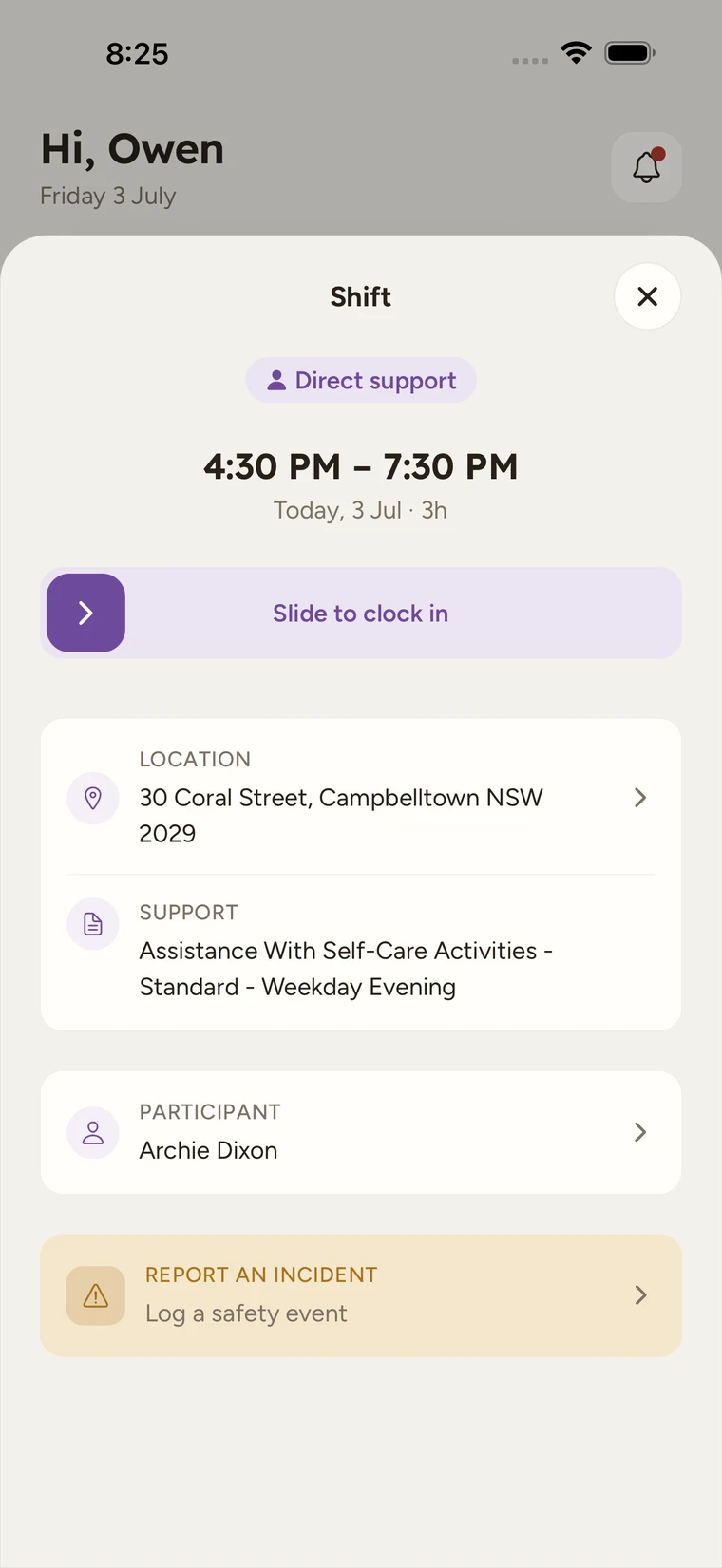
Slide to clock in
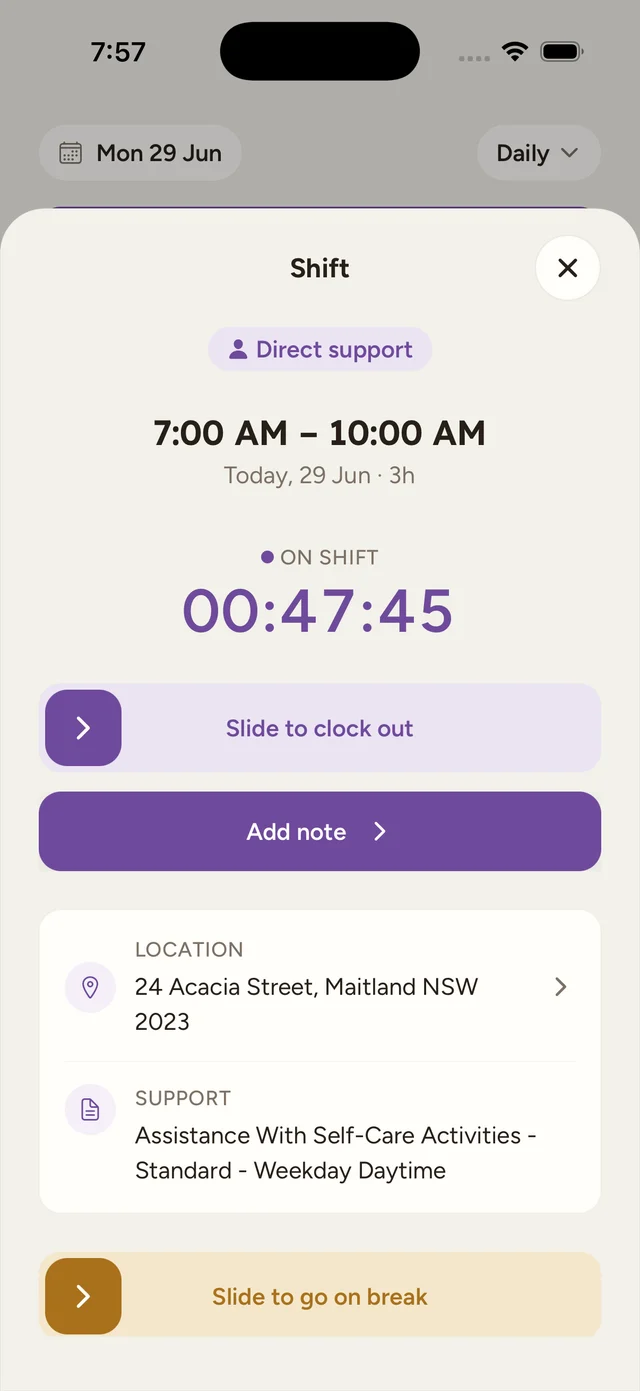
Drag the Slide to clock in handle all the way across. It reads Saving… for a moment, then a live On shift timer appears and counts up while you work. If you are too early, the slider is locked and shows a countdown instead, such as Clock in available in 04:32.
Slide to clock out at the end
When the shift is finished, drag Slide to clock out all the way across. There is no confirmation step, so only do this when you are genuinely done. Your next step is the progress note, covered in Progress notes and submitting a shift.
Clock in to a group shift
A group shift has no Slide to clock in control. Instead, you clock in automatically when you pick up your first participant.
Open the group shift
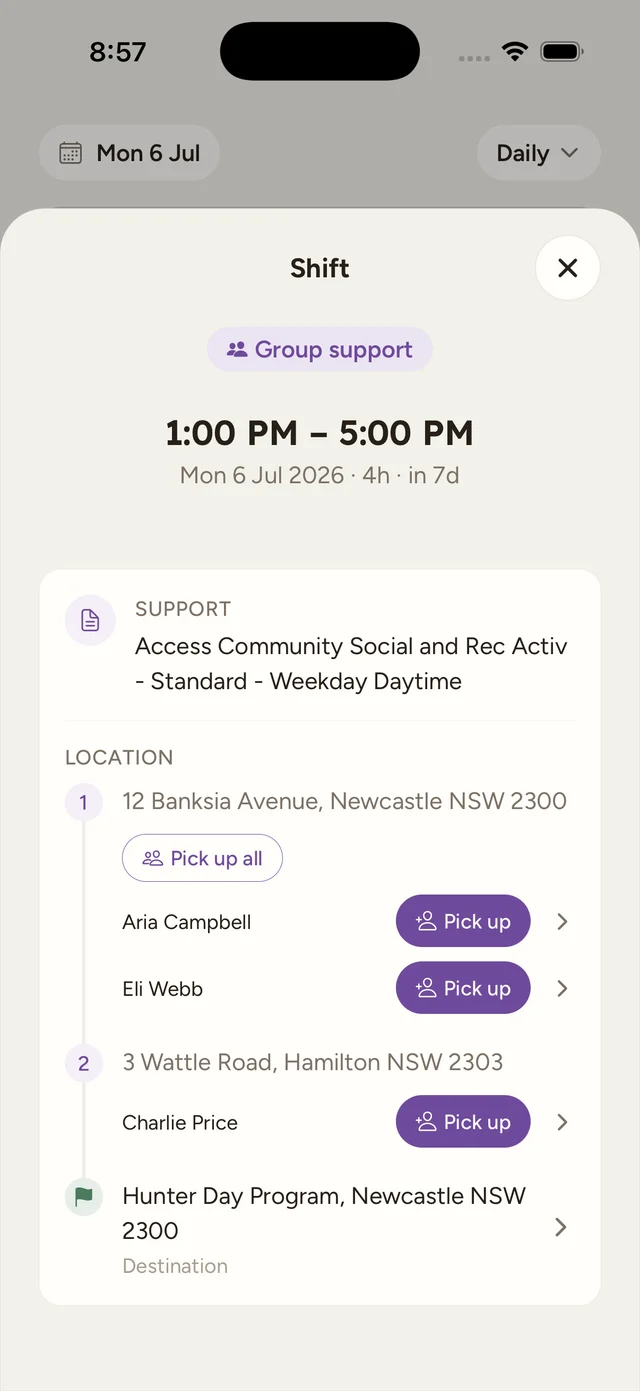
Open the shift the same way. Instead of a single location, a group shift shows the pickup run as a list of stops.
Pick up the first participant
Tap Pick up next to a participant. This marks them picked up and clocks you in at the same time. Where a stop has two or more people waiting, you can tap Pick up all.
Slide to clock out at the end
When the run is finished, drag Slide to clock out all the way across, just like a 1:1 shift.
Because that first pickup is what starts your shift, it is checked the same way a Slide to clock in would be: too early, or too far from the first pickup address, and it is refused. The window and location rules are the same, but on a group run the location message names your first pickup rather than the shift address, and it arrives under the heading Couldn’t mark pickup rather than Clock in blocked. Later pickups on the run are never checked, so once you are under way you can collect people in whatever order the run actually happens.
Each person on the run wears a pill showing where they are up to: Pick up while they are still to be collected, then Picked up, and at the end Complete, Left early, No show or Not picked up. A group shift card that has more than one pickup address reads Multiple addresses instead of a single street, and the run itself finishes at the Destination.
When you can clock in: the clock-in window
Your provider sets how early you are allowed to clock in before the scheduled start. Out of the box that is 5 minutes, but they can set anything from no limit at all up to three days, so a roster published well ahead can be started the moment the shift is real to you.
Before the window opens, the Slide to clock in control is locked and counts down, for example Clock in available in 04:32. You do not need to do anything: the slider unlocks by itself when the countdown runs out. Group shifts have no clock-in slider, so on those the limit shows up only if you try to mark the first pickup too early.
Where you can clock in: the location check
Providers also have a location check, on out of the box, that requires you to be at the place the shift starts before the app will let you clock in. When it is on:
- You need to be within 150 m of the address where the shift starts. On a group run that is your first pickup, not the destination, because the first pickup is where the shift begins.
- The app takes a single location reading when you slide. It does not follow you around, and it takes no reading at all if your provider has this turned off.
- Your phone’s own accuracy is taken into account, so a rough fix indoors or under a carport is not held against you.
- A shift whose address could not be placed on a map is not checked at all. If the office has typed an address the app cannot pin down, you clock in normally.
Location is checked at clock-in, not tracked all shift
This is one reading at the moment you slide, and only when your provider has the check switched on. The app records your route continuously in only one situation: while a travel leg is running, which you start and end yourself. See Breaks and travel.
Clock in blocked: what the message means
If a clock-in is refused, the app shows a dialog headed Clock in blocked (or Couldn’t mark pickup on a group run) with one of these messages. Each one names the next move.
| Message | What it means | What to do |
|---|---|---|
| You are not at the shift address yet. Head to 12 George St, then slide to clock in. | You are more than 150 m from where the shift starts. The message names the address the office has on the shift. | Get to the address it names, then slide again. If you are standing at it, wait a few seconds for your phone to get a better fix and try once more. |
| You are not at your first pickup yet. Head to 4 First St, then mark the pickup. | The same check on a group run, measured against your first pickup, not the destination. | Go to the pickup address in the message and mark that pickup there. Later pickups on the run are not checked. |
| This shift opens for clock in 5 minutes before it starts. Hang tight. | You are earlier than the clock-in window your provider set. The number in the message is their setting, so it is not always 5. | Wait. The slider unlocks itself when the window opens, and the countdown on it tells you how long. |
| Your phone could not share your location. Turn location on for the app, then slide again. | The app asked your phone where you are and got nothing back, usually because location is off for the app or the signal is very poor. | Turn location on for OneForce Care in your phone’s settings, step outside if you are somewhere with no signal, then slide again. |
If you are genuinely at the right place at the right time and it still will not let you in, contact your provider’s office. They can see both settings on the shift and can correct the address or start the shift for you.
Tip
A refused clock-in changes nothing. The shift stays exactly as it was, so you can fix whatever the message named and slide again as many times as you need.
Intensive support shifts
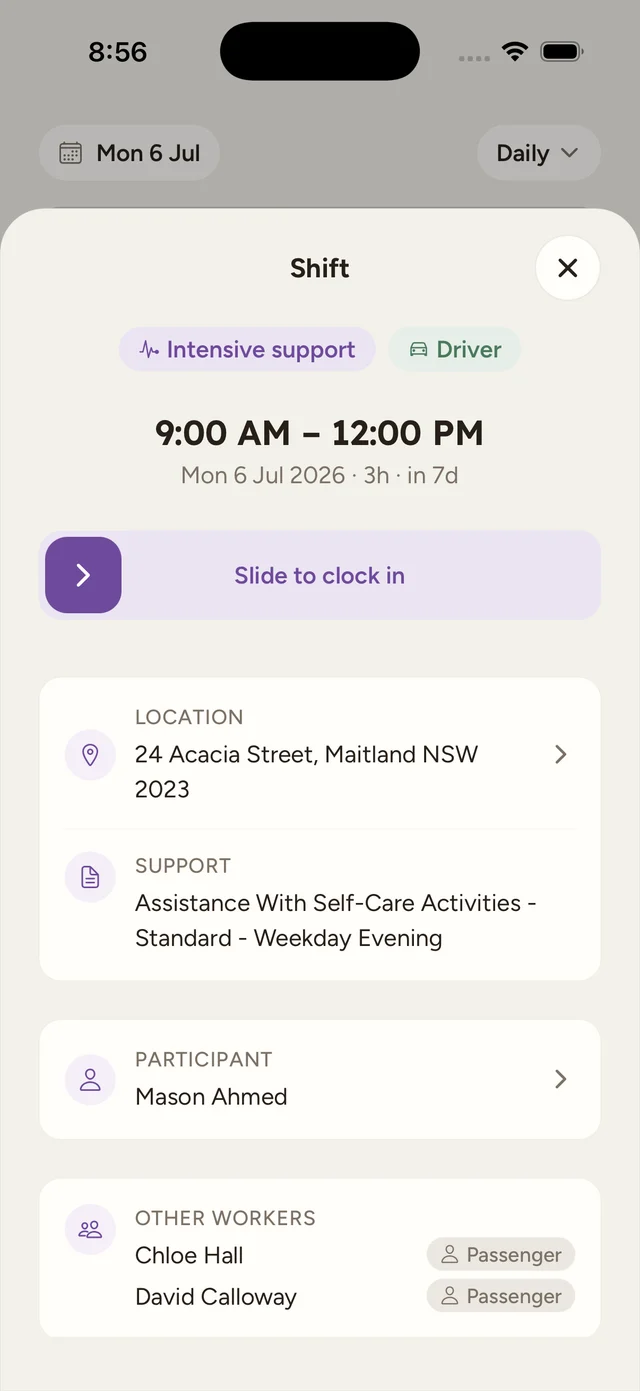
Some participants are funded for more than one worker at a time (2:1 or 3:1). These show as Intensive support, and the shift names your travel role: Driver if you are taking the vehicle and claiming the kilometres, or Passenger if you are riding with the crew. An Other workers card lists who else is on with you and their role.
You clock in and out exactly like a 1:1 shift, with your own Slide to clock in and Slide to clock out. Each worker records their own time.
The office sets who drives
Your Driver or Passenger role is set by the office, so you cannot change it from the app. If it looks wrong, contact your provider’s office.
Clocking out is never blocked
The clock-in window and the location check apply to starting a shift only. Once you are on shift, Slide to clock out is always available, wherever you are, and you do not need a note, a task or a location fix first. Those only matter when you submit the shift at the end.
Switch the support you are delivering
Some shifts are booked with more than one time-based support code, for example personal care in the morning and community access afterwards. When that is the case, the Support row in the shift shows the one you are currently delivering, with an arrow beside it.
Tap it to open a page headed Support, with the line “Choose the support you are providing right now.” and a list of the codes you can switch to. Tap one and it switches straight away, splitting your time into segments so each code carries the minutes you actually spent on it. If it cannot switch, the app shows Couldn’t switch support with the reason.
The switch is only offered once you are clocked in, and only on a shift with more than one time-based support. Supports that are counted by quantity rather than by time are listed but cannot be made active. Where the office decides the codes after the shift, the row reads “Support codes are decided after this shift.” and there is nothing for you to choose.
Each segment you worked appears in its own Support section on the review screen before you submit, with the minutes against it (a segment you switched away from immediately reads 0 min).
Sleepover shifts
A sleepover shift clocks in and out exactly like a 1:1 shift, with the same Slide to clock in and Slide to clock out. The difference is what happens once you are clocked in: an extra Slide to start active support control lets you record the periods you are actually up and supporting the participant overnight, rather than asleep. See Sleepover active support for how that works.
What the shift card status means
The status on a shift card shows where you are up to.
| Status | What it means |
|---|---|
| Awaiting your response | The office needs you to accept or decline this shift. See Accepting or declining a shift. |
| Upcoming | Booked and ready, not started yet. |
| Late | The shift started 5 or more minutes ago and you have not clocked in. Clock in, or call the office if something has gone wrong. |
| In progress | You are clocked in. |
| Clocked out | You have clocked out and your progress note is still outstanding. |
| Notes submitted | Your note is in and the shift is with the office. |
| Approved | The office has reviewed and approved the shift. |
Late is a prompt, not a mark against you. It is the same 5-minute point at which the office is told nobody has clocked in yet, so seeing it early gives you the chance to sort it out before anyone chases you.