Browse help topics
Claimable tasks and claims
Turn a completed NF2F, NDIA report or establishment fee task into a billing claim.
Last updated · 2 August 2026
Three task types are claimable, meaning that once the work is finished you can turn the task into a finance row ready to bill against the participant’s plan:
- NF2F (non-face-to-face)
- NDIA-requested report
- Establishment fee
The other two types, Internal admin and Compliance, are internal only and never produce a claim.
Note
Establishment fee has its own eligibility rules and is usually added from a prompt on the participant’s signed service agreement. This page covers the generate step it shares with NF2F and NDIA reports; for how the task is added and its own claim rules, see Establishment fee tasks.
Create the task with a claimable type
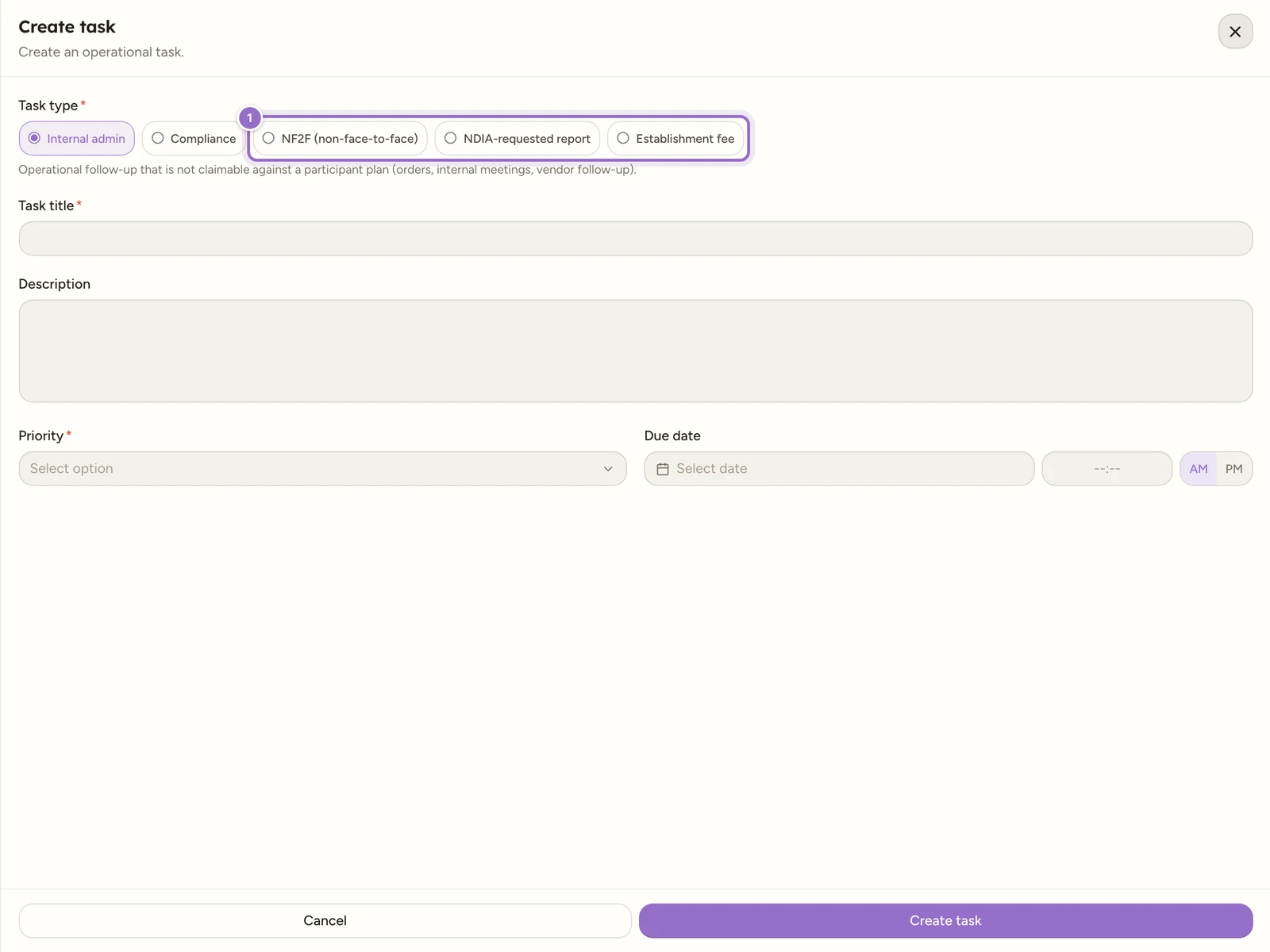
On Schedule›Tasks, select Create task and pick one of the three claimable types. Choosing a claimable type reveals the extra fields the claim needs.
Fill in the claim fields
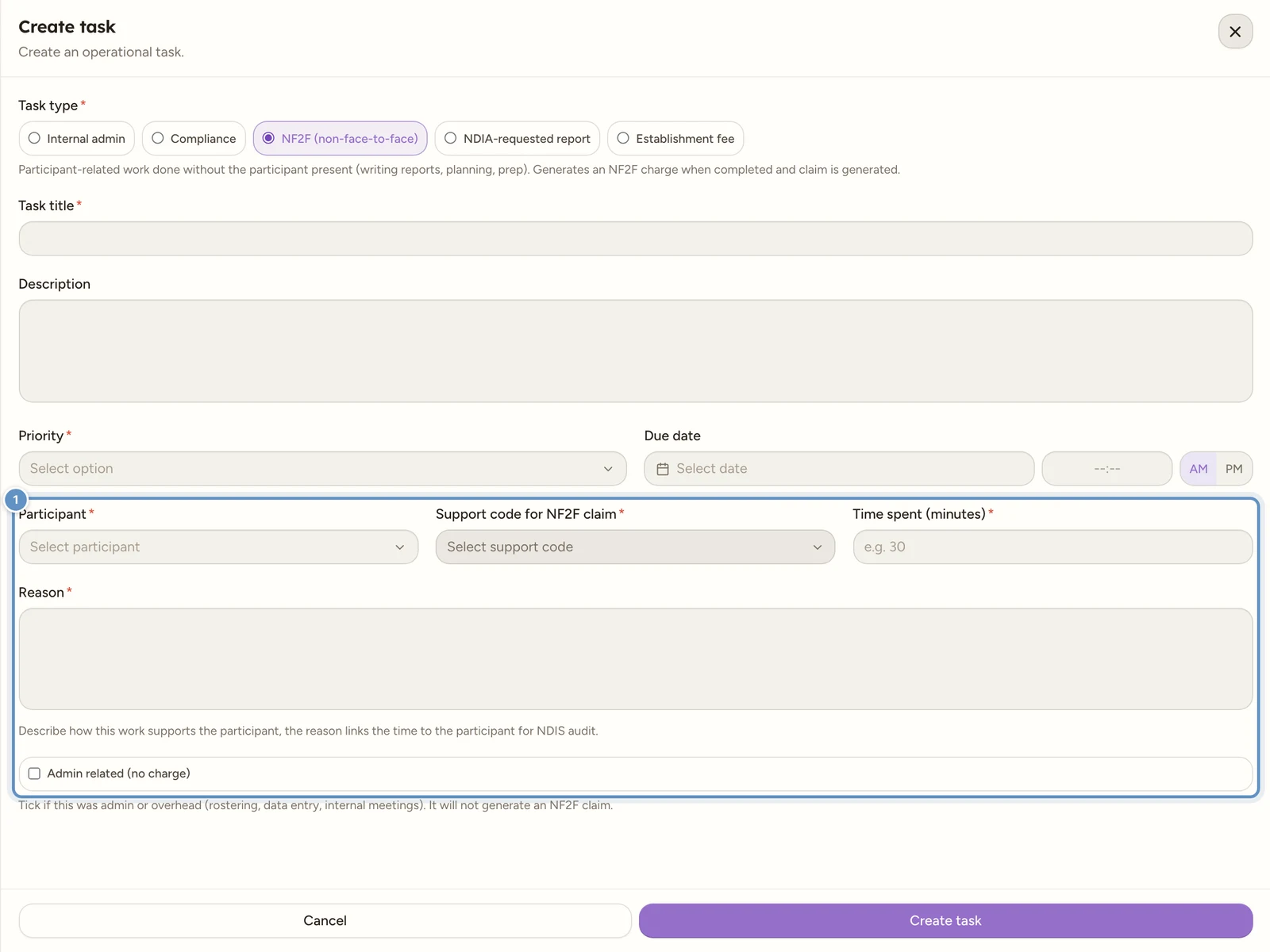
Which extra fields appear depends on the type you chose.
| Field | Appears for | Blocks saving the task? | Notes |
|---|---|---|---|
| Participant | All three claimable types | Yes | Links the task to the participant you are claiming for. The only claim field that actually blocks saving. |
| NDIA request type | NDIA-requested report | No | Progress report, AT assessment report, Behaviour support report, Plan review report or Other NDIA-requested report. Enforced when you generate the claim, not when you save the task. |
| Support code | NF2F and NDIA-requested report | No | Pulled from the participant’s signed service agreements. Choose the participant first. Enforced at claim generation. |
| Time spent (minutes) | NF2F and NDIA-requested report | No | The minutes logged against the claim. Enforced at claim generation. |
| Reason | NF2F and NDIA-requested report | No | Describe how the work supports the participant. The reason links the time to the participant for NDIS audit. Enforced at claim generation. |
| Admin related (no charge) | NF2F only | No, unticked by default | A checkbox. Tick it when the work was admin or overhead (rostering, data entry, internal meetings) rather than a billable non-face-to-face support. |
Note
The form marks NDIA request type, Support code, Time spent and Reason with a red asterisk, and they do read as required, but only Participant actually stops Create task from saving. The others are genuinely enforced only at claim-generation time, in the next step, so it is possible to save a claimable task with just a participant and come back to the rest later.
The support code list is built from signed service agreements only, and is filtered to the supports that are eligible for the claim type. If the participant has none, the picker stays empty.
Watch out
Ticking Admin related (no charge) blocks the NF2F claim outright: generating shows “Marked admin related (no charge), so it cannot be claimed as non-face-to-face.” Only tick it for overhead work you do not intend to bill, and only NF2F carries this checkbox; it is not offered on NDIA-requested report or Establishment fee tasks.
Select Create task to save. As with any task, it starts in the To do lane.
Complete the task
Work the task through to Done, either by opening it and selecting Mark done, or by dragging its card to the Done lane on the board.
Note
NF2F and NDIA-requested report claims can only be generated once the task is Done. An establishment fee can be generated as soon as the task is eligible, without waiting for Done.
Generate the claim
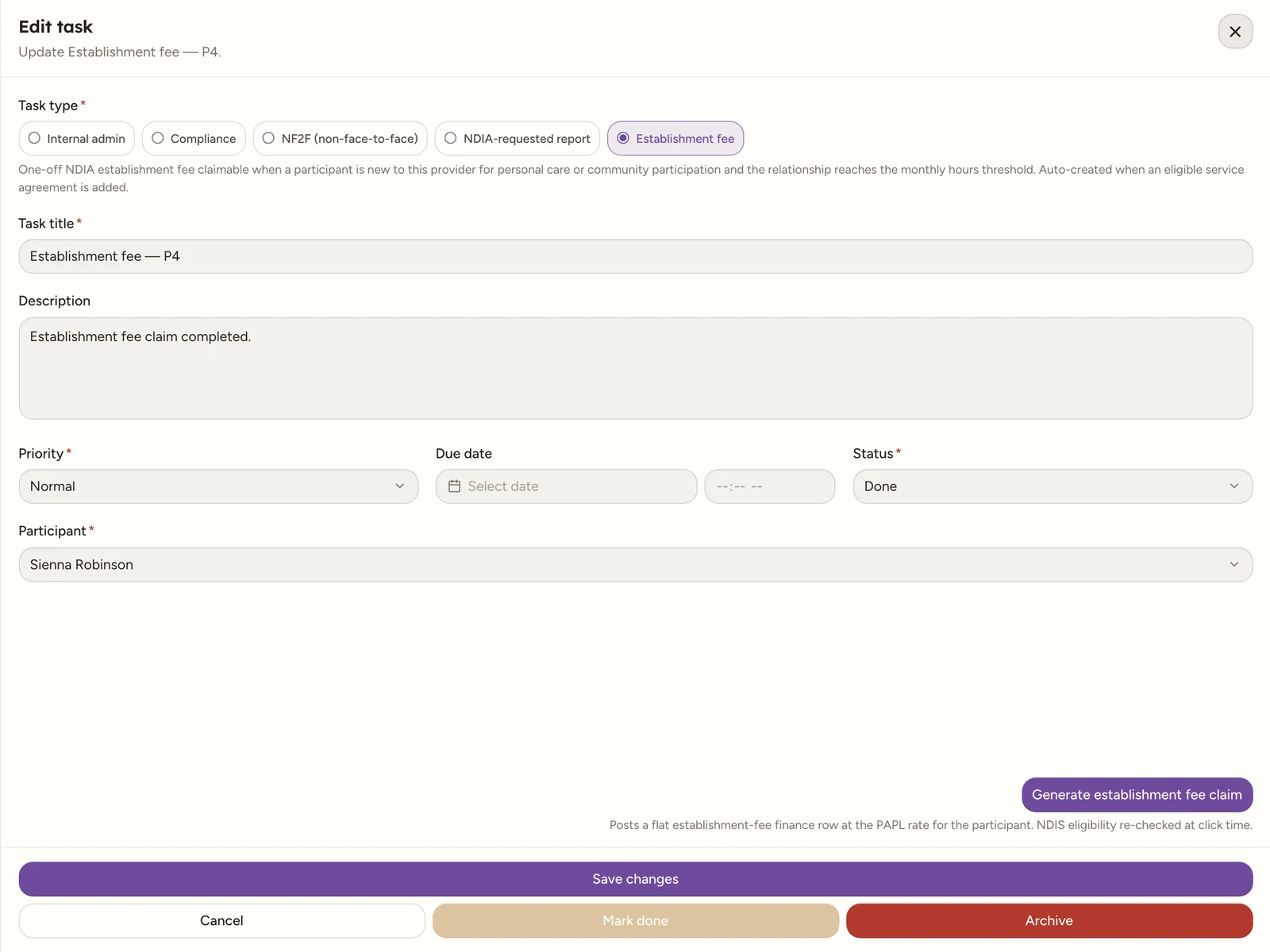
Open the task. The claim button sits at the right-hand end of the Task type pills row in the Edit task drawer, past the last pill, so it is the first thing you see when the task opens. Its label matches the type:
| Type | Button |
|---|---|
| NF2F | Generate NF2F claim |
| NDIA-requested report | Generate NDIA-report claim |
| Establishment fee | Generate establishment fee claim |
For NF2F and NDIA-requested report, the button only appears once the task’s Status is Done; before that it is not in the drawer at all, so there is nothing to hover for an explanation. Establishment fee shows its button regardless of status, because eligibility rather than completion is what gates it.
Select the button to post a finance row into billing, ready to include on an invoice (Finance›Billing). While it runs, the button keeps its label but hides it behind a spinner and stops accepting presses. When it finishes, it is disabled and reads “Claim generated ✓”, and a toast confirms “Claim generated.”
Watch out
A claim can only be generated once per task. To redo it, archive the task and create a new one, then generate the claim again.
Why a claim might be blocked
Selecting Generate re-checks eligibility on the spot. If anything is not right, you see a message naming the first problem found (fix it and select Generate again to see if there is another). Common reasons for NF2F and NDIA-requested report:
| Reason | Applies to |
|---|---|
| Task is not yet marked Done | Both (the button is hidden, not just disabled) |
| No support code chosen, or the chosen support is not flagged eligible for this claim type in the NDIS catalogue | Both |
| The linked service agreement does not record NF2F, or NDIA-report, claiming terms | Both |
| The task’s date (its due date, or today if none is set) falls outside the service agreement’s start and end dates | Both |
| Reason is missing, or shorter than 10 characters | Both |
| Time spent is not recorded, or is 0 | Both |
| NDIA request type is not chosen | NDIA-requested report only |
| Marked Admin related (no charge) | NF2F only, and overrides every other check |
Good to know
Rarely, generating also fails because the rate on the linked support now exceeds the NDIS price limit for its GST code (limits are re-checked at the moment you generate, not when the support was agreed). Lower the rate on the service agreement support and try again.