Browse help topics
Convert, decline or archive an intake
Turn an accepted enquiry into a participant, or decline and archive it.
Last updated · 3 July 2026
Once you have assessed an enquiry, you can turn it into a full participant record without re-typing the details. You can also decline an enquiry, or archive one you no longer need.
Convert to a participant
Open the enquiry
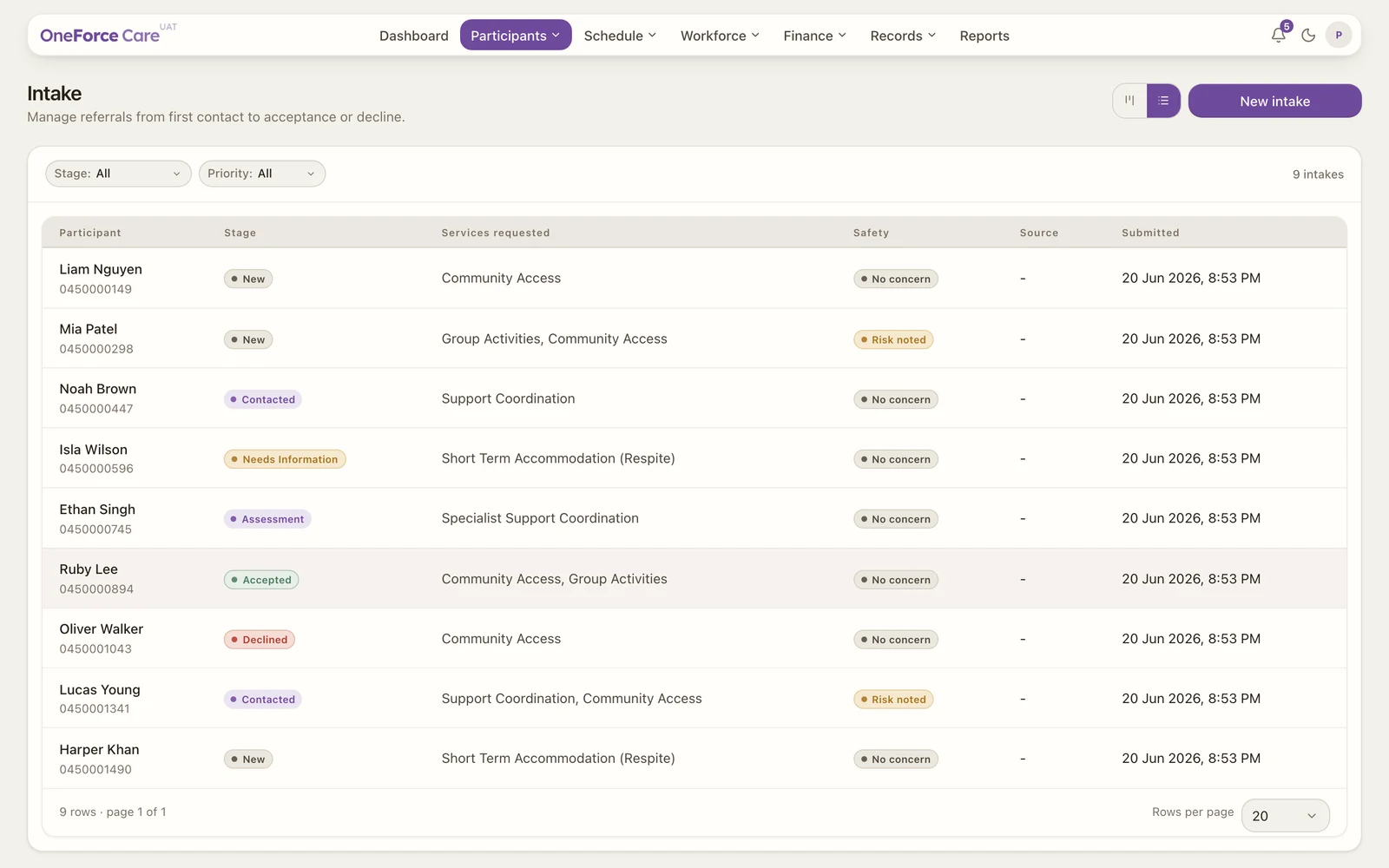
From Participants›Intake, select the enquiry to open it in the drawer. The Convert to participant button appears only once the enquiry is at the Assessment or Accepted stage, and only if your role can create participants.
 1
1Check the details are complete
Before you can convert, the enquiry needs three things: a phone number, an NDIS number, and an address with its State field set. Only State is actually checked, not the rest of the address, so an enquiry with a street address but no state selected still counts as incomplete. Fill in the missing fields in the drawer (see Add a new intake), then carry on. You can either search for the address and choose a match, which sets State for you, or select Enter address manually and pick a state from the dropdown.
If you select Convert to participant while something is still missing, you will see a toast listing exactly what to add, for example “Add phone number, NDIS number, address before converting to a participant.”
Note
Converting also re-checks the enquiry’s core details: First name, Last name and a valid Email. If one of those is empty or invalid you will see that error instead, for example “Enter a valid participant email address.”
Convert
Select Convert to participant at the bottom of the drawer. You do not need to select Update intake first: converting saves whatever is currently in the drawer, then creates the participant in one step. The app creates a new participant copying the name, email, phone, NDIS number, date of birth, gender and address, sets the enquiry’s stage to Accepted, and opens the new participant record. You will see “Participant created from enquiry.”
Note
If a participant with the same email already exists for your provider, conversion is blocked with “A participant with this email already exists for this provider.”, so you do not create a duplicate.
After conversion the enquiry is linked to the participant. Its drawer button changes to View participant, and its board card shows a Converted tag. Use View participant to jump back to the record at any time.
Decline an enquiry
There is no separate decline button. To decline an enquiry, set its stage to Declined: either choose it in Pipeline stage and select Update intake, or drag the card to the Declined column on the board. Declined is a final stage, and the enquiry stays on file.
Archive an enquiry
To take an enquiry off your active lists, open it and select Archive intake at the bottom of the drawer, then confirm Archive.
Watch out
Archived records are hidden from active lists but stay on file. Archiving does not delete the enquiry.