Browse help topics
Bulk import workers
Bring many workers in at once from a spreadsheet, with payroll and availability, and a login invite emailed to each new worker.
Last updated · 2 August 2026
Setting up more than a handful of workers one at a time is slow. Import brings many in at once from a single spreadsheet, with their SCHADS payroll classification and availability, all checked before anything is saved. When the import finishes, each newly created worker is emailed a login invite to set their own password, so a batch of workers arrives ready to sign in.
Open Import
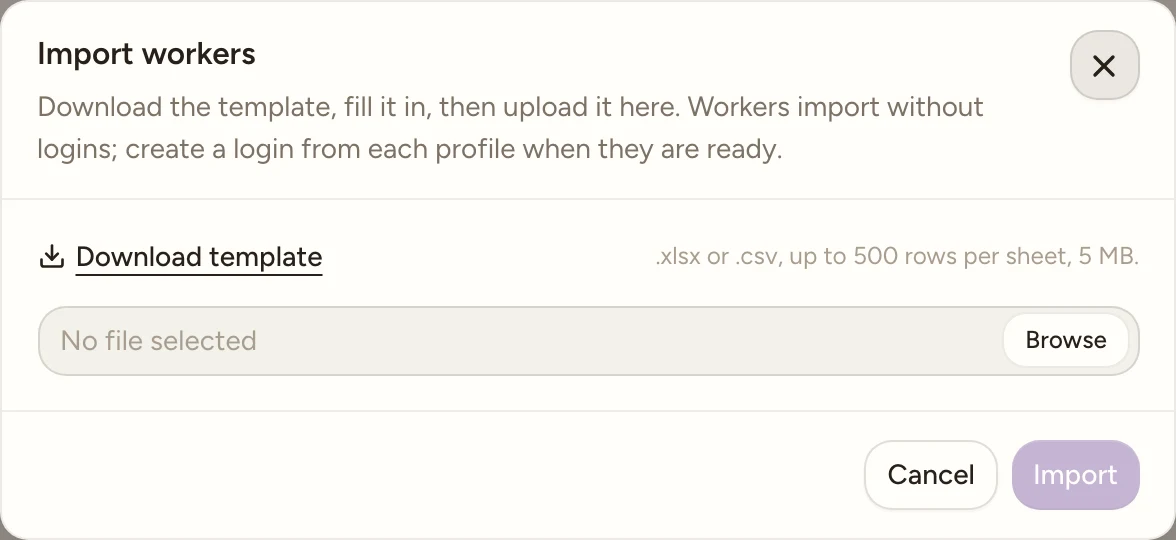
Go to Workforce›Workers and select Import at the top right, just to the left of Invite worker. The dialog opens, titled Import workers: “Download the template, fill it in, then upload it here. Each newly created worker is emailed an invite to set up their login once the import finishes.”
Note
Import is available when your role can create workers, the same permission Invite worker needs. If your role can’t, neither button appears on the page.
Download the template and fill it in
Select Download template to get workers-import.xlsx. It has three sheets: Workers,
Payroll and Availability. Fill in the Workers sheet first, then add rows to the other two for
the workers who need them. See The three tabs below for the full field list of each
one.
- Required columns carry a trailing * in the header.
- Enum columns (like State, Account type or Worker category) are real Excel dropdowns.
- Hover over a column header for notes on its format and rules, for example “7 or more digits” on NDIS Worker Screening ID.
- Two grey, italicised EXAMPLE rows sit under each header, already filled in as a worked example (EXAMPLE Owen Sutton and EXAMPLE Zoe Ali). Leave them, delete them, or type over them: the import skips any row whose first cell starts with “EXAMPLE”, so an untouched template can never import sample data by accident.
- Columns are matched by their header text, not by position, so you can delete columns you don’t need, as long as every required header is still there and reads the same.
Note
There is no reference column on the worker template. Everything is keyed on the worker’s email address: the Workers sheet uses it to decide whether a row creates a worker or updates one, and the Payroll and Availability sheets point back at a worker by putting the same address in their Worker email column. Both note it the same way: “Email of a worker on the Workers sheet, or of an existing worker.”
The sample rows use clean placeholder addresses so you can see the link at a glance:
example.owen@example.com and example.zoe@example.com appear on the Workers sheet and again on
the Payroll and Availability sheets, pointing at the same two people. (The participants
template does have a separate Ref column, so do not go looking for one here.)
Upload your file
Back in the dialog, select Browse and choose your filled-in file. Uploading starts checking it immediately: while it runs, the file control is disabled. When it finishes, you land on either an issues list or a ready summary.
If the file is over 5 MB, you’ll see “That file is over the 5 MB import limit.” and the file is cleared. If it can’t be read as a workbook (wrong format, corrupted, or not really .xlsx/.csv), you’ll see “Could not read that file. Save it as .xlsx or .csv and try again.”
Note
A .csv file only carries the Workers sheet: a CSV has no way to hold three sheets. Use .xlsx if you also want to import payroll or availability in the same run.
Fix issues, or import
- Issues found: you’ll see “1 issue must be fixed before importing.” or “N issues must be fixed before importing.”, above a scrollable table with a Sheet, Row and Issue column for each problem (a file-level problem shows File as its sheet, with no row). Select Download issue report for a CSV with a Sheet, Row, Column and Problem column for every issue. Fix your file and select Browse again to re-run the checks; there is no partial re-check.
- Ready to import: you’ll see “Ready to import.” with a row count per sheet, for example “Workers: 12 rows” and “Payroll: 12 rows”, plus a reminder that the import is all-or-nothing: if anything fails, no rows are saved.
Select Import. It stays disabled until every issue is cleared and the Workers sheet has at least one row.
See the result and send the invites
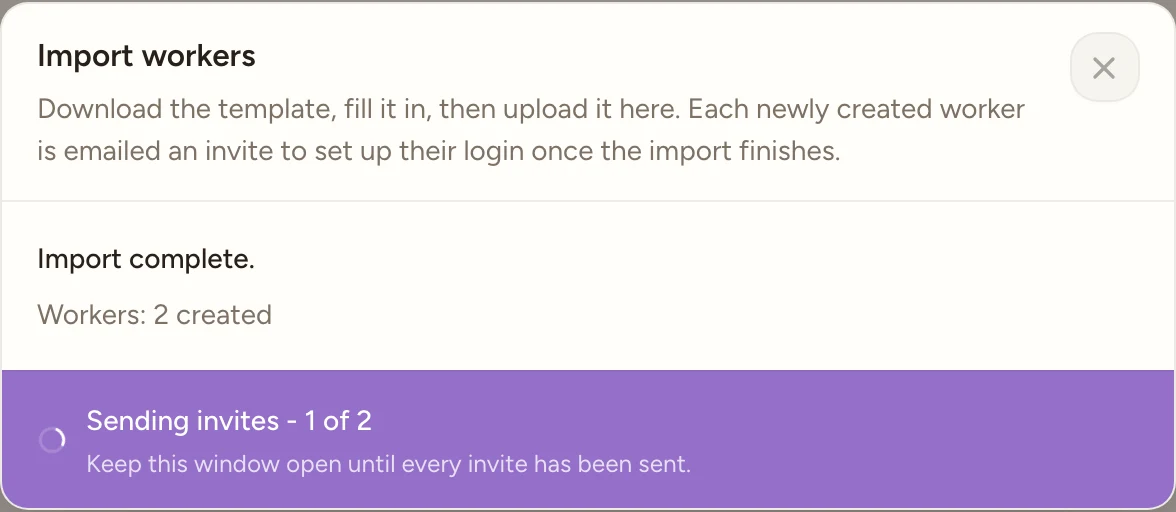
Once the import runs, the dialog shows “Import complete.” with a created count per sheet, for example “Workers: 12 created”. When some rows matched an existing worker by email, a “Workers updated: N” line is added below the created counts.
Then the login invites go out. The dialog fills its footer with a branded strip reading “Sending invites - 3 of 12” that counts up as each invite is sent, and blocks Close until every invite is out.
 1
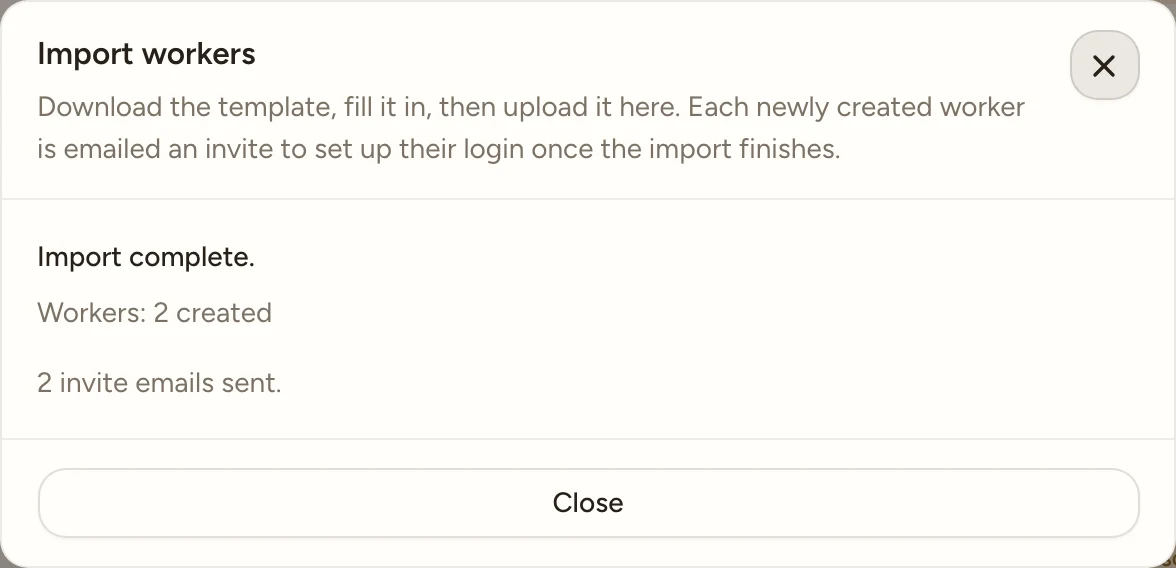
1When the pass finishes, the summary shows how many went out: “12 invite emails sent.” Any that failed are listed under Could not invite: with the worker’s name, email and reason. Failures never roll back the import, so those workers are still created; just resend from their profile.
 12
12Select Close to finish. If the import itself fails (for example a database problem after the checks already passed), nothing is saved and you’ll see an error toast, “The import failed. Nothing was saved.” Fix it and upload again.
Update existing workers by email
The Email column on the Workers sheet is the match key. A new email creates a worker; an email that matches one you already have updates that worker instead of making a duplicate.
- Blank cells keep the stored value. On an update row, a required cell you leave empty keeps whatever is already on file rather than erroring. Fill only the cells you want to change.
- Archived workers are rejected. If the email matches an archived worker you’ll see ‘A worker with email “…” is archived; restore them in the app before importing updates.’
- Account type can’t change on an update. An import cannot switch someone between support worker, admin and provider: “Account type cannot be changed by an import; edit the worker profile instead.”
- Screening IDs stay their own. An NDIS Worker Screening ID already used by a different worker is rejected as a clash, but a worker keeps their own on an update.
The Payroll and Availability sheets can point at someone already in the app the same way: put that worker’s email in the Worker email column even if they aren’t on the Workers sheet.
The three tabs
Workers
The Workers sheet is the only required sheet. Every worker needs a row here.
Account type and role
| Column | Required | Notes |
|---|---|---|
| Account type | No | Support worker (the default), Admin or Provider. Admin and Provider are office logins with no roster, payroll or availability |
| Role | Sometimes | Provider accounts only, and it must match a role name configured in the workspace |
A Role on a support worker or admin row is rejected with “Role can only be set for provider employees.”, and a role that isn’t configured gives ‘Role “…” does not match any role in this workspace.’ Leave the account type blank and the worker imports as a Support worker.
Personal, contact and address
| Column | Required | Notes |
|---|---|---|
| First name | Yes | |
| Middle name | No | |
| Last name | Yes | |
| Yes | The match key and the worker’s login email. A new email creates; a matching one updates. Unique within the file | |
| Phone | Yes | Australian format, e.g. 04XX XXX XXX or 0X XXXX XXXX |
| ABN | No | Support workers only. 11 digits |
| NDIS Worker Screening ID | Sometimes | Support workers only, and required for them. 7 or more digits. Unique within your provider |
| WWCC number | No | Support workers only. State WWCC or equivalent, e.g. NSW WWC1234567E, QLD 12345/1, VIC 1234567A |
| Default travel vehicle | No | Support workers only. Standard vehicle, or Modified vehicle or bus |
| Address line | Yes | |
| Suburb | No | |
| State | Yes | NSW, VIC, QLD, WA, SA, TAS, NT or ACT. The worker’s residential state |
| Postcode | Yes | A valid Australian postcode, e.g. 2000 |
Note
ABN, NDIS Worker Screening ID, WWCC number and Default travel vehicle belong to support workers only. Put a value in one on an admin or provider row and it’s rejected, e.g. “ABN can only be provided for support workers.” Only support workers must carry a screening ID; leaving it blank on one gives “NDIS Worker Screening ID is required.”
Payroll
One optional row per worker sets their SCHADS pay classification, matching the Payroll tab. Link the row to a worker with the Worker email column.
| Column | Required | Notes |
|---|---|---|
| Worker email | Yes | Email of a worker on the Workers sheet, or an existing worker |
| SCHADS stream | Sometimes | Social and Community Services (SACS), Home Care: Disability, or Home Care: Aged Care |
| Employment type | Sometimes | Full-time, Part-time or Casual |
| Classification level | Sometimes | 1 to 8 (SCHADS Schedule B) |
| Pay point | Sometimes | 1 to 4, within the classification level |
| Work state | Sometimes | The state whose public holidays apply to this worker’s pay |
| Worker category | Sometimes | Day worker (work outside 6am-8pm is overtime, cl. 28.2) or Shift worker (the shift loading applies instead, cl. 29.3) |
| Agreed weekly hours | Sometimes | Required when Employment type is Part-time. Maximum 38 |
| Agreed hourly rate | No | Leave blank to pay the SCHADS award rate (it follows the annual sync) |
| Travel pay | No | Y when the worker is paid for provider travel time |
Watch out
The six SCHADS columns (SCHADS stream, Employment type, Classification level, Pay point, Work state and Worker category) are all-or-none: fill all six together, or leave all six blank. A partial set is rejected: “SCHADS classification is all-or-none: fill SCHADS stream, Employment type, Classification level, Pay point, Work state and Worker category together.” On an update row the check runs on the merged record, so a blank cell falls back to the worker’s stored value.
Watch out
On a fully classified row an Agreed hourly rate below the SCHADS award minimum is rejected: “Pay rate too low: $[rate]/h is below the SCHADS minimum of $[award rate]/h.” If a row raises someone’s classification but leaves the rate blank so their stored rate is now below award, the message names the saved rate instead: “Pay rate too low: the saved rate $[rate]/h is below the SCHADS minimum of $[award rate]/h for this classification.”
Payroll is a support-worker concept, so a row whose worker is an admin or provider is rejected with “Payroll can only be imported for support workers.”, and only one payroll row per worker is allowed (“Only one payroll row per worker can be imported.”).
Availability
Availability rows set a worker’s preferred windows and their leave, matching the Availability tab. Link each row to a worker with Worker email.
| Column | Required | Notes |
|---|---|---|
| Worker email | Yes | Email of a worker on the Workers sheet, or an existing worker |
| Type | Yes | Availability, Annual leave, Sick leave, Personal/carer’s leave, Unpaid leave or Other |
| Day pattern | No | All days (default), Weekdays, Weekends or Custom |
| Custom days | Sometimes | Only for a Custom pattern. A comma-separated subset of mon, tue, wed, thu, fri, sat, sun |
| Start time | No | 24-hour HH:MM, e.g. 09:00. Leave both times blank for an all-day window |
| End time | No | 24-hour HH:MM, e.g. 17:00. Must be after the start time |
| Effective from | Sometimes | Required for every leave type. Also the start of a dated availability window |
| Effective to | Sometimes | Required for every leave type. On or after Effective from |
| Note | No |
Every type except Availability is a leave or exclusion window that hides the worker from overlapping shifts and needs both dates, or you’ll see “Leave must have an effective from and to date.” A Custom day pattern needs at least one valid day (“Choose at least one day for a custom availability rule.”), and the checks also cover time order (“Start time must be before end time.”) and date order (“Effective from must be before the effective to date.”).
Note
Exact duplicates are caught, both within the file (“This availability rule also appears on row N.”) and against a rule the worker already has (“This availability rule duplicates an existing rule for this worker.”), so re-running an import doesn’t stack up repeats. Availability is support-worker only: “Availability can only be imported for support workers.”
Login invites
Every worker the import creates is emailed a login invite to set their own password, sent one at a time after the import commits. The dialog shows a “Sending invites - n of N” footer while they go out and a summary when they finish (“N invite emails sent.”). A worker who was updated rather than created is not re-invited.
Note
An invite can fail on its own without touching the import (a recent invite to the same address triggers a short cooldown, for example). Each failure is listed under Could not invite: with the reason, and the worker is still created; resend from the Send invite action on their row or their Access tab when you’re ready.
Reading the issue list
Most issues name the field and the rule, for example “First name is required.”, “State must be one of: NSW, VIC, QLD, WA, SA, TAS, NT, ACT.”, “Agreed weekly hours must be at most 38.” or “Agreed weekly hours is required for part-time workers.” Format checks (email, phone, ABN, NDIS Worker Screening ID, WWCC, postcode) show the same message you’d see filling in the field by hand, for example “Enter a valid email address.” or “Enter a valid Australian postcode.”
A few issues are file-level rather than row-level, and show against File instead of a row number:
- ‘The “Workers” sheet is missing.’ if the workbook has no sheet by that name.
- ‘The “…” sheet is missing the “…” column.’ if a required column’s header was renamed or deleted.
- ‘The “…” sheet has more than 500 data rows (limit 500 per import).’
- “Unsupported file type. Upload a .xlsx or .csv file.” if the extension isn’t .xlsx or .csv.
Watch out
Every issue in the file must clear before Import turns on. The import is all-or-nothing, so a single bad row blocks the whole file rather than being skipped or imported partially.
Tip
Only need a handful of workers? Invite them one at a time instead; Import is for bringing in a batch.