Browse help topics
Worker details
The worker's name, contact, identifiers and travel settings.
Last updated · 23 September 2026
The Details tab holds the worker’s profile: the same information captured on invite, which you can update here. The operational role is not on this tab; change it on the Access tab.
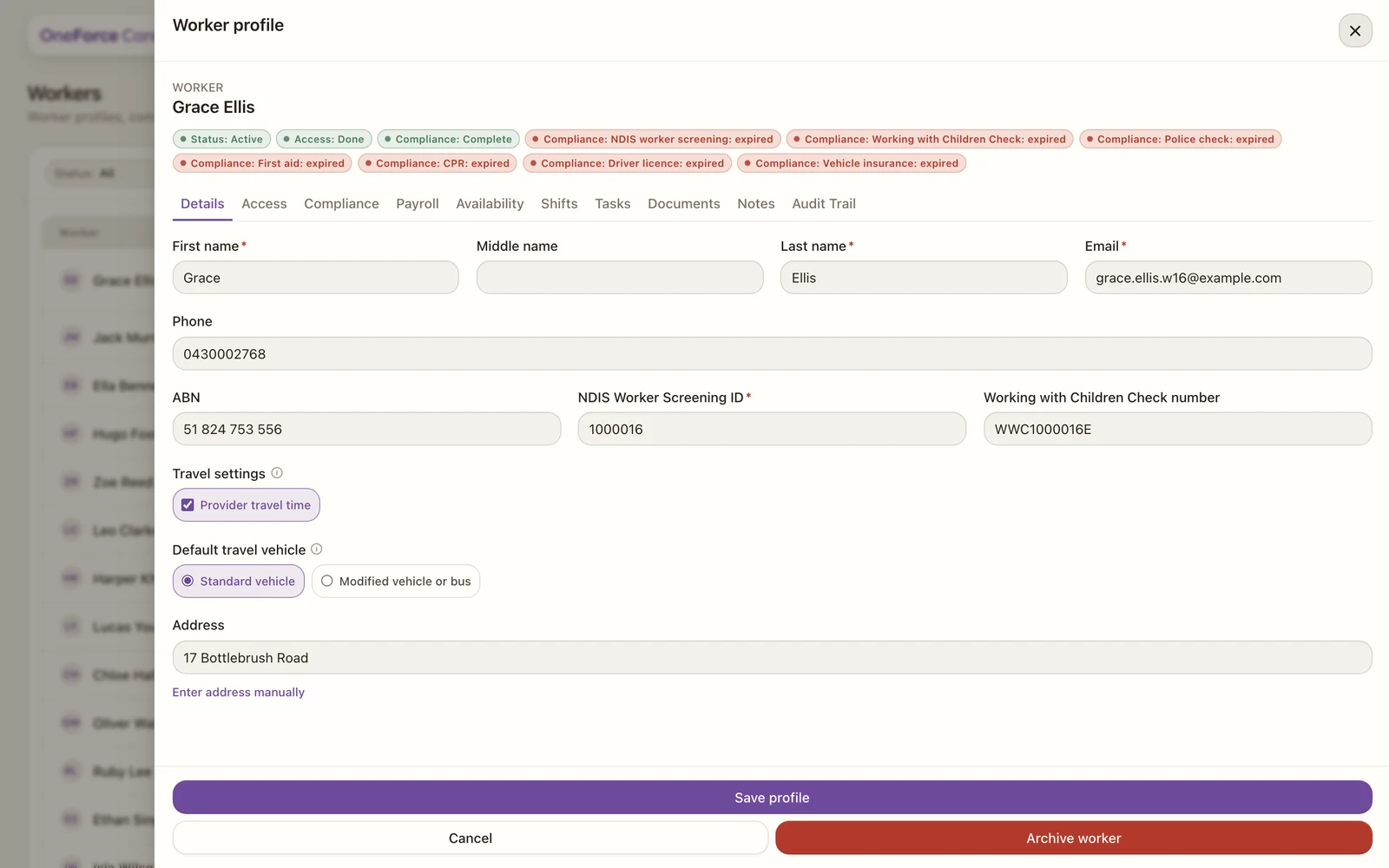
The fields
Personal Information
| Field | Required | Notes |
|---|---|---|
| First name | Yes | |
| Middle name | No | |
| Last name | Yes | |
| Yes | If the worker has a login, changing it also updates their sign-in email. | |
| Phone | No |
Employment type sits beside Phone for support workers. Choose Full time, Part time or Casual. This selection saves automatically and is available even when payroll is switched off. It determines the availability workflow: permanent regular hours or casual availability requests. The payroll tab uses the same employment type when payroll is enabled.
Identifiers (support workers)
| Field | Required | Notes |
|---|---|---|
| ABN | No | |
| NDIS Worker Screening ID | Yes | Enter the ID as issued. |
| Working with Children Check number | No |
Travel (support workers)
- Default travel vehicle: Standard vehicle, or Modified vehicle or bus.
Whether this worker is paid for travel (Worker travel pay) is set on the Payroll tab, not here.
High Intensity Support Skills (support workers)
The nine High Intensity Support Skills competencies also appear here, as tick-box pills under Recorded competencies, the same set offered on the invite drawer. Tick the ones this worker is signed off for. An info icon beside the label explains how they flag an unqualified worker on a high-intensity shift.
This whole section is conditional: it appears only while your workspace has High intensity worker-skills gate switched on under Account›Features, in the Compliance group. With the gate off there is no section, no field, and no warning at rostering time.
Address is a single search field. Start typing and choose the match, or select Enter address manually underneath to type Address, Suburb, State and Postcode yourself. Search for an address instead takes you back, with the whole formatted line put back in the box.
Select Save profile to keep your changes. You can also archive the worker from this tab; see Archive a worker.
Note
If your role has read-only access you will see a banner, and the Save profile button stays disabled.