Browse help topics
Why can't I see or edit this?
What the No access screen and the Read-only banners mean, and how to grant the access that's missing.
Last updated · 2 August 2026
OneForce Care blocks you in three different ways depending on what’s missing: no workspace selected, no access to a screen at all, or access to see a screen but not to change it. Each shows a different message, and each has a different fix.
Note
This only applies to provider employees. Owners and admins always have full access to every screen, in every workspace they belong to, regardless of any role. Support workers don’t sign in to this web app at all; they use the mobile app for their shifts, and role permissions don’t apply to them.
“Choose an active provider workspace…”
“Choose an active provider workspace before …”
Means: Almost every action is scoped to a provider workspace, and one is not currently active (you have not selected it, or your session lost it). The ending of the message names the action you tried (for example "before adding a shift").
Fix: Select your provider from the workspace switcher at the top of the app, then try again. If you belong to a single provider it should select automatically; if it keeps happening, sign out and back in.
This is the one error in this list that isn’t about your role. It means no provider workspace is currently active in your session at all, so the platform has nowhere to check permissions against. If you belong to more than one provider, use the workspace switcher at the top of the app to pick one. If you only belong to one, it should select itself; if the error keeps coming back, sign out and back in.
“No access assigned”
If you open a screen your role has no Read permission for at all (by URL, an old bookmark, or a link someone sent you), OneForce Care redirects you to a dedicated page rather than showing a blocked version of the screen:
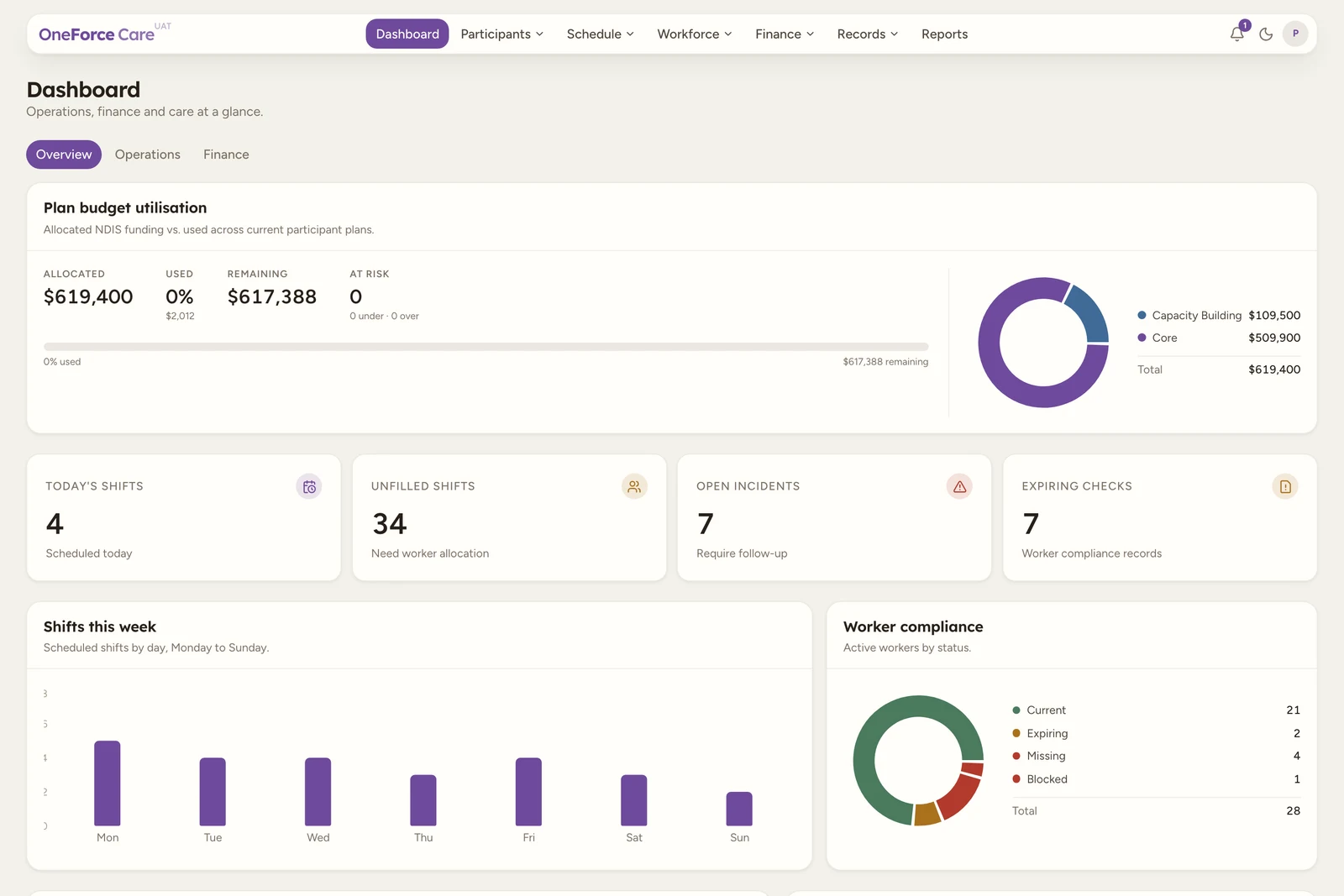
The page reads No access assigned, with “This provider account is active, but an admin has not assigned access to this screen,” your workspace name, “Ask a provider admin to open your worker profile and tick the screens and actions you need,” and a note that “Provider Employees can sign in, but only assigned screens appear in the sidebar.” In practice this means the screen simply doesn’t show in your sidebar at all; you’d only land on this page by following a direct link.
To fix it, a provider owner or admin needs to either:
- Open Account›Organisation, find your role under Role-based access, and tick Read for the screen (see Roles and permissions), or
- Open your worker profile’s Access tab and assign you a different access role that already has it.
There’s no self-service option here: only an owner or admin can change roles or reassign one to you.
“Read-only. …”
If your role can Read a screen but is missing Create, Edit or Delete on it, the screen itself still opens, but a warning banner appears and the controls that need the missing action are hidden or disabled. The exact wording depends on where you are:
| Where you see it | Message | What your role is missing |
|---|---|---|
| A participant’s profile | “Read-only. Your role does not have edit access.” | Edit on Participants |
| Scheduling | “Read-only. Your role cannot create, edit, or assign shifts.” | Edit on Scheduling |
| A directory contact | “Read-only. Your role does not have edit access.” | Edit on Directory |
| A worker’s Availability tab | “Read-only. Your role cannot add or change availability rules.” | Edit on Workers |
| A worker’s Compliance tab | “Read-only. Your role cannot save compliance decisions.” | Edit on Workers |
| A worker’s Payroll tab | “Read-only. Your role does not have edit access.” | Edit on Workers |
| A worker’s Details tab | “Read-only. Your role does not have edit access.” | Edit on Workers |
| A worker’s Access tab | “Read-only. Only an owner or admin can change account type or role.” | Nothing a role can grant; owner or admin only |
| Finance›Billing | “Read-only. Your role cannot create or finalise charge rows.” | Edit on Invoicing |
| Finance›Payments | “Read-only. Your role cannot record payments.” | Edit on Payments |
| Finance›Invoices | “Read-only. Your role cannot issue credit notes or corrections.” | Edit on Invoicing |
| Notes, on a participant or worker profile | “Read-only. Your role cannot add notes.” | Edit on Participants or Workers |
To fix any of these, a provider owner or admin opens Account›Organisation, edits the role under Role-based access, and ticks the missing action for that screen (see Roles and permissions). The one exception is a worker’s own Access tab: account type and access role can only be changed by an owner or admin directly, never by a role permission, so that row in the table above has no matching setting to grant.
Tip
Setting up a new team member? Give them the narrowest role that covers what they actually do, then widen it later if a Read-only banner tells you something’s missing, rather than starting everyone on a role with every action ticked.