Browse help topics
Consent
Capture consent by e-signature or on paper, pick the signatories, and rescind or cancel when needed.
Last updated · 23 September 2026
The Consent tab records the participant’s consent, for example consent to collect, use and share their information. You can collect it by e-signature or log one already signed on paper. Open the participant, then select the Consent tab.
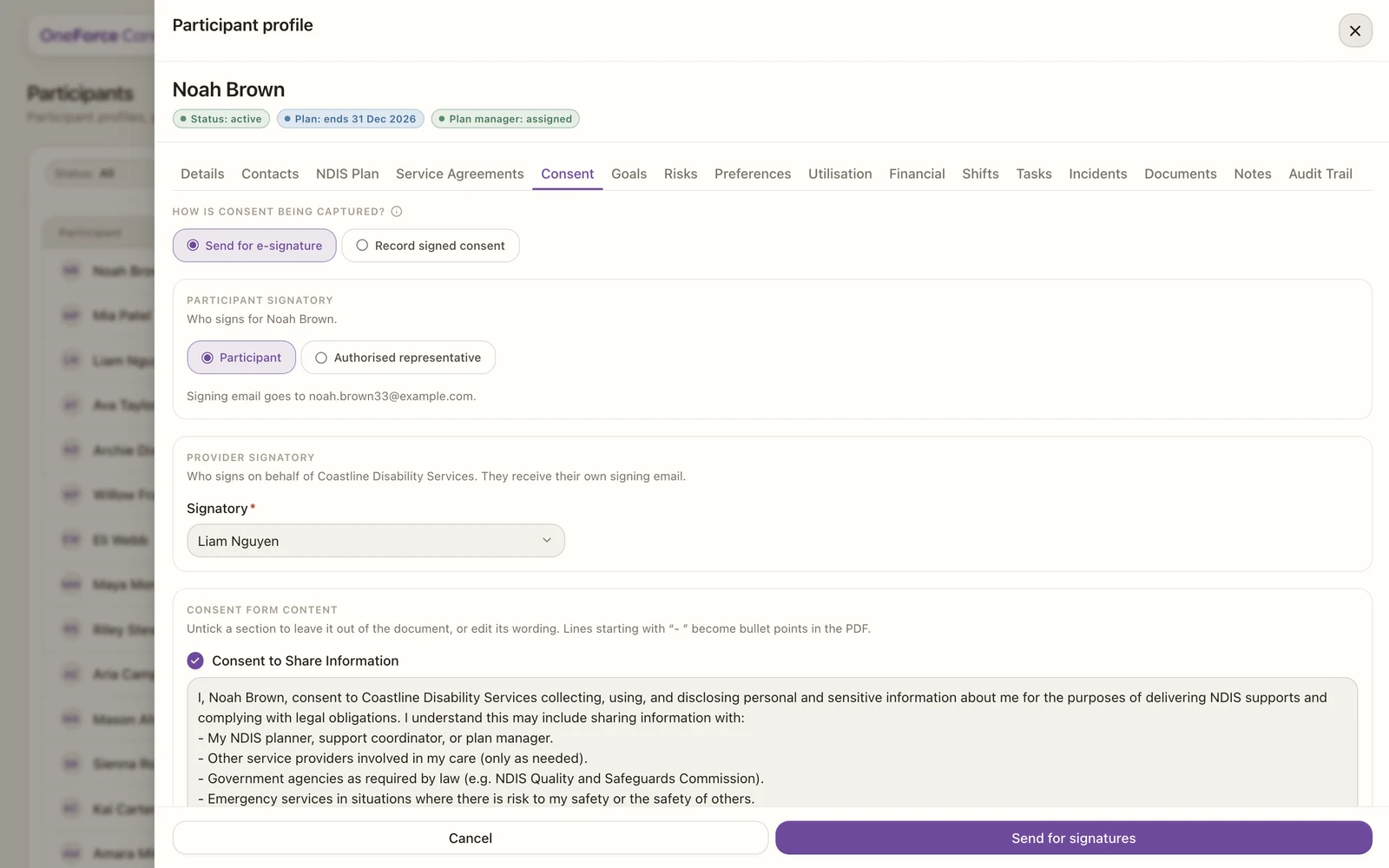
Two ways to capture consent
Under How is consent being captured? choose one:
- Send for e-signature: emails both parties a link to sign the consent form electronically, and marks it signed automatically once both have signed.
- Record signed consent: log consent that was signed outside the app. Enter the Date signed (required) and attach a file under Signed document (optional).
Who signs for the participant
In e-signature mode, Participant signatory is a picker, not a free-text field. It lists the participant themselves (the default) plus every person on their Contacts tab, so a guardian, nominee or other authorised representative can sign instead. Search by name or email to find them.
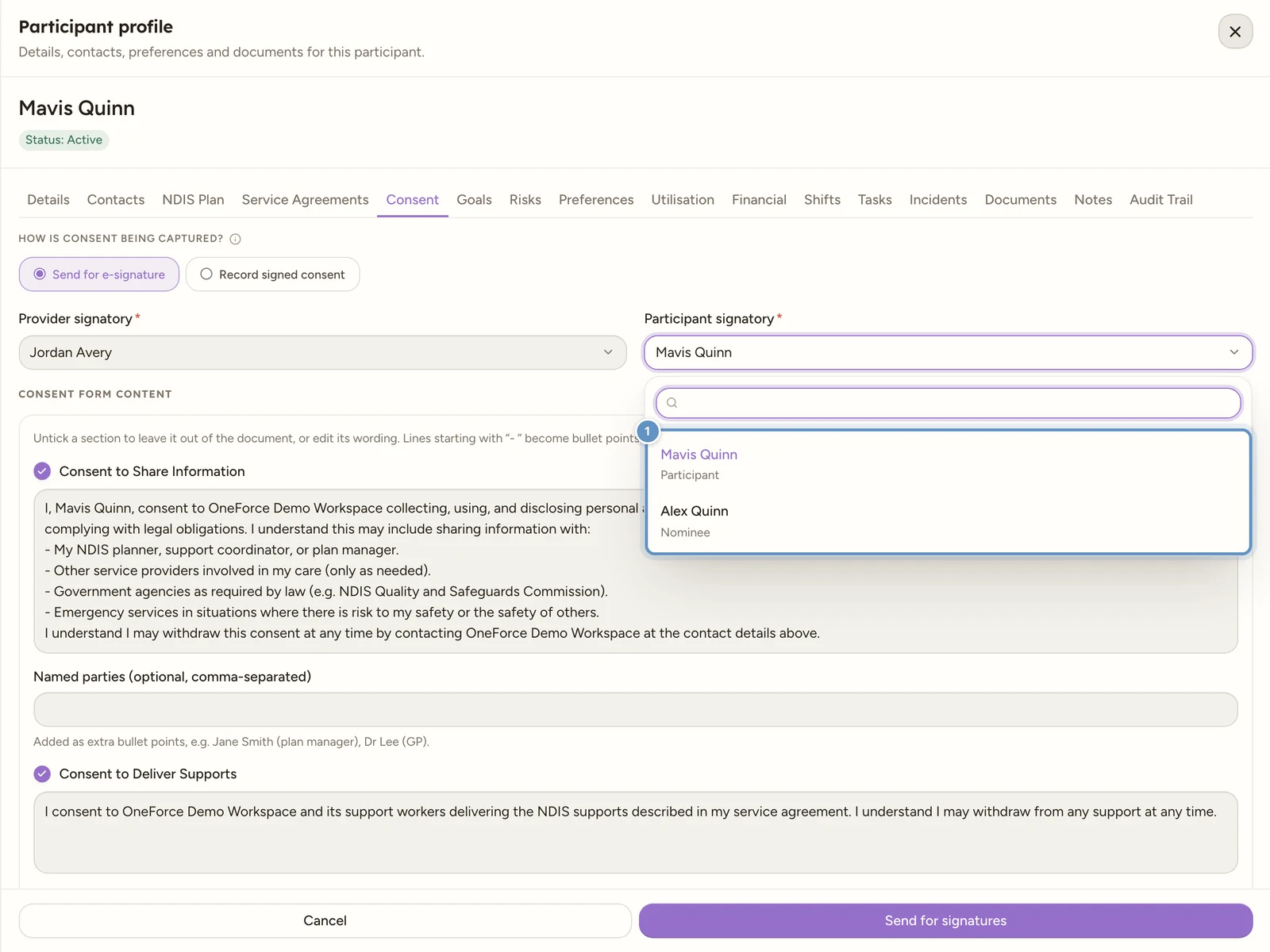
If the person you choose has no email on file, you see No email on file. and cannot send until one is added.
Provider signatory
Provider signatory is also a picker. It lists your workspace contact and every worker who has an email, to sign on behalf of the workspace. This field is required.
Consent form content (e-signature)
Before sending, you can tailor the document under Consent form content. Untick a section to leave it out, or edit its wording; lines starting with “- “ become bullet points in the PDF. Keep at least one section, or you see Include at least one section. The default sections are:
- Consent to Share Information
- Consent to Deliver Supports
- Consent to Use Media
- Privacy Statement
- Consent Duration and Review
The Consent to Share Information section has an optional Named parties (optional, comma-separated) field, where you list people (for example a plan manager or GP) to add them as extra bullet points on the form.
Send or record
- In e-signature mode, select Send for signatures. If a signatory email is missing you see Missing before sending: listing exactly what is needed. Otherwise the status moves to Sent for signing (“Waiting for the participant and provider to sign. The record updates automatically once both have signed.”), then to Consent signed on its own once both have signed.
- In manual mode, select Record consent to log it as signed.
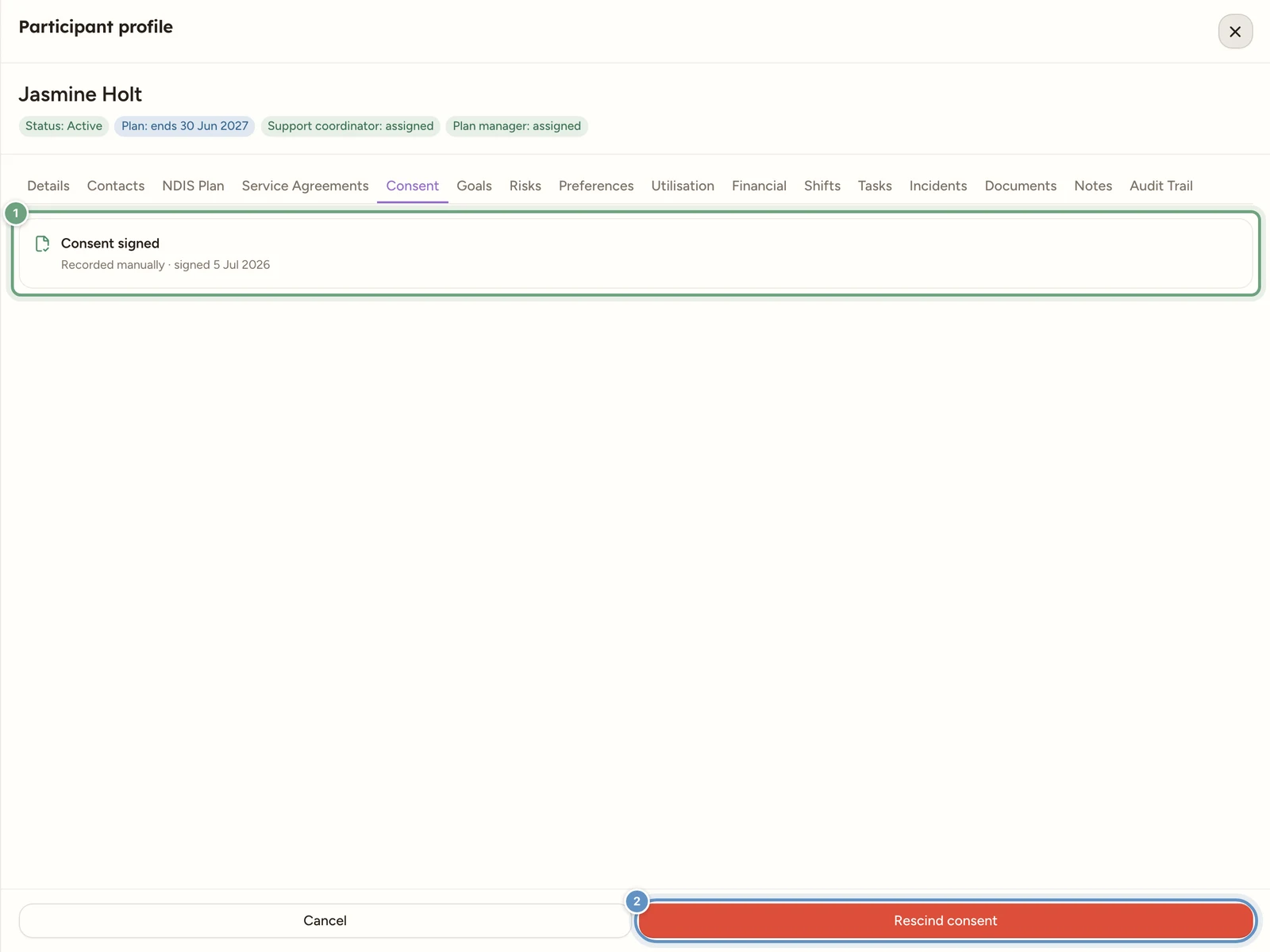
Once consent is signed, the tab collapses to a read-only status card.
Cancel a signing request
If consent is out for signature and you need to stop it, select Cancel signing request. A dialog headed Cancel signing request warns: “This voids the pending signing links and emails both signers to let them know. You can then record or send consent again.” Select Cancel to confirm (or Keep request). You see Signing request cancelled.
Rescind signed consent
If the participant withdraws consent, open the signed record and select Rescind consent. A dialog headed Rescind consent warns: “This marks the signed consent record as rescinded. The signed document stays in the register for your records. You can record or send consent again afterwards.” Select Rescind to confirm (or Keep consent). The status becomes Consent rescinded and you see Consent rescinded.; the signed document stays in the document register, and you can record or send consent again whenever you need to.
Note
Rescinding does not delete anything. The original signed PDF is kept for your records; only the consent status changes, so there is always a trail of what was agreed and when.