Browse help topics
Password and two-factor authentication
Change your password, turn two-factor authentication on or off, and require 2FA per role.
Last updated · 2 August 2026
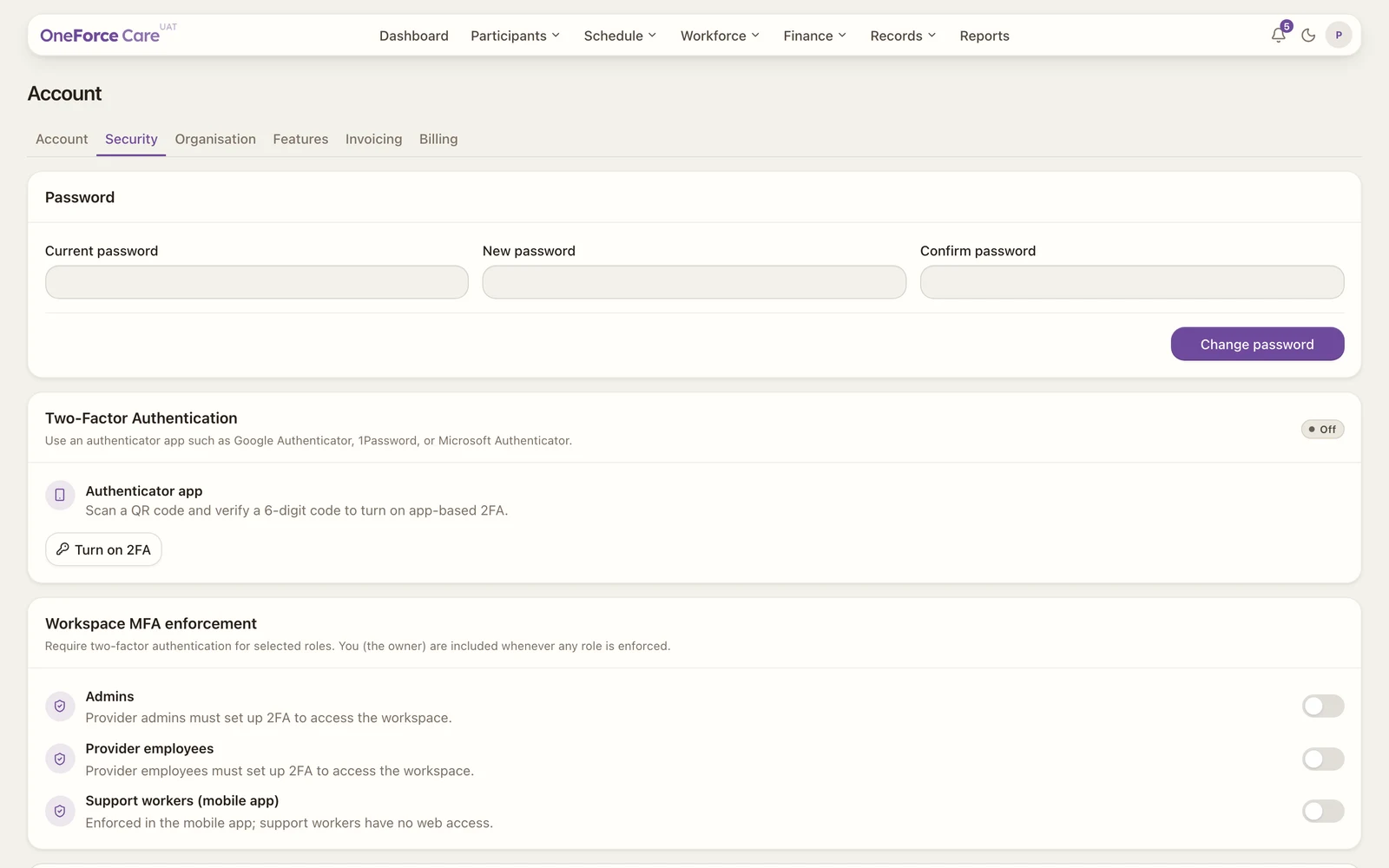
Below your profile, the Account›Account tab is also where you protect your account: your password and two-factor authentication (2FA). If you’re the provider owner, it’s also where you require 2FA for whole roles across the workspace.
Change your password
In the Password card, enter your Current password, then a New password (at least 8 characters) and Confirm password to match. Select Change password.
On success you see Password changed and confirmation email sent. and a confirmation email goes to your inbox. If the email can’t be sent, you still see the change go through, with Password changed, but the confirmation email could not be sent. If your current password is wrong, the field shows Current password is incorrect.
Two-factor authentication
Two-factor authentication (2FA) asks for a six-digit code from an authenticator app (such as Google Authenticator, 1Password or Microsoft Authenticator) on top of your password.
If you are an admin or provider employee, the Two-Factor Authentication card shows your current status (Off or Enabled).
Turn it on
Select Turn on 2FA. Scan the QR code with your authenticator app, or type the Manual setup key in by hand.
Verify and enable
Enter the six-digit Authenticator code the app shows, then select Verify and enable. Leaving the code blank shows Enter the 6-digit authenticator code. On success you see Two-factor authentication is enabled. From now on you enter a code each time you sign in. Select Cancel instead to back out of setup without enabling anything.
To turn it off, select Disable 2FA. You see Two-factor authentication is disabled. If your session needs a fresher sign-in first, you see Confirm your authenticator app during sign-in before disabling 2FA.
Watch out
If your role is required to use 2FA, you cannot turn it off. Instead of a button the card reads Two-factor authentication is required and cannot be turned off.
As the provider owner
You don’t get the standalone Two-Factor Authentication card above; your own 2FA is tied to the Owner (you) toggle in Workspace MFA enforcement below. Turn that toggle on and a Set up your workspace 2FA card appears immediately with a QR code, ready for you to scan and verify (there’s no separate “Turn on 2FA” button to select first). Once verified, the card is replaced by a green Workspace two-factor authentication is active notice. Turning Owner (you) back off removes your authenticator, and the setup card disappears with it.
Require 2FA per role (owner)
As the provider owner, the Workspace MFA enforcement card lets you require 2FA for whole roles, each one independently:
- Owner (you)
- Admins
- Provider employees
- Support workers (mobile app) (enforced in the mobile app; support workers have no web access)
Toggle a role on. A dialog asks you to confirm: select Require 2FA. Anyone in that role must set up 2FA at their next sign-in. You see MFA enforcement updated.
To remove a requirement, toggle the role off. A dialog warns that members not required by another workspace will have their 2FA removed (for Owner (you), it warns your own authenticator app will be removed unless another workspace still requires it); select Turn off to confirm.
Tip
Owners and admins manage named roles on the Organisation tab, not here. See Roles and permissions to control which screens and actions a provider employee can use.