Browse help topics
Reset two-factor authentication
When the Security tab appears, and how to reset a worker's 2FA.
Last updated · 2 August 2026
The Security tab is conditional. It appears on a worker profile only when that worker’s role is one your provider requires two-factor authentication (2FA) for. If no role enforces 2FA, you will not see this tab.
What it shows
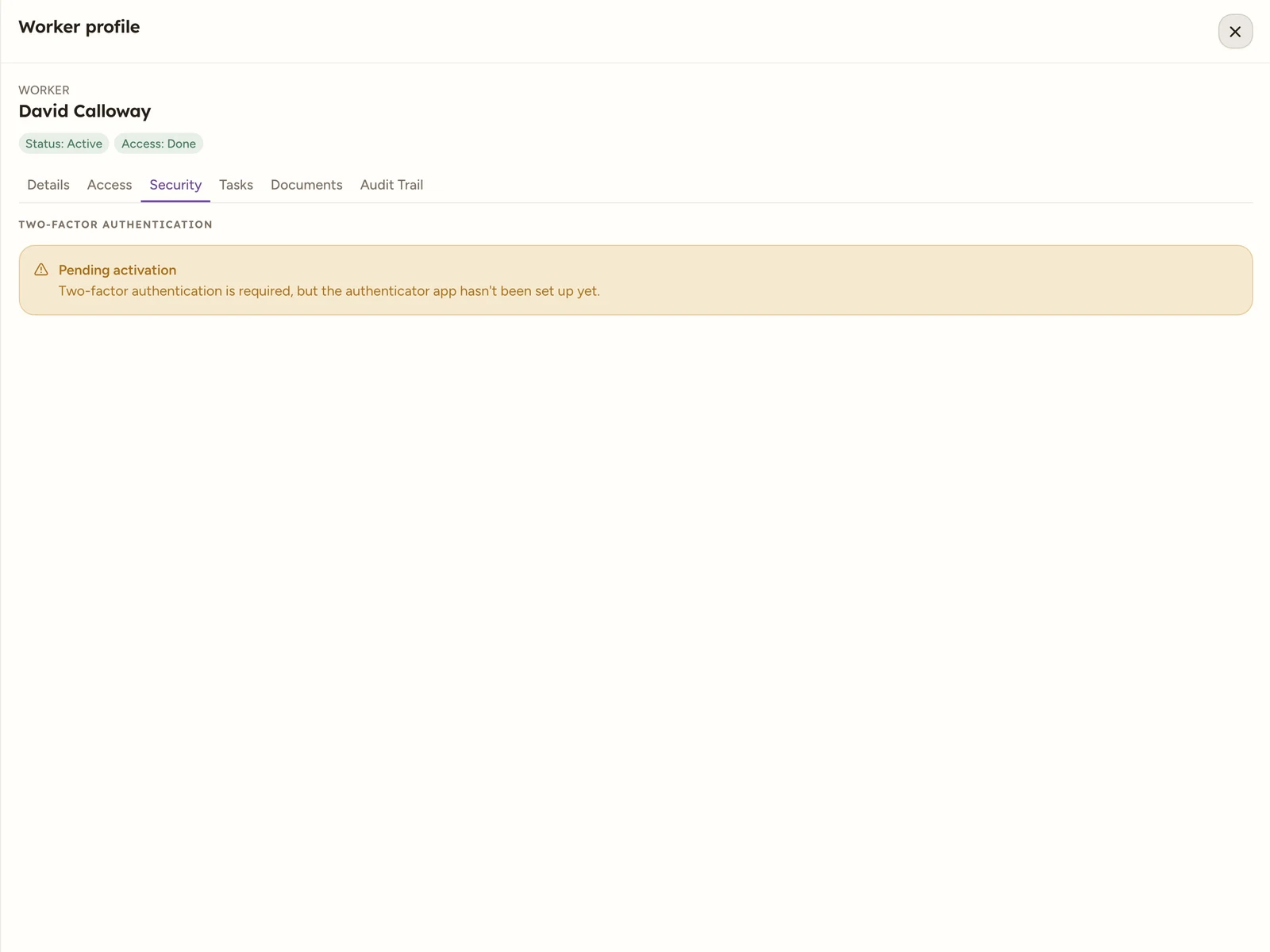
The tab has one section, Two-factor authentication, shown as a status banner in one of three states.
 12
12- Two-factor authentication is active (green): “An authenticator app is set up for this account.”
- Pending activation (amber): “Two-factor authentication is required, but the authenticator app hasn’t been set up yet.”
- Two-factor authentication is off (grey): “This account is not required to use two-factor authentication.”
Reset 2FA
A Reset 2FA button appears only when 2FA is active and your role is allowed to manage it.
Select Reset 2FA
On the Security tab, select Reset 2FA. A confirm dialog opens.
Confirm
The dialog warns: “This removes the member’s current authenticator and signs them out. They’ll set up 2FA again on next sign-in.” Select Reset 2FA to confirm.
The worker is signed out and prompted to set up a new authenticator the next time they sign in.
Watch out
Resetting 2FA signs the worker out and clears their current authenticator. They cannot sign in again until they set up a new one.