Browse help topics
Preferences
Free-text preferences that keep support consistent between workers.
Last updated · 10 November 2026
The Preferences tab captures how a participant likes to be supported, so support stays consistent when different workers attend.
Open the Preferences tab
Open the participant, then select the Preferences tab. Select Add preference at the top right. Existing preferences appear in a table.

Enlarge screenshot
Swipe across the enlarged image to read each part of the screen.
Mavis’s saved preference appears in the list. Open the row for the full text; the list is a preview.
Fill in the preference
| Field | Required | Notes |
|---|---|---|
| Title | Yes | A short heading such as Communication, Routine or Worker preference |
| Description | No | The detail, for example “Prefers email over phone” |
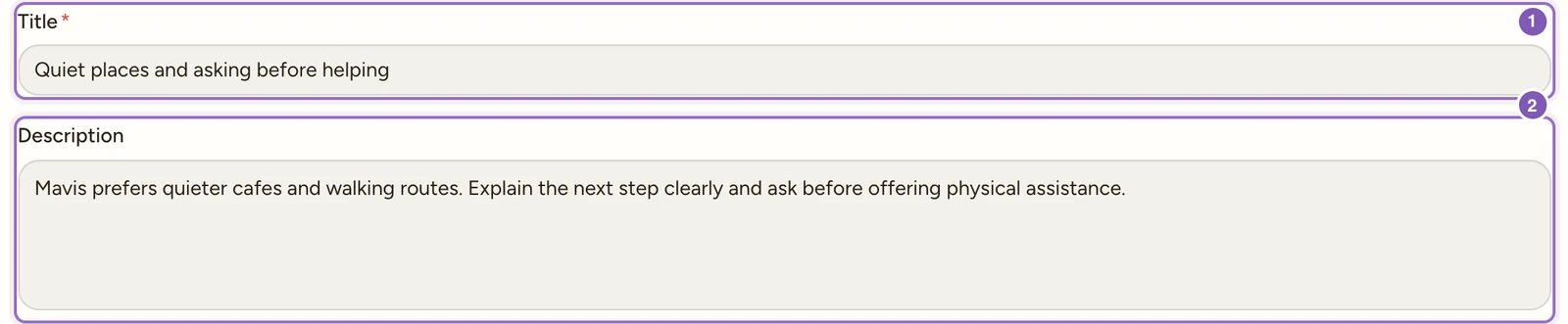
Enlarge screenshot
Swipe across the enlarged image to read each part of the screen.
Mavis’s preference opened for review. Read the full fields, then use Save preference below the form when you make a change.
Save the preference
Use Title as a short heading a worker can recognise, such as “Communication”. Put the usable instruction in Description, such as “Explain one activity at a time and allow time for a response.” A title without the detail rarely tells a new worker how to help.
Select Add preference to save a new one, or Save preference when editing.
There are no fixed categories, so use titles that make sense for the participant. To share these with assigned workers, select Preferences in the shift sharing controls; saving a preference does not automatically share it on every shift.
Keep preferences useful
You need Participants edit access. Confirm the preference with the participant. For example, use Title “Communication” and Description “Explain the next activity in short steps and allow time for a response.”
After saving, check the wording in the list. Select its row to change it and select Save preference. A title is required; complete it if saving is blocked. Use Cancel if you opened the wrong participant’s form.
To remove a preference, use Delete preference in its editor, select Delete in the confirmation and confirm after checking the correct item. Review the shift’s sharing choices when workers need the updated information.