Browse help topics
Push invoices to Xero
Batches push to Xero as drafts on generation; push by hand and sync payments back from Payments.
Last updated · 2 August 2026
If your organisation uses Xero for its books, invoice batches go into Xero as draft invoices, so your bookkeeper never has to re-key them. Most of the time this happens on its own the moment you generate a batch. A row action lets you push one by hand when it did not, and a second button brings payment status back from Xero.
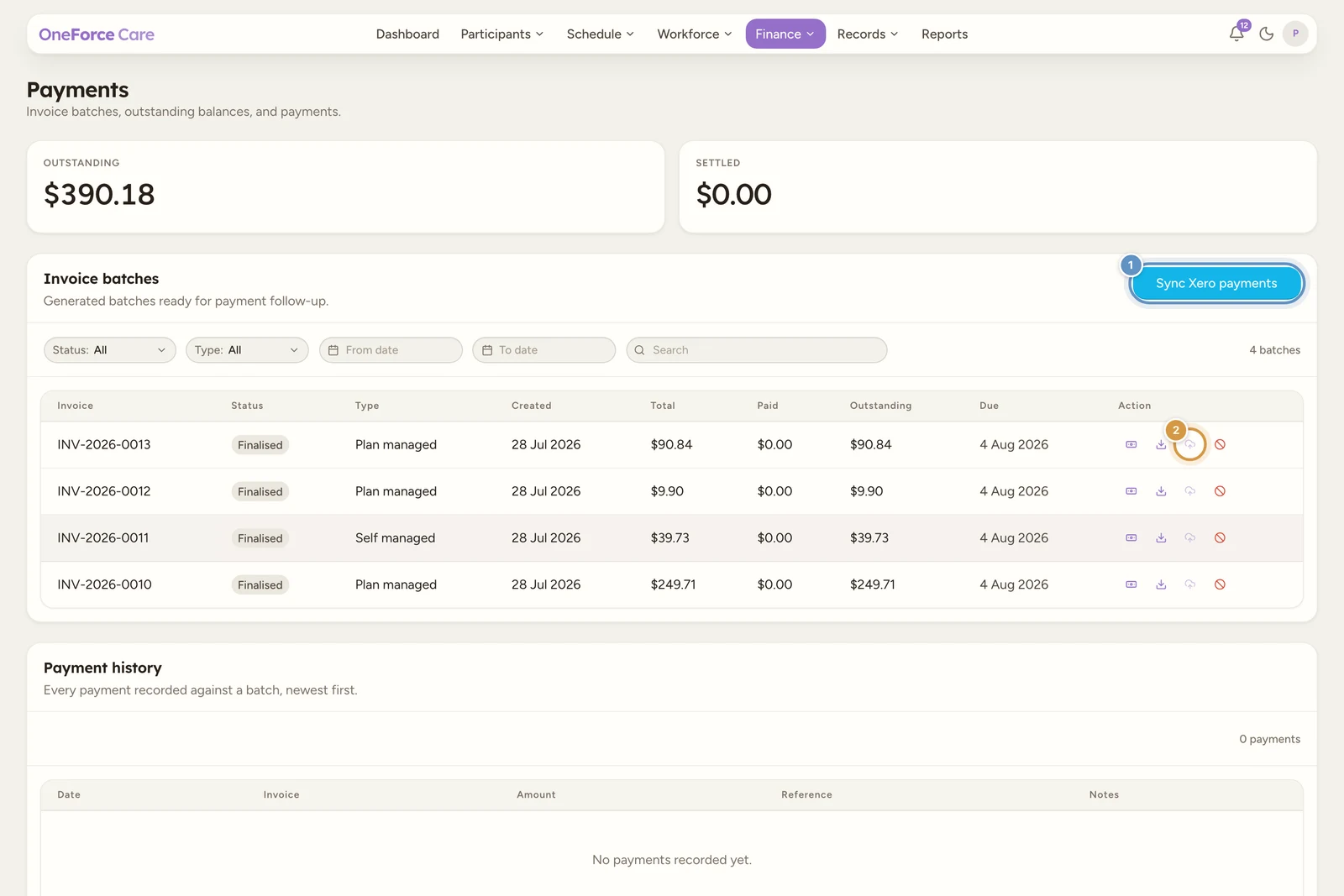
Most batches push themselves
Generating an invoice batch also pushes it into Xero, in the same action, whenever your organisation is connected. There is nothing extra to press.
- The generation toast tells you: “Invoice batch generated and pushed to Xero.”
- If the push fails, the batch is still generated and the toast becomes a warning, “Invoice batch generated. The Xero push failed, retry from Payments.” Nothing is lost; use the row action below.
- NDIA batches never push. An NDIA claim is lodged through the NDIS portal rather than invoiced, so that bucket only downloads its bulk claim CSV, and the Push to Xero icon does not appear on its row at all.
See Generate invoice batches for the generation step itself.
Connect Xero first
Push to Xero and Sync Xero payments are hidden until your organisation is connected to Xero. Connecting is a one-off step under Account›Integrations, and is only available to the account owner. The row there reads “Pushes invoices and payroll timesheets straight into Xero.” See Set up your organisation for the connect steps.
Tip
Not sure whether you’re connected? Open Finance›Payments - if the Sync Xero payments button and the cloud-upload icon in the Action column are missing, Xero is not connected yet. The same is true if someone has turned the Xero switch off under Account›Features, which hides every Xero action even while the organisation stays connected.
Push a batch by hand
Open Payments
Go to Finance›Payments. Find the plan-managed or self-managed batch you want to push in the Invoice batches table.
Select Push to Xero
In the Action column, select the cloud-upload icon (Push to Xero). It pushes straight away; there is no confirmation dialog.
Read the result
On success you see Invoice pushed to Xero as a draft. (or N invoices pushed to Xero as drafts. when the batch produces more than one), and the icon becomes permanently disabled with the tooltip Already pushed to Xero. If Xero accepted some invoices but rejected others, the success toast (for the ones that succeeded) is followed by a second toast with the first rejection reason; open the batch in Xero to see which one failed.
Watch out
If Xero rejects every invoice in the push (none succeed), there is no separate “all rejected” message, you see a single error toast with the first rejection reason instead, for example a duplicate invoice number. Nothing is marked as pushed, so you can fix the problem (in Xero or in the batch) and select Push to Xero again.
What gets pushed
Pushing groups the batch’s charge rows by participant and billing contact, and creates one Xero draft invoice per group, so a batch billed to several plan managers or several participants creates several invoices. Where there is more than one, every invoice in the group gets a numeric suffix on the batch’s invoice number, starting at -1 (so the first is INV-123-1, the second INV-123-2, and so on); a batch that produces only one invoice keeps the bare number with no suffix. Each Xero invoice is created with:
| Xero field | Comes from |
|---|---|
| Contact | The invoice recipient’s name (the service agreement’s invoice contact, or the participant if there isn’t one). |
| Reference | The participant’s NDIS number, when known, written with an NDIS prefix (for example NDIS 430123456). Left empty when there is no number. |
| Date / Due date | The batch’s invoice date, plus your invoicing payment terms. |
| Status | DRAFT - nothing is sent to the payer from Xero. |
| Line items | One per charge row, with the support item number in the description, and GST mapped from the row’s GST code: P1 to 10% GST, P5 to BAS excluded, and P2 (or a missing code) to GST-free. |
| Account code | Your connected Xero organisation’s default sales account: code 200 if it exists and is active, otherwise the first other active revenue account. If neither is found, the line item is created with no account code at all, so your accountant can assign one in Xero when they approve the draft. |
There is nothing to configure for any of this. The push reads the sales account and the tax treatment out of the connected Xero organisation itself, which is why the Integrations page has a connect button and nothing else.
Sync Xero payments
In the header of the Invoice batches panel, the Sync Xero payments button checks every batch you have pushed to Xero that is not yet Paid or Void, and asks Xero for their current status. Select it, and while it runs the button disables and its icon spins.
A batch is only marked Paid once every Xero invoice created from it shows as paid in Xero (a batch pushed as several invoices needs all of them settled). When that happens, OneForce Care records the payment automatically: Reference is set to Xero, Notes lists the Xero invoice number(s), and the payment date is taken from Xero’s paid date. It appears in Payment history exactly like a manually recorded payment, and the batch flips to Paid. Those Xero-sourced rows also carry a link on each invoice number, which opens that invoice in Xero.
On success the toast reads N batch(es) marked paid from Xero., or No new Xero payments found (N unpaid pushed batch(es) checked). if nothing had changed. Sync never pushes anything new to Xero, and it has no effect on a batch you haven’t pushed yet.
Note
The same sync also runs on its own, every 30 minutes. A pushed batch that gets paid in Xero will flip to Paid here within the half hour without anyone pressing anything, and the same pass refreshes each pushed payroll timesheet’s Xero status. The button is there for when you do not want to wait.
Who can push and sync
Connecting or disconnecting Xero is owner-only. Pushing a batch and syncing payments are stricter still than the rest of this page: today only the account owner or an admin can actually complete them, even though the icon and button are visible to anyone who can open Payments. A custom staff role cannot be granted this access from Roles & Permissions, no matter what payments permissions it has. If a staff member tries anyway, they see You do not have permission to push invoices for this provider. (or …to sync Xero payments for this provider. for the sync button).
Note
Other messages you might see:
- This batch has no attached charge rows to push. - the batch’s rows were removed or reassigned after it was generated.
- Xero already has an invoice with this number. It may have been pushed or created there already. - Xero already holds an invoice using that number.
- This batch is already in Xero as a draft. - it was pushed moments earlier and the page hasn’t refreshed yet. This one arrives as a plain confirmation, not an error, because the invoice is safely in Xero and pushing twice never duplicates it. Reload and the icon will show as disabled.
- Xero is not connected for this provider. Connect it in Account > Integrations. - the connection was disconnected or has expired; reconnect and try again.
Watch out
Once a batch is pushed, it cannot be un-pushed from here. If you need to correct or remove a pushed invoice, do it in Xero directly. The same goes for voiding: voiding a pushed batch warns you to clean up the draft in Xero yourself.