Browse help topics
Getting started on the mobile app
Sign in, pick your provider, allow all of the required permissions, and learn the Home, Shifts, Alerts and Settings tabs.
Last updated · 2 August 2026
The OneForce Care worker app is where you run your shifts: clock in and out, record breaks and travel, write progress notes, and report incidents. Your account is set up for you by your provider, so the first time you open the app you just sign in and allow a few permissions.
Sign in
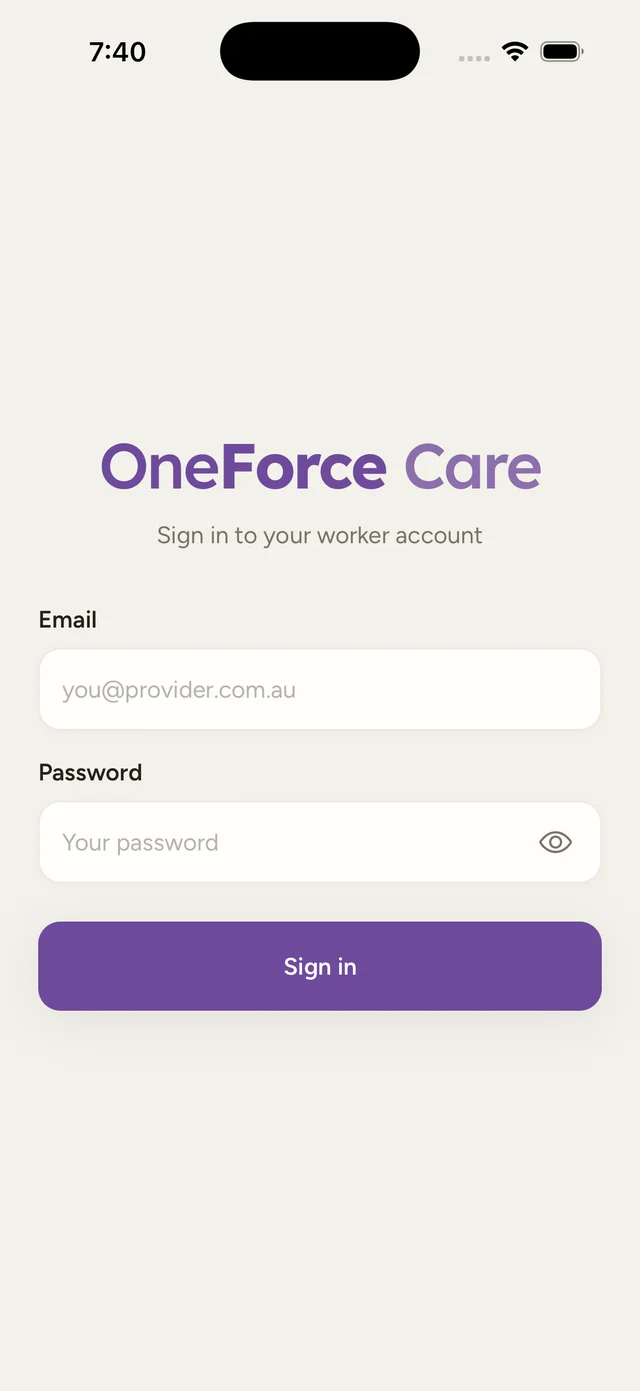
Enter your email and password
On the sign-in screen, fill in Email and Password, then tap Sign in. Use the eye icon next to the password to show or hide what you type.
Choose a provider (only if you have more than one)
If you work for more than one provider, the app shows Choose a provider. Tap the card for the provider you want to work in. You can switch later from Settings, under Switch provider.
Note
There is no sign-up or password reset on this screen. If you cannot sign in, or you see “Your account is not confirmed yet”, check your invite email or contact your provider’s office. If your provider requires two-factor authentication, the app will ask you to set up an authenticator app and enter a 6-digit code.
Allow the permissions the app needs
After you sign in, the app shows Allow a few permissions, with the line “OneForce Care needs these to run your shifts. Tap each to allow. You can change them later in Settings.”
Every row on this screen is required. Each one is tagged Required, and the app does not open until every permission it needs is allowed. Tap a row to allow it: the row shows Allow before you have answered, then On or Off.
| Permission | What the app says it is for |
|---|---|
| Location | Record travel and confirm you’re on-site for your shifts. Choose “Always allow” so trips keep recording while your phone is locked. |
| Camera | Take evidence and progress photos. |
| Photo library | Upload an existing photo from your gallery to reports. |
| Notifications | Travel check-in reminders, new shifts and office announcements. |
| Alarms & reminders (some Android phones) | Deliver travel check-in reminders on time, even while your phone is idle. |
Location has to be Always allow
While using the app is not enough. Your phone stops recording a trip the moment the screen locks, which is exactly when you are driving, so the app only counts Always allow as granted. Choose it when your phone asks, or the Location row stays Off and you get a dialog headed Location is off saying: “Travel recording needs location set to ‘Always allow’ in Settings. “While using the app” stops tracking when your phone locks.” Tap Settings on that dialog to go straight there.
Depending on your phone, this can take two answers: allow location first, then choose Always allow when your phone follows up.
Alarms & reminders, on Android 12 and newer
This one has no pop-up to accept. Tapping the row opens your phone’s Alarms & reminders page for OneForce Care, where you switch it on and then come back to the app. Without it, your phone is allowed to hold back the travel check-in reminders until it feels like delivering them, which is no use when the point is to catch a trip you left running. iPhones and older Android phones do not show this row at all.
If you say no to one of them
Nothing breaks, but you stay on the permissions screen until it is sorted out. The button at the bottom reads Open device settings, which takes you to OneForce Care’s own page in your phone’s settings.
Tap Open device settings
From the permissions screen, tap Open device settings. Your phone opens the OneForce Care settings page.
Turn the missing one on
Find the permission the app is still waiting on and switch it on. For location, choose Always allow rather than While using the app.
Go back to the app
Switch back to OneForce Care. It rechecks as soon as it comes to the front, so the row updates on its own and the app opens once everything reads On.
The check runs every time you bring the app back to the front, so if you later turn one of these off in your phone’s settings, the app returns you to this screen until you turn it back on. You can review all of them any time under Settings, in Device permissions.
Find your way around
The app has four tabs along the bottom of the screen.
| Tab | What it is for |
|---|---|
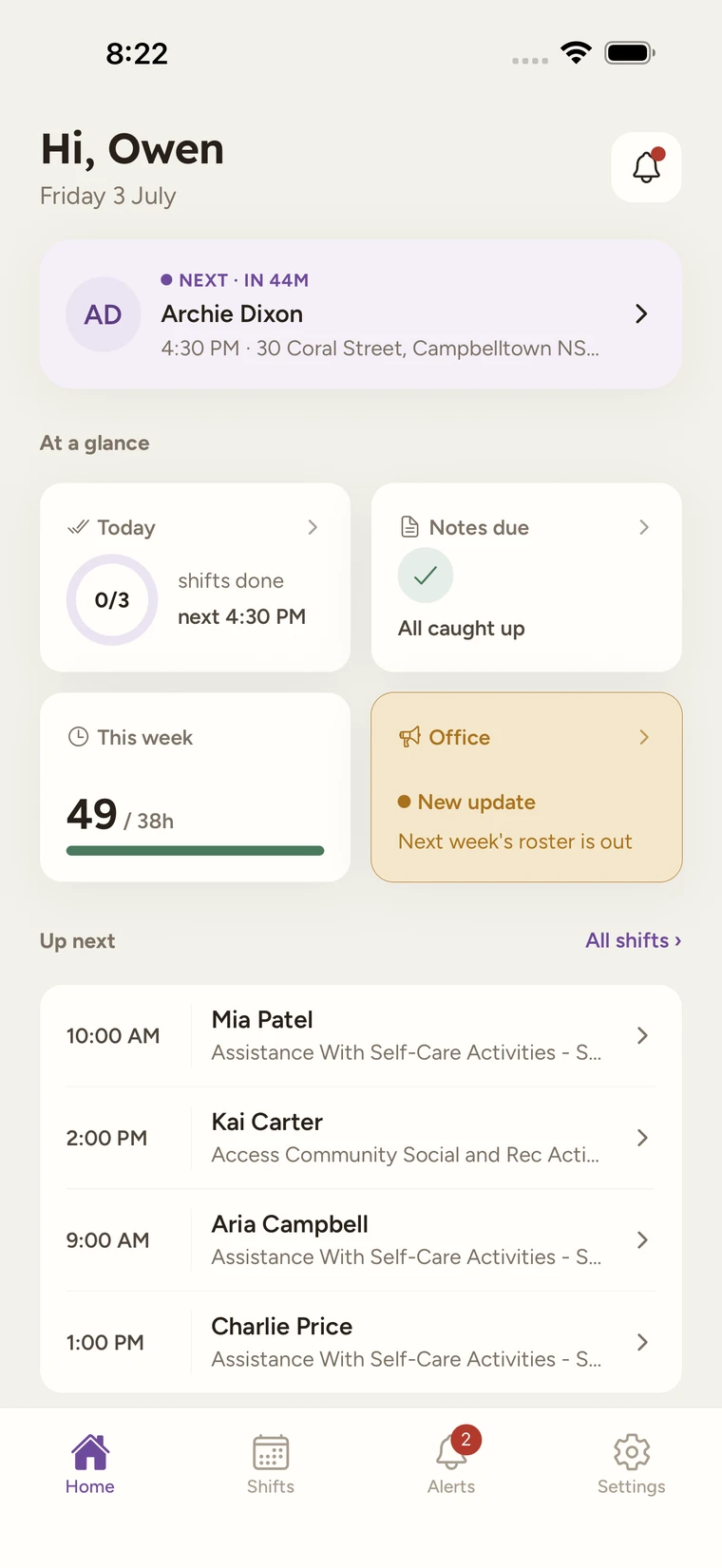
| Home | Your day at a glance: the shift you are on or coming up next, hours this week, and notes due. |
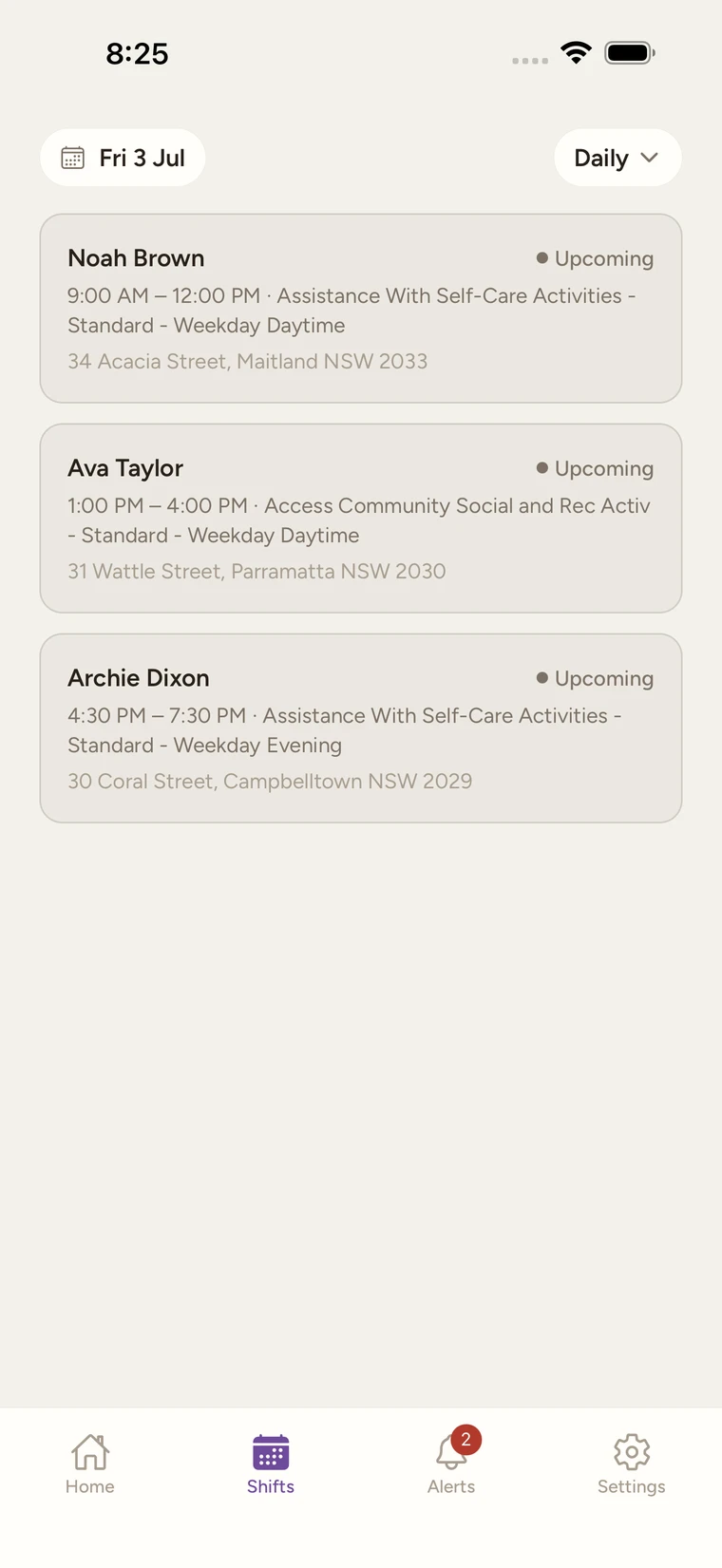
| Shifts | Your calendar of shifts. Switch between Daily, Weekly and Monthly, and tap a shift to open it. A red number on the tab counts the shifts still waiting on your answer. |
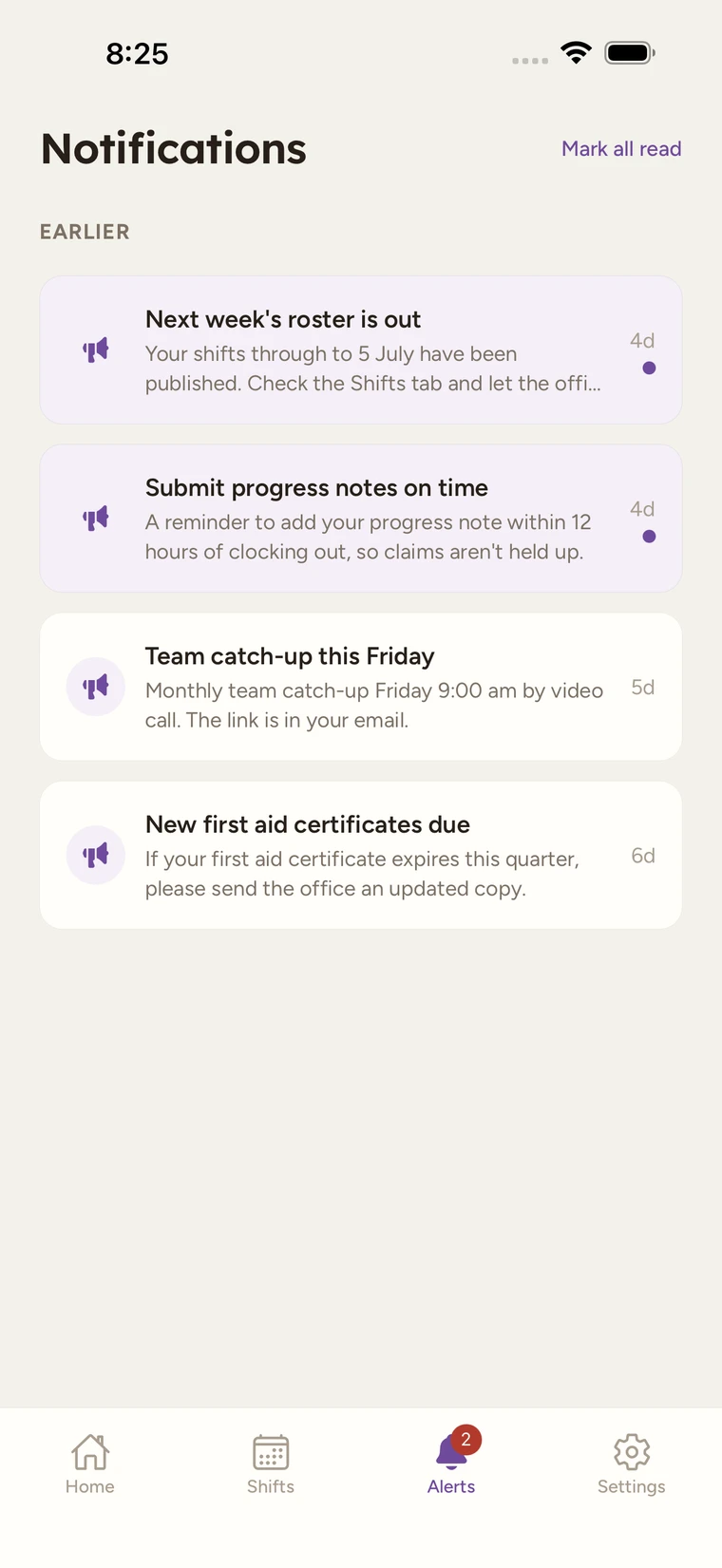
| Alerts | Your notifications inbox. The screen heading reads Notifications. A red number on the tab counts your unread notifications. |
| Settings | Your profile, availability, appearance, reminders, permissions, and sign out. |
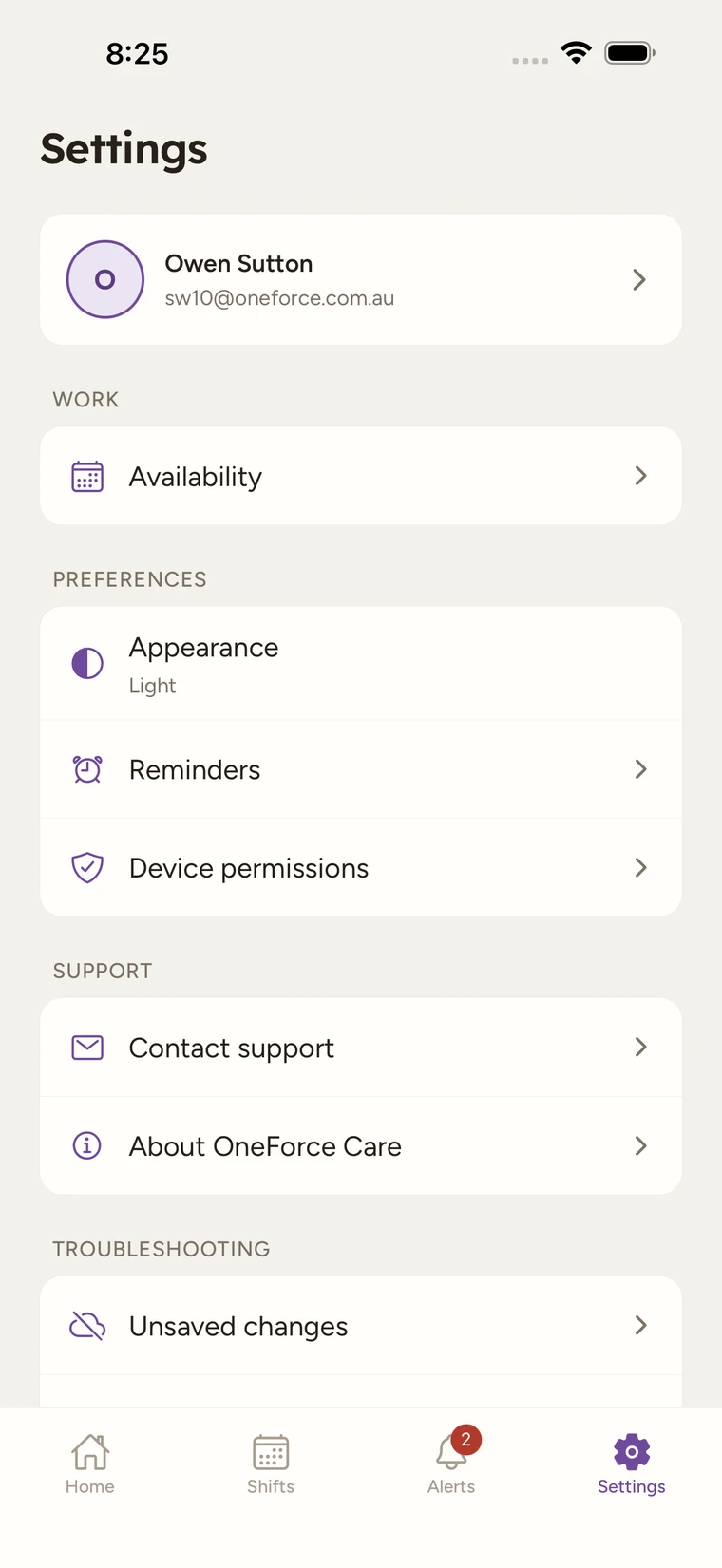
Note
Alerts is not only office announcements, it is also where your shift changes land: “You’ve got a new shift” when one is assigned to you, “Shift time changed” when it is rescheduled, “Shift cancelled” if it is cancelled, and “Group shift updated” if a group shift you are rostered on gains or loses a participant. On a shift the office wants you to confirm, the title reads “New shift to confirm” instead, and “Shift awaiting your response” if you have not answered it yet. Both kinds sit in the same Today / Earlier list.
Home: your day at a glance
The Home tab greets you by name with today’s date, and a bell icon at the top right opens the same notifications list as the Alerts tab (a red dot on the bell means something is unread).
Below the greeting, a hero card always surfaces the one thing that matters most right now, and tapping it opens that shift:
- ON SHIFT, with a live elapsed timer, while you are clocked in.
- PROGRESS NOTE DUE, once you have clocked out of a shift and its note is still outstanding.
- NEXT, with a countdown, for your next upcoming shift.
- If none of those apply, the card reads “You’re all caught up” with “No upcoming shifts right now.” underneath, instead of a shift. If shifts are waiting on your answer it reads Waiting on your answer instead, with how many, and a Needs your response section appears above Up next. See Accepting or declining a shift.
Under that, At a glance is a 2-by-2 grid of tiles:
| Tile | What it shows |
|---|---|
| Today | A ring showing shifts done out of shifts scheduled today, with a subtitle: “on shift now”, the time of your next one, “shifts done”, or “no shifts”. Tap it to see today’s shifts. |
| Notes due | How many progress notes are still outstanding, with the next one’s participant and due time, or a green tick and “All caught up” once you have none left. Tap it to jump straight into a note. |
| This week | Your hours so far this week against a 38-hour weekly target, with a progress bar. A finished shift counts its actual clocked time; a shift still to come counts its rostered length. |
| Office | Your provider’s latest office announcement, highlighted with “New announcement” while it is unread. Tap it to read the full message, the same one you would find on Alerts. |
Finally, Up next lists your next few shifts (skipping whichever one the hero card above is already showing) so you can tap straight into any of them; All shifts takes you to the full Shifts tab. When nothing else is scheduled it reads “Nothing else scheduled.” A shift you have not yet answered is held out of Up next until you do, and the list reads “Respond to the shifts above to lock in your roster.” instead.
Note
The 38-hour This week target is a fixed on-device guide, not your contracted hours: it is the same for every worker and does not come from your roster or pay setup. Your actual hours and shifts are always set by your provider.
Every shift opens in a single sliding panel that covers the whole shift from clock-in to submitting your note. The next guide, Clock in and out, shows you how.