Browse help topics
Create a task
Add a task, pick its type, and mark it done.
Last updated · 2 August 2026
A task captures a follow-up, a note or a handover and tracks it through to done. The task type you pick decides which fields the form shows, so choose it first.
Open the create form
Go to Schedule›Tasks and select Create task at the top right. The form opens in a side drawer titled Create task, with the subtitle “Create an operational task.”
Choose the task type
The task type is the first field, and it controls the rest of the form. Switching type clears any claim fields you had filled in.
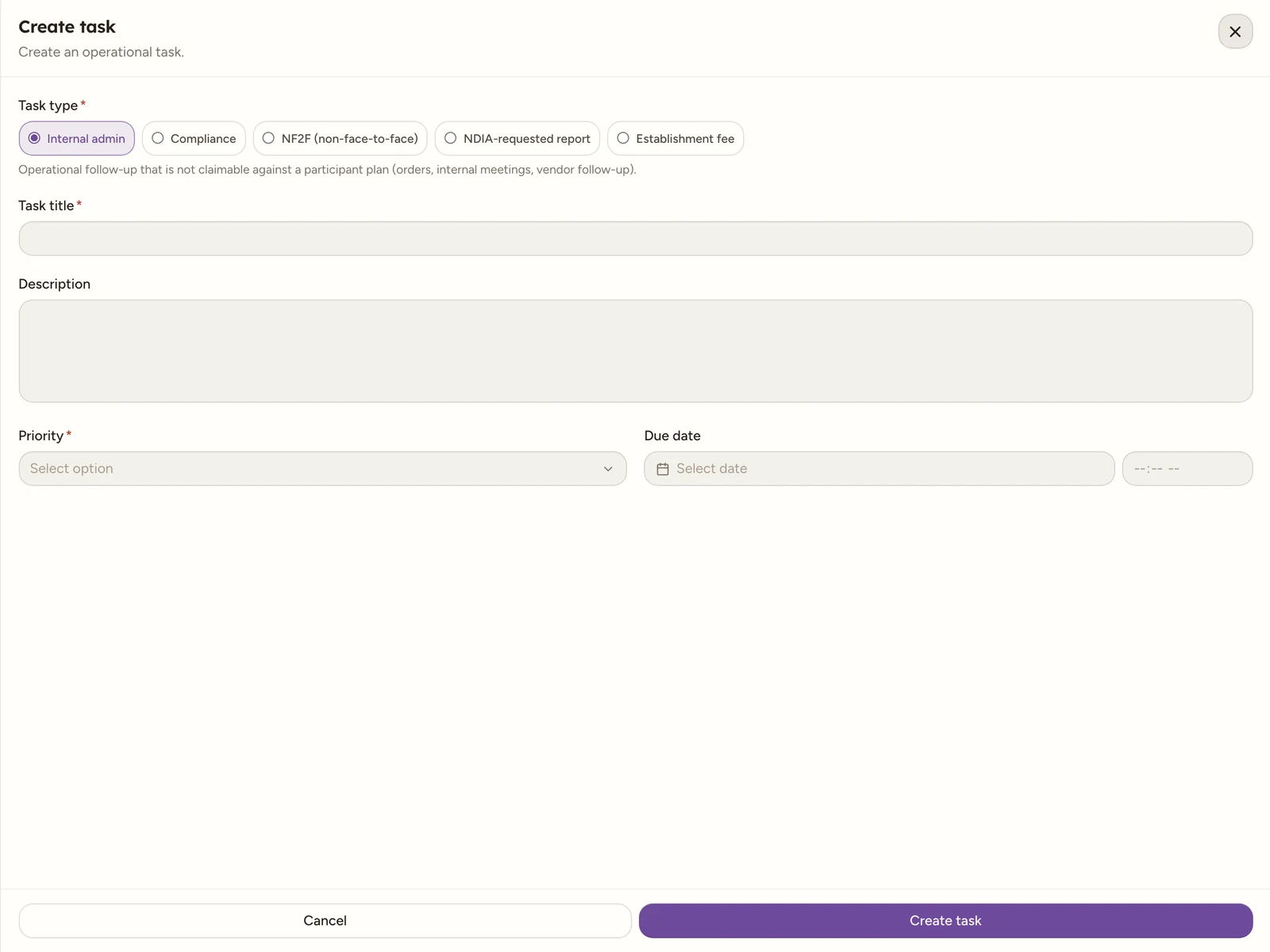
There are five types. The first two are internal; the last three are claimable (see Claimable tasks and claims).
| Type | What it is | Adds fields |
|---|---|---|
| Internal admin | Operational follow-up that is not claimable against a plan, such as orders, internal meetings or vendor follow-up. | None |
| Compliance | A compliance follow-up. | None |
| NF2F (non-face-to-face) | Claimable non-face-to-face work for a participant. | Participant, Support code, Time spent, Reason, Admin related (no charge) |
| NDIA-requested report | A claimable report the NDIA has asked for. | Participant, NDIA request type, Support code, Time spent, Reason |
| Establishment fee | A claimable establishment fee for a participant. Usually prompted by a bar at the top of an eligible participant’s Service Agreements tab (you still select Add establishment-fee task to create it), or add one by hand here. | Participant |
Tip
Establishment fee is usually added from the participant, not from here: see Establishment fee tasks for the eligibility bar that offers it, and when you would still add one by hand.
The default type is Internal admin.
Fill in the details
Complete the core fields. Fields marked with a red asterisk are required.
| Field | Required | Notes |
|---|---|---|
| Task type | Yes | The five types above. Defaults to Internal admin. |
| Task title | Yes | A short name for the task. |
| Description | No | Free text. |
| Priority | Yes | Low, Normal, High or Urgent. Starts on “Select option”. |
| Due date | No | Date and time picker, to the minute (unlike the shift form, it is not on a 15-minute grid). Clearable. |
The claimable types add more fields below Due date. Those are covered in Claimable tasks and claims.
Note
There is no Status field on the create form. Every new task starts in the To do lane.
Note
Task title and Priority are the only fields that actually block saving on every task type. For a claimable type, Participant blocks saving too. The claim-specific fields (support code, time spent, reason, NDIA request type) carry a red asterisk in the form, but leaving them empty does not stop the task from saving, they are only enforced later, when you generate the claim. See Claimable tasks and claims.
Save the task
Select Create task at the bottom of the drawer. The task is added to the To do lane and appears on the board and in the table.
Edit a task or mark it done
To change a task, select its row in the table or its card on the board. The Edit task drawer opens, titled Edit task with a subtitle showing the task name. It is the same form, plus a Status field (To do, In progress, Blocked or Done). Make your changes and select Save changes.
The edit drawer also has shortcuts:
- Mark done sets the status straight to Done. It is greyed out once the task is already done.
- Archive removes the task from active lists. You are asked to confirm with an Archive button. Archived tasks stay on file but are hidden from the board, the table and the filters.
Tip
You can also move a task between lanes by dragging its card on the board, no need to open it.
Permissions
What you can do on Tasks depends on your role’s Tasks permissions:
- No create permission: Create task does not appear at the top of the page.
- No edit permission: Save changes is disabled and there is no Mark done shortcut in the Edit task drawer, so you can open a task to view it but not change it.
- No delete permission: there is no Archive button in the Edit task drawer.