Browse help topics
Worker shifts
A read-only view of a worker's rostered shifts.
Last updated · 10 November 2026
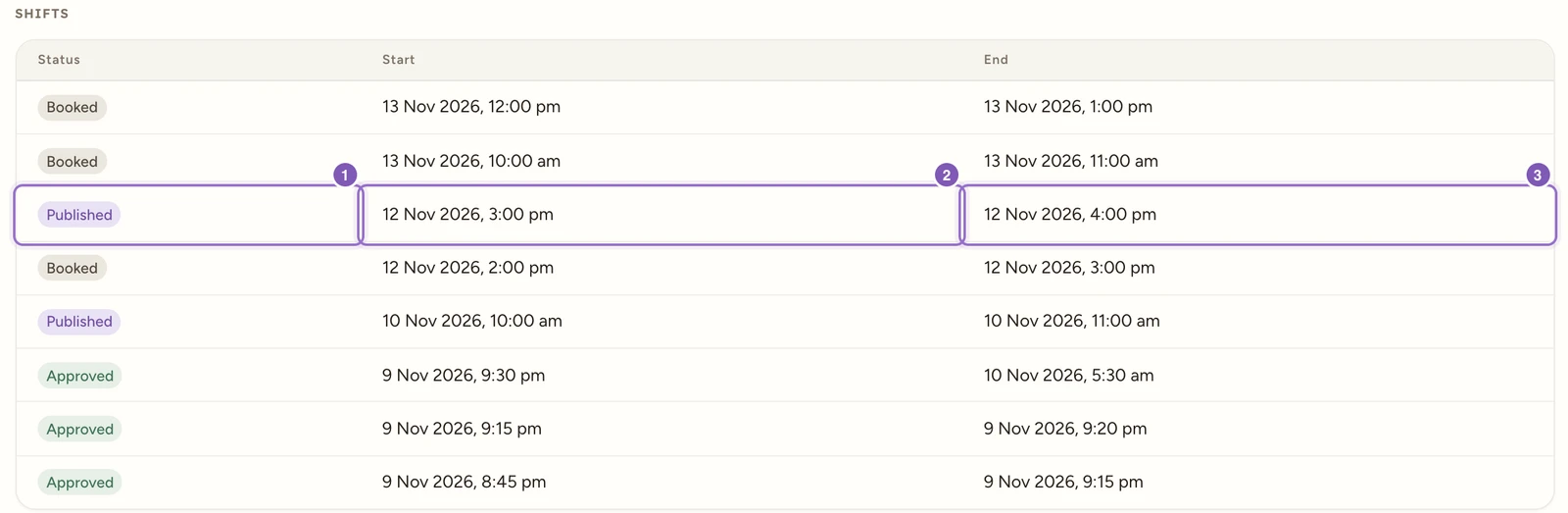
The Shifts tab is a read-only roster summary for this worker. Status is the shift’s saved status; Start and End are its scheduled times. Use it to see what the worker is rostered for; rostering itself happens in Scheduling. It appears for support workers only.
Enlarge screenshot
Swipe across the enlarged image to read each part of the screen.
Jordan linked-shift summary shows saved shift statuses and scheduled start and end times; actual worker clocks are reviewed in Assignments.
Check a worker’s roster
- Open Workforce > Workers, select the support worker and choose Shifts.
- Read Status, Start and End together. These are shift records and scheduled times, not actual worker clock times, a payslip or an invoice.
- To change an assignment or inspect worker submission and office approval, open Schedule > Scheduling or Assignments and find the same worker and date.
For example, the illustrated Published row on 12 November at 3 pm identifies a rostered shift. Check the particular worker’s response and actual clocks in Assignments. A saved Published shift can still be awaiting that worker’s response. An Approved row does not turn its scheduled Start and End into worked hours.
No shifts linked to this worker is a genuine empty list. Check that you opened the correct worker before adding another record. A visible shift is not by itself evidence the worker accepted it or the office approved their delivery. Follow Review assignments for those decisions.
Use Scheduling or Assignments for a complete check of each worker on a multiworker roster. This profile summary is a reference, not proof that every assignment or delivery record has been reviewed.