Browse help topics
Payments overview
Read outstanding and settled totals, filter invoice batches, and follow up on payments.
Last updated · 2 August 2026
Payments is where you follow the money after an invoice batch is generated. It tracks what has been invoiced, what has been settled, and what is still outstanding, and it is where you record a payment or reconcile an NDIA bulk claim. It is not a card-capture screen: it works with money received against your NDIS invoices, not card details. You will find it under Finance›Payments.
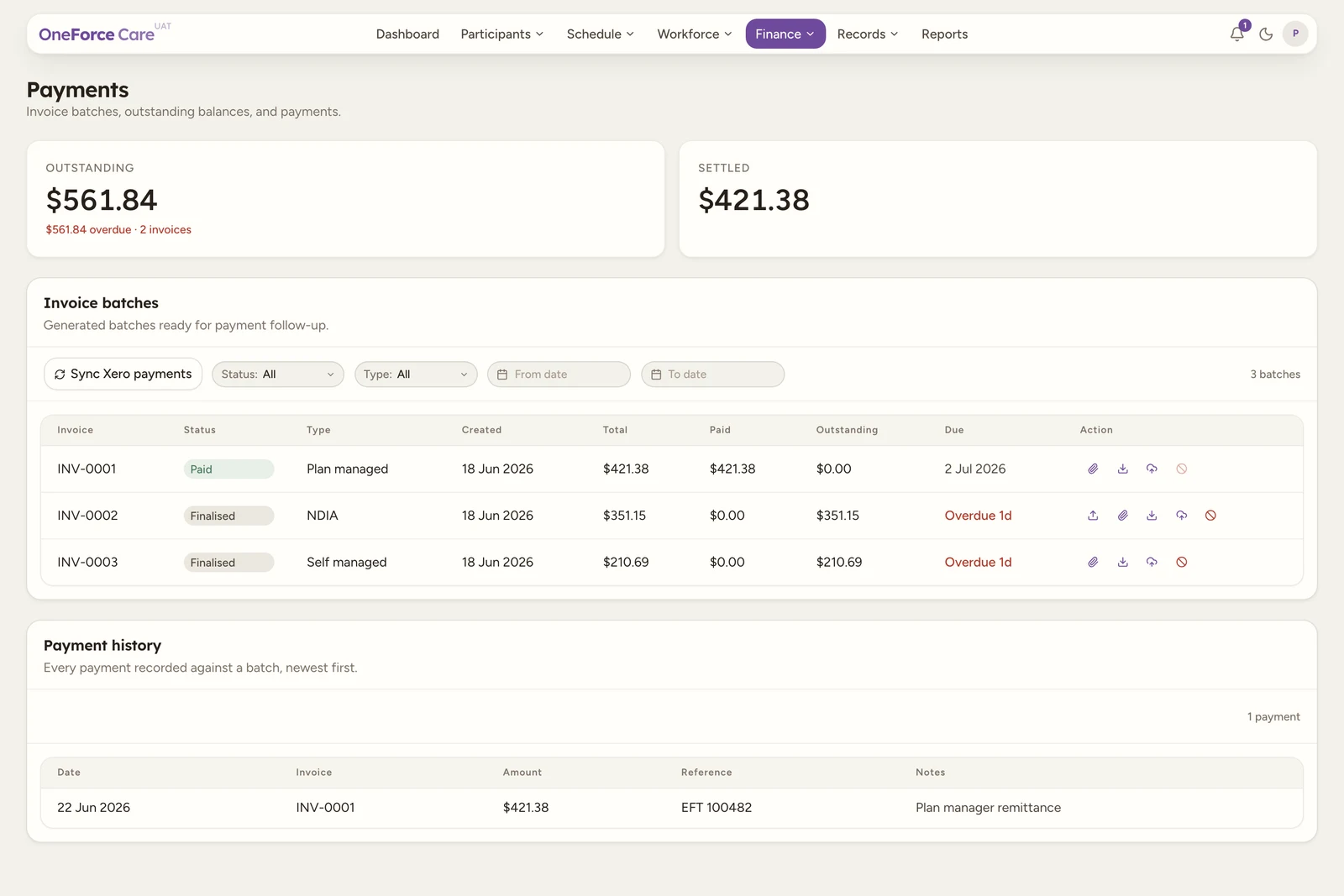
The two summary cards
The cards at the top give you the picture at a glance:
- Outstanding is the total still owed across all open invoice batches. Void batches are excluded. When an amount is past its payment terms, a red line appears below the figure showing how much is overdue and on how many invoices.
- Settled is the total of every batch that has been discharged, whether by cash payment or by an NDIA recovery (a debt the NDIA netted from a remittance instead of paying it, recorded from the claim results or a manual recovery entry). When any of that total came from a recovery rather than cash, a line below the figure splits it out, for example “$1,200.00 cash · $340.00 recovered”.
A batch’s own Paid status works the same way: it flips once its outstanding balance reaches zero, whichever combination of cash payments and NDIA recoveries got it there. There is no separate “recovered” status, a fully recovered batch shows exactly the same Paid badge as a fully cash-paid one.
Invoice batches
The Invoice batches table lists each generated batch that is ready for payment follow-up. If your organisation is connected to Xero, a Sync Xero payments button sits in the panel’s header, on the same line as the “Invoice batches” title; see Push invoices to Xero. The filter row underneath applies instantly:
- Status: All, Draft, Finalised, Paid or Void.
- Type: All, NDIA, Plan managed or Self managed. This is the funding route the batch took.
- From date and To date: narrow the list by the date each batch was created.
- Search: matches on the batch’s own text, such as its invoice number.
The count at the top right (for example 3 batches) updates to match the filters. The table itself shows up to 500 batches; if your workspace has more, narrow the filters to find an older one.
The columns
| Column | What it shows |
|---|---|
| Invoice | The batch’s invoice number. |
| Status | Paid, Finalised, Draft or Void. Once NDIA claim results are imported, the accepted, partial and rejected counts appear below the badge. |
| Type | Plan managed, NDIA or Self managed. |
| Created | The date the batch was generated. |
| Total | The full invoiced amount. |
| Paid | How much has been received against the batch. |
| Outstanding | How much is still owed, or Overpaid $X.XX in red if payments recorded against the batch add up to more than its total (for example a duplicate remittance). |
| Due | The due date, or plain red text reading Overdue Nd (no badge) with the number of days when it is past the payment terms, or a dash when no terms are set. |
| Action | The row’s action icons (below). |
The row actions
The Action column holds up to four icon buttons. They are all disabled once a batch is void.
| Icon | Action | When it appears |
|---|---|---|
| Banknote, then paperclip | Record payment, then Payment evidence | Every batch. While money is still owed it is a banknote and opens the drawer ready to record a payment; once the batch is settled it becomes a paperclip and the drawer only accepts evidence. On an NDIA batch this same drawer is where you import the claim results. See Record a payment. |
| Download | Download | Every batch. Downloads the batch file. |
| Cloud upload | Push to Xero | Plan-managed and self-managed batches only, once your organisation is connected to Xero. Disabled once the batch has already been pushed. NDIA batches never show it, because an NDIA claim is lodged through the NDIS portal rather than invoiced. Only the account owner or an admin can actually push or sync, even though the icon is visible to anyone who can open Payments. See Push invoices to Xero. |
| Ban | Void batch | Every batch. Returns its rows to Billing. Blocked once the batch has payments or imported claim results. |
Note
There is no longer a separate Upload claim results action. Importing the NDIA bulk payment results is now a block inside the Record payment drawer on an NDIA batch, so reconciling a claim and recording the money that came with it happen in one place. See Reconcile NDIA claim results.
Payment history
Below the batches, Payment history lists every payment recorded against a batch, newest first. Each row shows its Date, the Invoice it was recorded against (or “Not linked”), the Amount, an optional Reference, and any Notes. A recovery entry carries a small recovery tag next to its amount. A payment synced automatically from Xero shows Xero as its Reference, and its Notes carry the Xero invoice number(s) as links that open the invoice in Xero in a new tab. The list shows the 200 most recent payments across the workspace; older ones drop off the display but are still counted correctly in every batch’s own Paid and Outstanding figures.
Note
If your role does not have payments edit access, the page shows a Read-only. Your role cannot record payments. banner and the recording actions are unavailable. You can still read the totals, the batches and the payment history.
Tip
Ready to act on a batch? See Record a payment for plan-managed and self-managed invoices, Reconcile NDIA claim results for NDIA batches, or Push invoices to Xero once your organisation is connected.