Browse help topics
Sleepover active support
On a sleepover shift, slide to start active support when you are up supporting the participant, and hold to end it. The total appears in your shift review.
Last updated · 3 July 2026
A sleepover shift is one the office has coded to a sleepover support, for example an NDIS Night-Time Sleepover item. You clock in and out of it exactly like any other shift (see Clock in and out), but once you are clocked in you get one extra control: a way to record the parts of the night you are actually up and supporting the participant, rather than asleep.
Start and stop active support
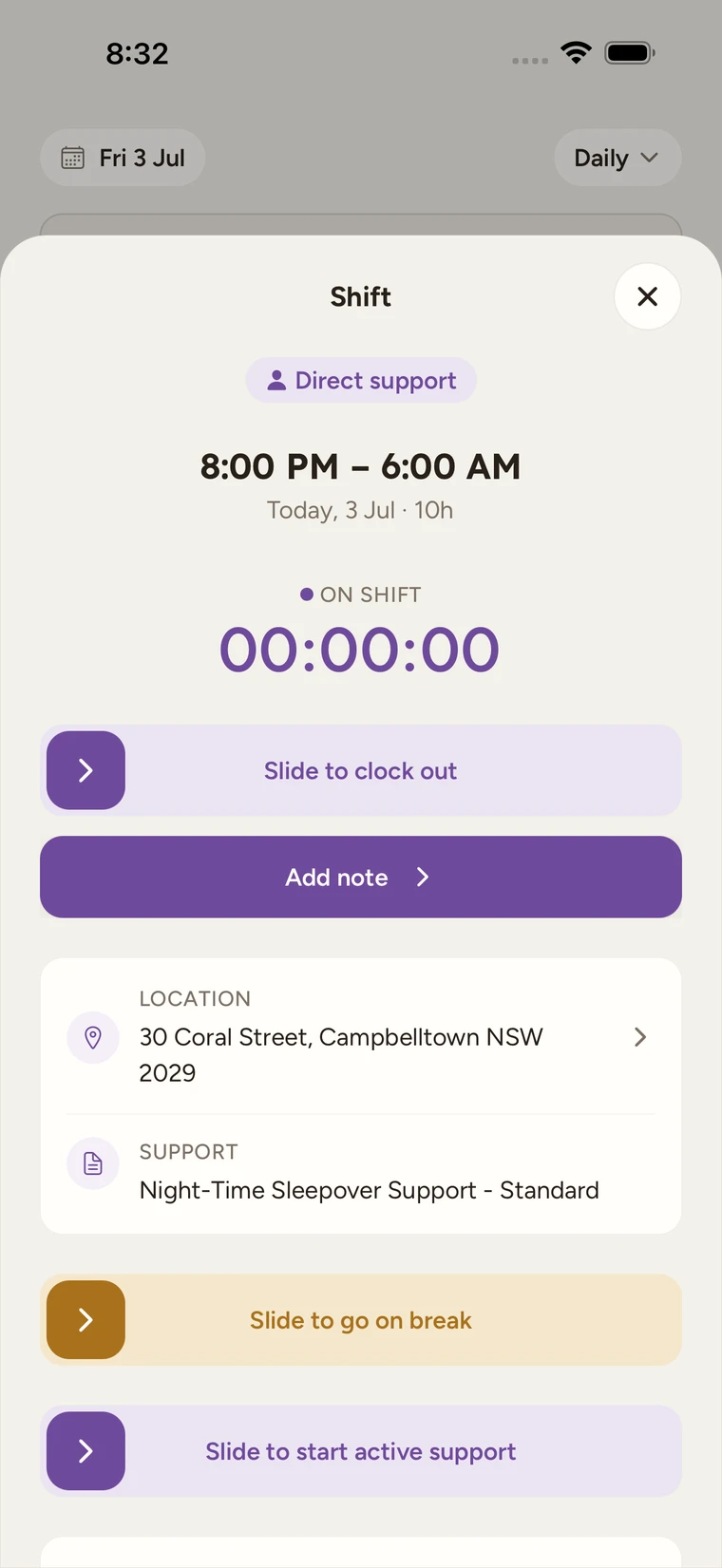
The Slide to start active support control appears once you are clocked in on a sleepover shift, below the break control (if breaks are allowed on the shift) and above the participant list. It only shows while no active-support period is already running.
Slide to start active support
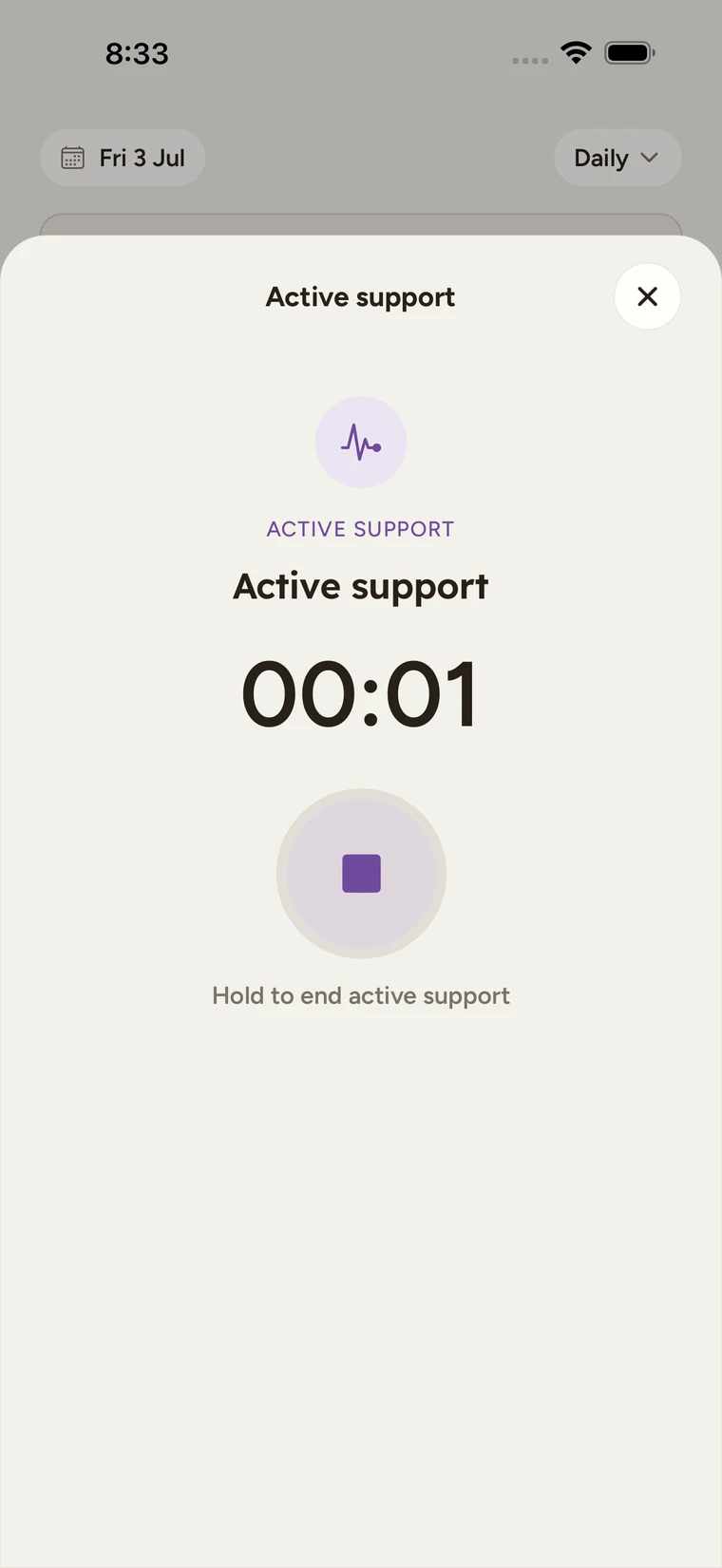
When you get up to support the participant, open the shift and drag Slide to start active support all the way across. The app switches to a focused screen showing Active support and a timer counting up.
Hold to end active support
Once you have settled the participant again, press and hold Hold to end active support until it confirms. Your start and end times for that period are recorded, and the slide control is ready again if you are called on later in the night.
You can start and stop active support as many times as you need through the night; only one period runs at a time, so end the current one before the control offers to start another.
Why it matters
A sleepover is billed as a flat overnight charge that already covers your first 2 hours (120 minutes) of active support. Recording every period accurately matters most once the night runs past that: time beyond 120 minutes is what tells the office how much extra active support to bill and pay.
Check the total before you submit
When you review the shift at the end, the review screen (reached after you clock out; see Progress notes and submitting a shift) shows an Active support line under Started and Finished, totalling every active-support period you recorded that night. It reads None recorded if you never started one.
Tip
If a start or end cannot save while you are offline, it is queued and applied automatically once you reconnect, the same as clocking in and out. See Working offline and your settings.