Browse help topics
Breaks and travel
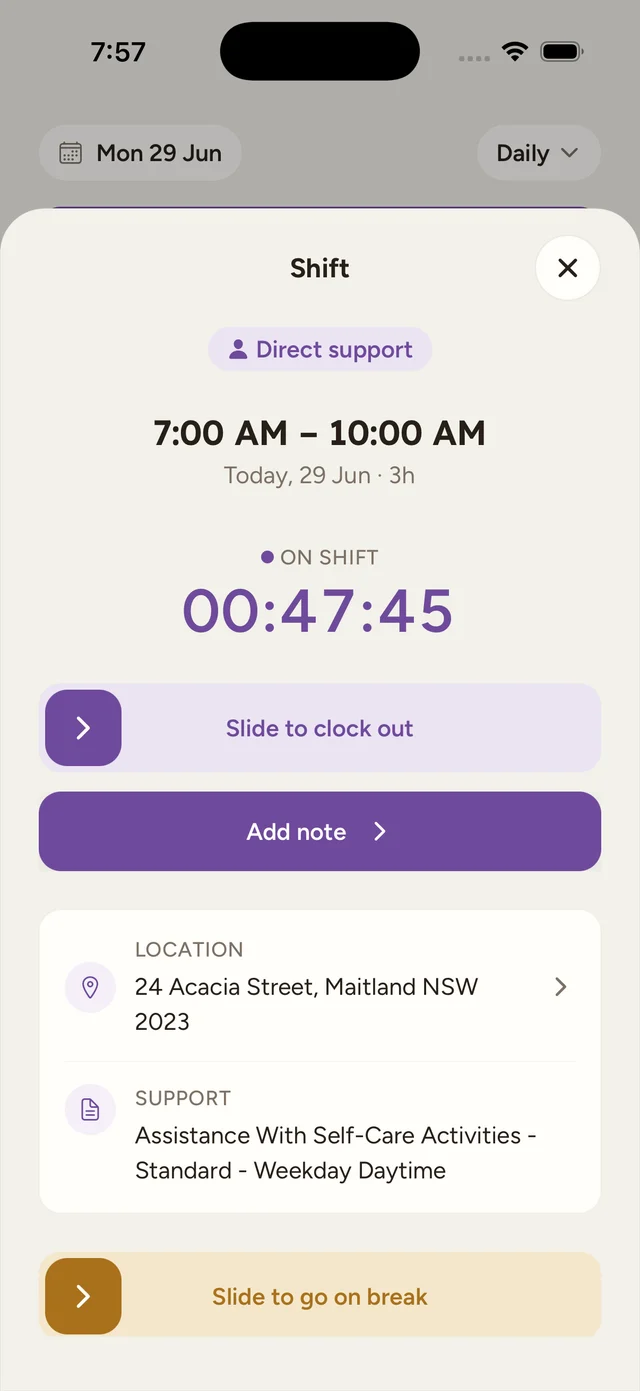
Slide to go on break, hold to end it, and start or end travel the same way. GPS is only captured for travel.
Last updated · 3 July 2026
Breaks and travel are recorded from inside the shift. Both use the same pair of gestures: you slide to start, and press and hold to end. Holding to end avoids stopping a break or a trip by accident.
Take a break
The break control only appears when you are clocked in, breaks are allowed on the shift, and you are not already on a break.
Slide to go on break
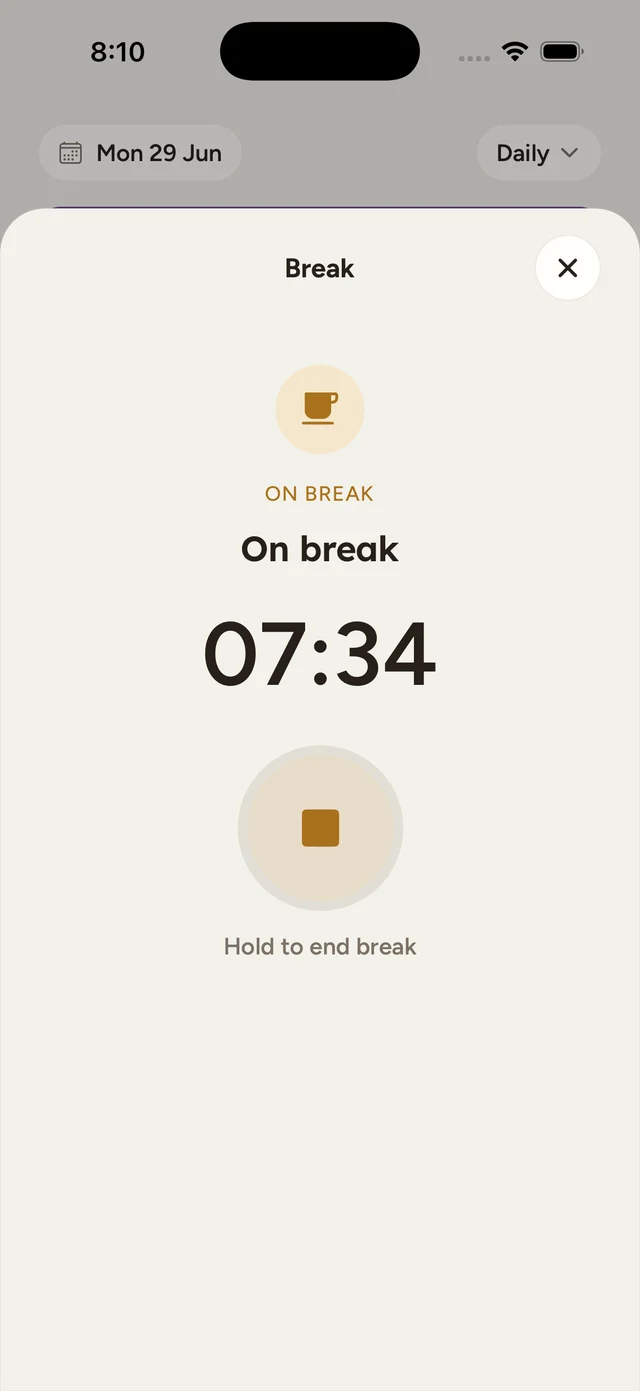
Open the shift and drag Slide to go on break all the way across. The app switches to a focused break screen showing On break and a timer counting up.
Hold to end break
When you are ready to get back to work, press and hold Hold to end break until it confirms. Your break start and end times are recorded.
Note
Breaks are simply timed with a start and an end. There is no paid or unpaid choice to make, the app does not ask and does not show one.
Record travel
If your provider has set up travel for the shift, a travel control appears above the clock action when a trip is available. The trip on offer depends on where you are in the shift:
| When | Travel leg | Appears when |
|---|---|---|
| Before you clock in | Travel to participant | Your provider has enabled travel-to-participant on the shift. |
| While clocked in | Activity transport | The shift’s support allows provider travel during the visit. |
| After you clock out | Return travel | Your provider has enabled return-to-business on the shift. |
Travel to participant and Return travel each offer once: after you record one, it will not come back on the same shift. Activity transport can recur as many times as you actually travel with the participant during the shift, so it reappears each time you end one trip, ready for the next.
Slide to start travel
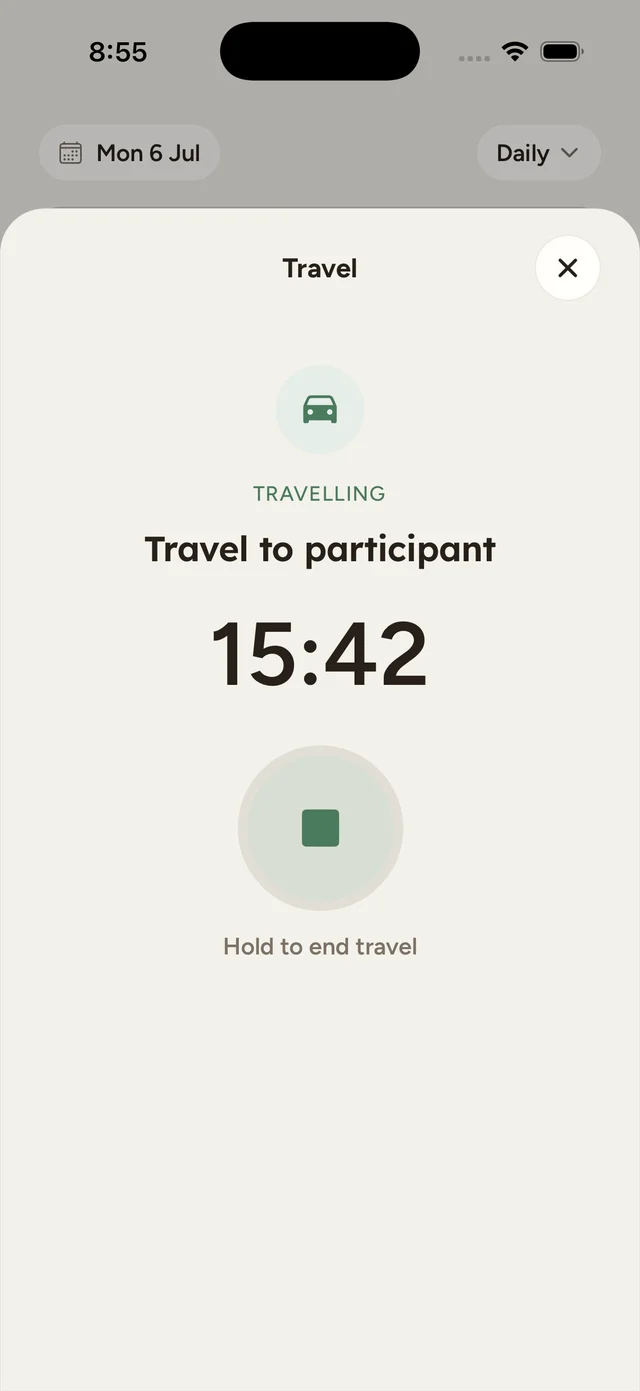
Drag Slide to start travel all the way across. The app switches to a focused travel screen showing TRAVELLING, the trip name, and a timer.
Hold to end travel
When you arrive, press and hold Hold to end travel until it confirms.
Location is only used for travel
While a trip is running, the app records your route in the background to work out the distance, and shows a “Recording your travel route” notification. This is the only time the app captures your location, clocking in and out do not. If you appear to have stopped while a trip is still running, the app may nudge you with a “Still travelling?” reminder so you can confirm you are on the move or end the trip.
The app works out the kilometres for each trip from your recorded route, or estimates them if it could not. You can adjust the kilometres for each trip later, in the review step before you submit. See Progress notes and submitting a shift.