Browse help topics
Internal notes
Office coordination notes about the participant, separate from shift progress notes.
Last updated · 10 November 2026
Use Internal notes for office coordination about the participant, such as a request to confirm a new emergency contact. These are separate from workers’ shift records in Progress notes.
- Open Participants, search for the person, and select their row.
- Select Internal notes in the profile’s tab rail. Use the rail’s arrows if the tab is off screen.
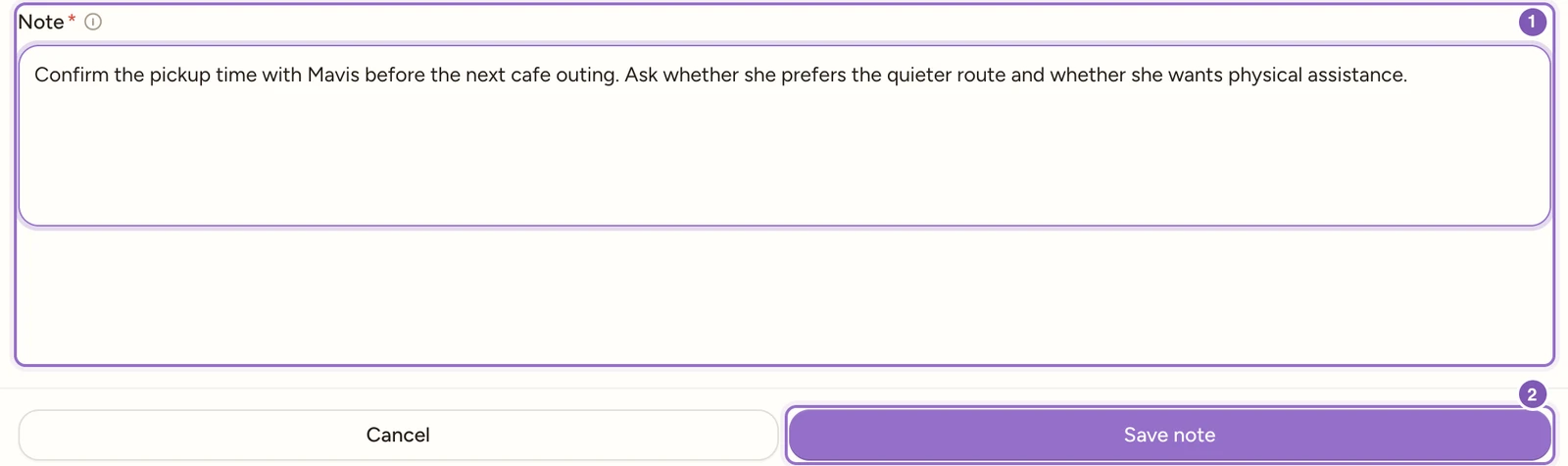
- Select Add note. Enter the required Note, for example, “Confirm the updated emergency contact with Mavis before changing Contacts.”
- Read the note before saving: saved notes cannot be rewritten. Select Save note, then check it appears with its author and creation time.
- Select that saved note to read the full text and confirm it is on the intended participant. Use Close to return to the list.
Enlarge screenshot
Swipe across the enlarged image to read each part of the screen.
An unsaved participant internal note records the next pickup check. Save note and Cancel are visible.

Enlarge screenshot
Swipe across the enlarged image to read each part of the screen.
The saved View Note shows Alex Morgan, its creation time and the complete office follow-up. Saved notes have no edit action.
You need Participants edit access to add or delete a note. If the form is read-only, ask your workspace administrator to check your role. Do not include a password or an unnecessary personal detail in a note.
Select a saved note to read it. Saved notes have no edit action. If a correction is needed, add a new note that clearly identifies the correction. Where your recordkeeping policy permits deletion, use Delete note in the note view and confirm the deletion. Check the correct note before confirming.
Recording an office note does not submit a worker’s shift or share a progress note with workers. Use the appropriate shift workflow for delivery evidence.