Browse help topics
Reportable incidents
Classify the record, check the required notification window and record follow-up.
Last updated · 10 November 2026
Select the NDIS reportable category when creating or updating an incident. OneForce Care uses that selection to set Reportable and calculate a reminder. The selection records your assessment; it does not determine whether an incident is legally reportable.
Confirm the notification requirement
Registered providers must notify the NDIS Commission about reportable incidents, including alleged incidents. Notification periods run from when the provider became aware. Most categories require notification within 24 hours. An unauthorised restrictive practice generally has a five-business-day period, but one causing harm requires notification within 24 hours. Follow the current Commission reportable-incident guidance and your organisation’s incident process.
Watch out
OneForce Care’s reminder uses Occurred at, not the time the provider became aware. It assigns five business days to the restrictive-practice category without assessing harm. Confirm the applicable deadline yourself, especially when harm occurred. Saving a record or changing its status does not notify the Commission.
Categories in the form
- Death of a person with disability
- Serious injury of a person with disability
- Abuse or neglect of a person with disability
- Unlawful sexual or physical contact or assault
- Sexual misconduct
- Unauthorised use of a restrictive practice
- Not a reportable incident
A reportable category shows an alert at the top of the form headed NDIS Commission notification required. It reads Report within 24 hours. or Report within 5 business days., with Notify by when an occurrence time is available. Not a reportable incident removes that reminder and shows No in the register’s Reportable column. Reassess the classification when new information becomes available.

Enlarge screenshot
Swipe across the enlarged image to read each part of the screen.
Unsaved category example only. No occurrence time or participant has been entered, and no report has been saved. Assess the actual notification requirement before choosing the category.
How the app reminder works
The reminder is calculated from the selected category and Occurred at:
- All reportable categories except restrictive practice: 24 elapsed hours after the recorded occurrence.
- Restrictive practice: five Monday-to-Friday days after the occurrence, preserving the local time. Public holidays are not excluded.
The form previews Notify by. After saving, the register and board show the stored NDIS deadline. Treat this as an operational reminder alongside your assessed notification deadline.
| Display | Meaning |
|---|---|
| Date and time | The app has calculated a reminder. |
| Pending | A reportable record has no occurrence time from which to calculate it. |
| Overdue | The reminder has passed while the incident remains Open. |
| Not required | The record is marked non-reportable. |
Moving the record to Notified or Closed clears the Overdue badge. It does not establish that notification was on time or that every required report has been submitted.
Record follow-up and notification
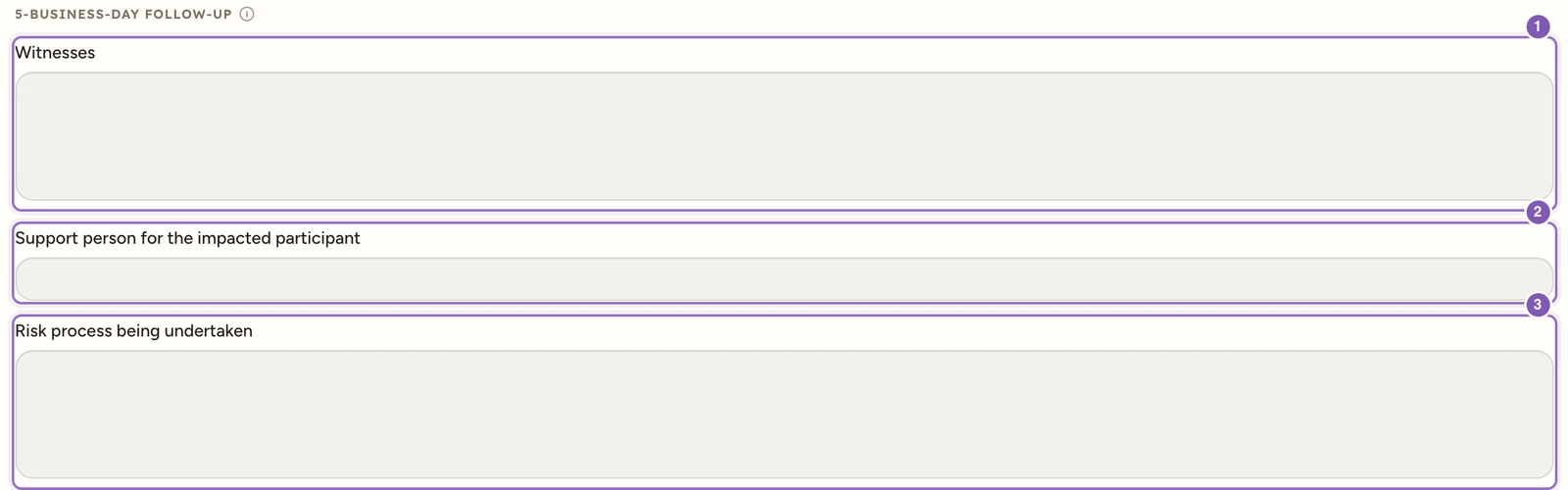
Reportable records show the 5-business-day follow-up section: Witnesses, Support person for the impacted participant and Risk process being undertaken. These fields are optional in the app; complete the information required for your actual Commission report separately.
Enlarge screenshot
Swipe across the enlarged image to read each part of the screen.
These fields appear for a reportable category. This unsaved example leaves them empty; complete them from the actual response and evidence.
For example, Witnesses identifies who observed the event and the information they can provide. Support person for the impacted participant names the person supporting the participant through the response. Risk process being undertaken describes the review or investigation and current actions. Do not enter a completed investigation or notification until it has actually occurred.
After notifying the Commission, set Status to Notified (Commission) and save, or move the board card to Notified. Keep the submission reference and follow-up evidence with the incident. Export an incident PDF to prepare a supporting document from saved information.
For new incidents lodged from 12 October 2026, the Commission directs providers to its new portal. Earlier lodged incidents remain in the existing portal for follow-up. Check the Commission’s portal instructions before submitting.
Work through the classification
You need Incidents edit access to change an existing report. Open Participants > Incidents, select the report, review the facts and choose NDIS reportable category. For example, an incident’s operational type can be Fall while its reportable category depends on the assessed circumstances and injury.
The Incident type describes the event, while NDIS reportable category records the notification assessment. Choose them separately. Occurred at records when the event happened; do not change it to the awareness time merely to make the app’s reminder match your independently assessed deadline.
Save Update incident and check the register’s Reportable and NDIS deadline. Correct the category or occurrence in the existing report if the facts were entered incorrectly. The app does not send deadline reminders or submit the report to the Commission. Keep responsibility for notification and follow-up assigned through your organisation’s process.