Browse help topics
Documents overview
A read-only register of every file across your workspace: search, download and delete.
Last updated · 2 August 2026
Documents is a read-only, workspace-wide register of every file stored against any record in your provider workspace. It rolls up files from participant and worker profiles, directory contacts, service agreements, incident evidence, tasks, payment proof and more, so you can find any document in one place without having to remember which record it was attached to. Open it from Records›Documents.
Good to know
This page does not have an upload button, and it does not track expiry dates. To add a file, open the record it belongs to and use its Documents tab: see Participant documents and Worker documents.
Find a document
Use the Type filter and the search box beside it to narrow the list. Search matches the title, file name, type and the linked record name. The Type filter lists the document types currently in your workspace.
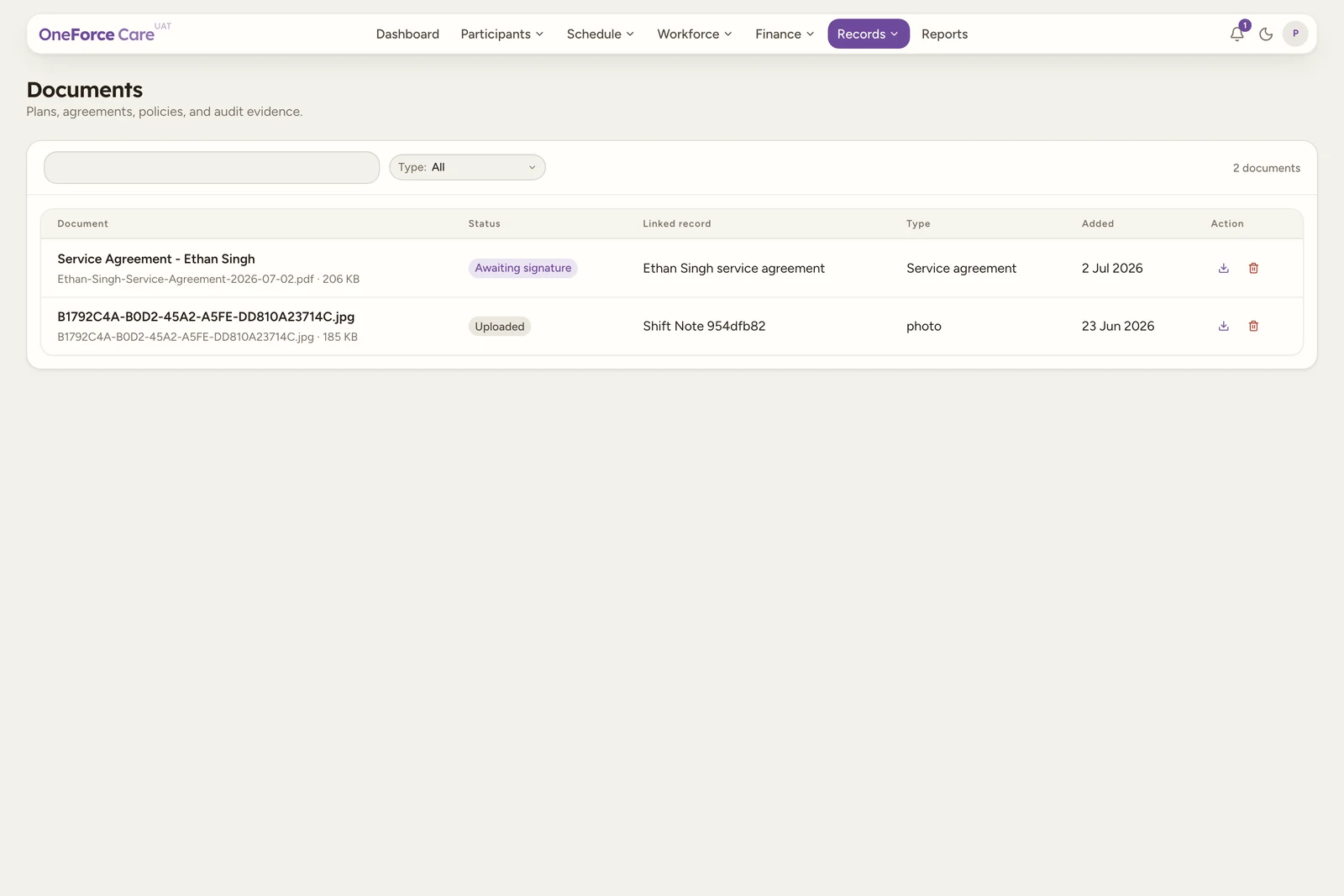
Columns
| Column | What it shows |
|---|---|
| Document | The document title, with the file name and size underneath. |
| Status | A status badge (see below). |
| Linked record | The record the file belongs to, such as a participant, worker, directory contact, service agreement, incident or task. Reads No linked record if none. |
| Type | The document’s category, as it was stored. |
| Added | The date the document was added. |
| Action | Download and Delete buttons. |
Note
A handful of record types (shifts, shift notes, invoice batches, payroll runs and the workspace itself) do not have a friendly name in this register, so Linked record falls back to a generic label with a short ID, for example “Invoice Batch a1b2c3d4”. The six that do resolve to a name are participants, workers, directory contacts, service agreements, incidents and tasks. A document linked to more than one record (a signed service agreement is also linked to the participant, for instance) shows only one of them here.
Status badges
| Badge | Meaning |
|---|---|
| Uploaded | The file has been uploaded. |
| Awaiting signature | The document has been sent for signing and is waiting for a signature. |
| Signed | The document has been signed. |
| Replaced | A newer version has replaced this file. |
| Archived | The document has been archived. |
Note
This register only shows where a document’s e-signature has got to; it has no send or resend action of its own. Sending a service agreement or consent form for signature, and re-sending or chasing a signature, is done from the participant’s record: see Service agreements and Consent.
Download or delete
- Download is available to everyone. Select the download icon to open the file in a new tab. If the link can’t be created (for example a network or permissions problem), you see an error toast reading “Could not create a document download link.”
- Delete needs the documents edit permission, so the button is disabled without it. Selecting it opens a dialog titled Delete document; select Delete to confirm or Cancel to back out.
After you confirm, the document disappears from the table and you see a “Document deleted.” toast. If the delete fails, the dialog stays open with the error shown inline (for example “Could not delete the document.”) so you can retry without losing your place.
Watch out
Deleting a document is permanent and cannot be undone. The confirmation reads “Permanently delete {title}. This cannot be undone.”