Browse help topics
Workspace features
The nineteen toggles on the Features tab, grouped into Modules, Scheduling, Integrations, Communication and Compliance.
Last updated · 17 September 2026
The Account›Features tab switches capabilities on or off for your whole workspace. There are nineteen toggles, in five cards: Modules, Scheduling, Integrations, Communication and Compliance.
Note
The Features tab is shown to the provider owner. Changing a toggle also needs Settings edit access; without it the toggles are greyed out and the tab ends with “You need Settings edit access to change features.”
There is no Save button. Each toggle saves on its own, with a message such as Breaks enabled. or Breaks disabled.
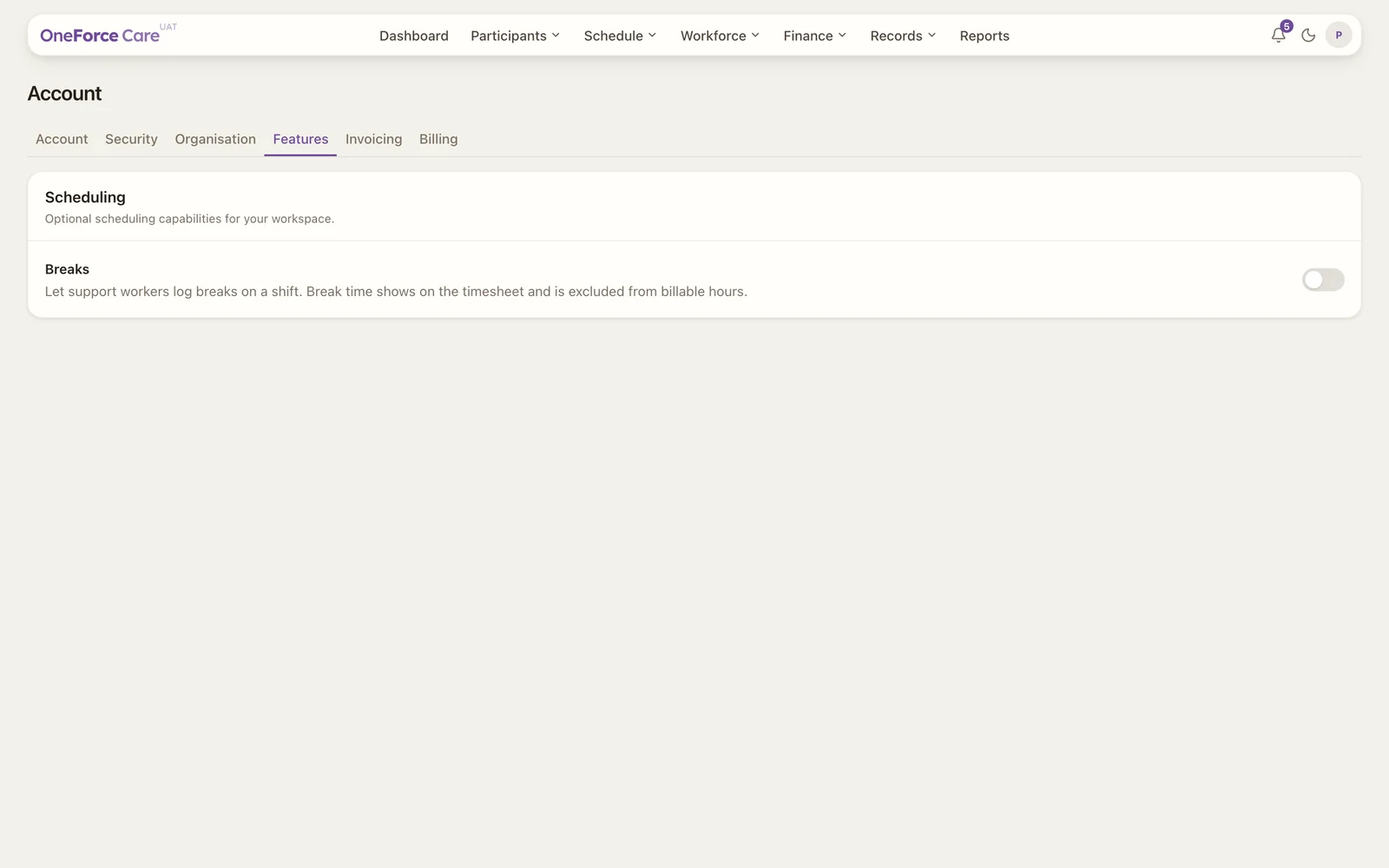
The full registry, top to bottom. Everything in Modules, Scheduling, Integrations and Communication is on by default; everything in Compliance is off until you turn it on.
Modules
All modules are on by default.
Switching a module off removes its screens, profile tabs and actions, and stops new records from being created for that module. You can use rostering with payroll and invoicing switched off.
Turning a module back on restores the records saved while it was enabled. Work performed while it was disabled is excluded from later payroll and billing, so it does not appear as a backlog. Existing pay runs, invoices and uploaded documents stay saved.
With Documents and e-signing off, document uploads, downloads and new signing requests are unavailable. Pending signing requests do not complete into new workspace records across a disabled period. A signing link already delivered outside the app is not recalled by this switch; cancel pending requests before switching off if you need those links withdrawn.
| Module | What it covers |
|---|---|
| Payroll | Run weekly pay, SCHADS rates and timesheet exports. |
| Invoicing, claims and payments | Generate invoices, submit NDIS claims and reconcile payments. |
| Incidents | Record and manage incident reports. |
| Tasks | Assign and track office and NDIA-report tasks. |
| Reports | Build and export operational and compliance reports. |
| Documents and e-signing | Store documents and send them for electronic signature. |
| Intake | Manage the participant referral and intake pipeline. |
| Directory | Keep a contact directory of external stakeholders. |
All eight are on for a new workspace.
Scheduling
“Optional scheduling capabilities for your workspace.” All five are on by default.
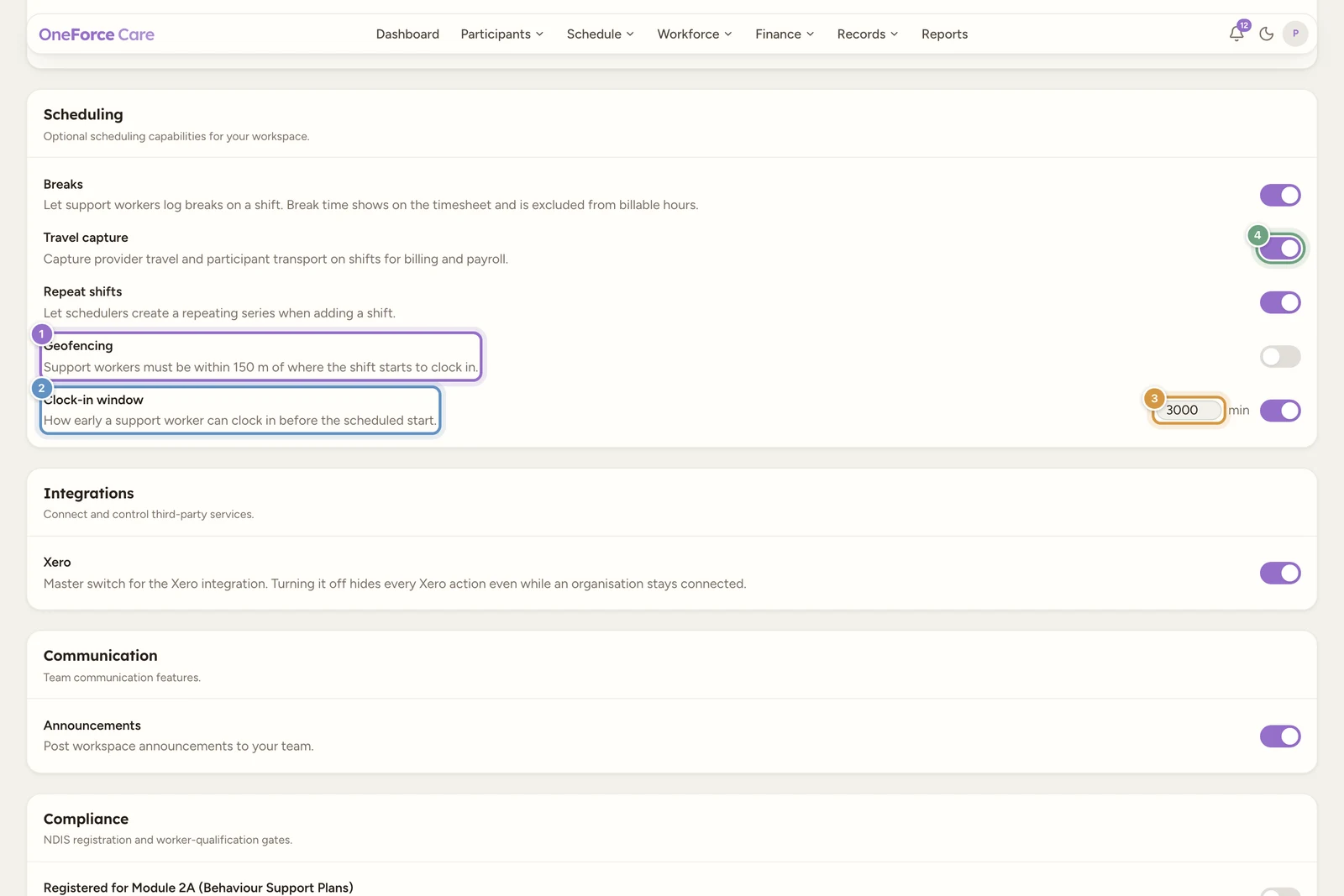
- Breaks: let support workers log breaks on a shift. Break time shows on the timesheet and is excluded from billable hours.
- Travel capture: capture provider travel and participant transport on shifts for billing and payroll. With it off, no travel is offered on the phone and there is no travel to review on an assignment.
- Repeat shifts: let schedulers create a repeating series when adding a shift. With it off, the Repeat tickbox disappears from the Add shift form.
- Geofencing: see below.
- Clock-in window: see below.
Geofencing
“Support workers must be within 150 m of where the shift starts to clock in.”
With this on, a worker who is not near the shift cannot start it. Three details matter:
- It is the address the shift starts at, not the destination. On a direct-support shift that is the shift location. On a group shift it is the first pickup, because that is where the run begins. Only that first address is checked.
- A shift whose address could not be placed on a map is not checked at all. The check fails open rather than stranding a worker at a site the platform could not locate. The shift form tells your scheduler when that has happened: the Geofencing field on the shift reads On, address not mappable.
- The 150 m radius absorbs GPS drift, and the phone’s own accuracy figure is credited against it up to 100 m, so a worker with a poor fix is not blocked for being a few metres out. The credit is capped deliberately: a phone reporting 500 m of error is guessing from a mobile tower rather than reading a position, so it is still only allowed the 100 m.
A worker who is out of range sees a Clock in blocked message naming the place to head for. If you switch geofencing off, the app never asks your workers for their position at clock-in at all.
Clock-in window
“How early a support worker can clock in before the scheduled start.”
The number beside the toggle is the number of minutes. The default is 5. You can set anything from 0 up to 4320 minutes, which is three days, so a provider who publishes a roster well ahead can let workers clock in from the moment the shift is real to them. Saving shows Support workers can clock in 5 minutes early.
Before the window opens, the worker’s clock-in control is locked and counting down. Turning the toggle off removes the limit entirely.
Tip
Both gates are workspace-wide policy, not a per-shift choice, so nobody has to answer the same question on every shift. Each shift still shows what applies to it: see the read-only Geofencing and Clock-in window fields on the shift form in Create a shift.
Integrations
- Xero: “Master switch for the Xero integration. Turning it off hides every Xero action and pauses synchronisation while the organisation stays connected.” On by default. Use it to pause the integration without disconnecting: see Integrations.
Communication
- Announcements: “Post workspace announcements to your team.” On by default. With it off, the announcement composer disappears from the Notifications page and new announcements cannot be sent.
Compliance
“NDIS registration and worker-qualification gates.” All four are off until you turn them on, and leaving them off is what keeps the platform blocking claims your organisation is not registered for.
| Toggle | What turning it on means |
|---|---|
| Registered for Module 2A (Behaviour Support Plans) | Your organisation is registered and assessed for NDIS Practice Standards Module 2A. Off blocks claiming Intensive and Complex Behaviour Supports. |
| High intensity worker-skills gate | Warn when a worker without recorded High Intensity Support Skills is assigned to a high-intensity shift. |
| Registered for High Intensity Daily Personal Activities (0104) | Your organisation is registered for NDIS registration group 0104. Off blocks claiming high-intensity supports. |
| Registered for Community Nursing Care (0114) | Your organisation is registered for NDIS registration group 0114. Off blocks claiming nursing supports. |
Watch out
Turn on a Compliance toggle only once your organisation genuinely holds that registration or skill record. These are the gates that stop a claim you cannot substantiate reaching the NDIA.