Browse help topics
Progress notes and submitting a shift
Write the progress note, complete your tasks, then review and slide to submit after clocking out.
Last updated · 2 August 2026
A shift is finished by writing a progress note and submitting it. You can start the note any time after you clock in, but you can only review and submit it once you have clocked out and resolved every task.
Write the progress note
Open the note
In the shift, tap Add note. If you have already started one, the button reads Continue note instead. The note button only appears once you are clocked in.
Record what support you provided
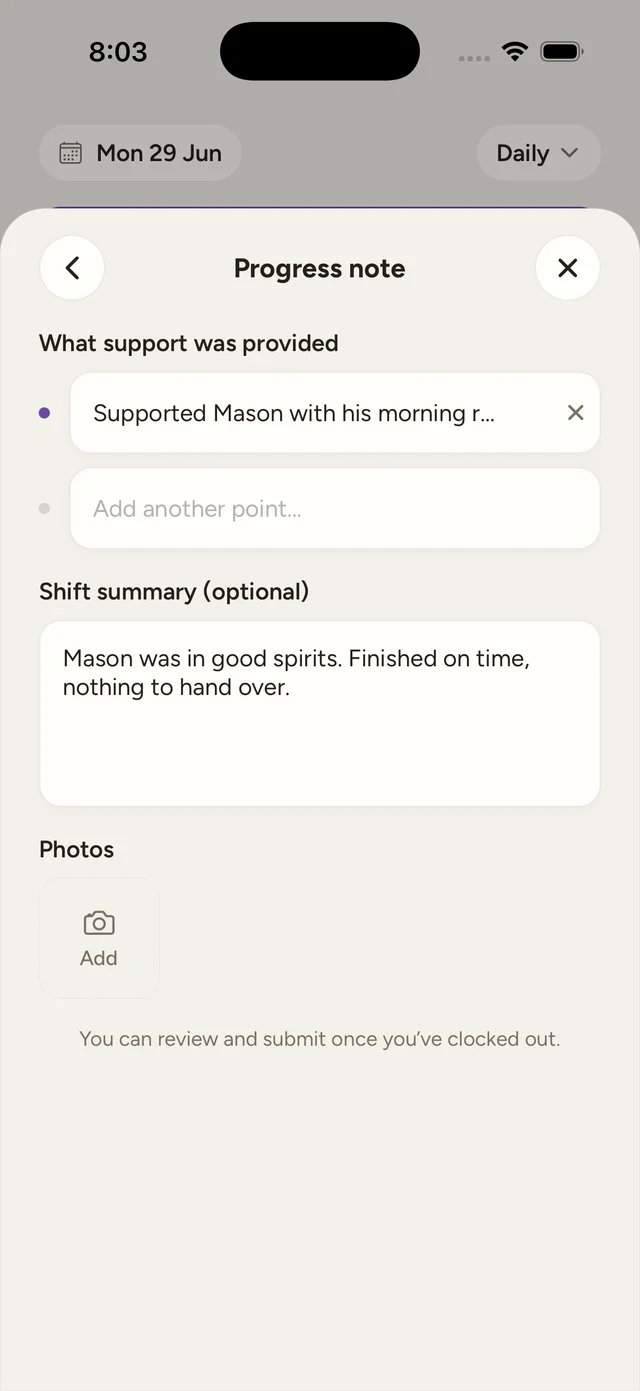
Under What support was provided, type a point on each line. A new empty line appears as you fill the last one, so add as many points as you need; an existing point (other than the last) has a small × to remove it. You can also add a Shift summary (optional) for a handover or to explain why you finished early or late.
Complete your tasks
If the office assigned tasks to the shift, work through them from the checklist under the note, or tap a task in the shift detail itself to open it. Either way, tasks can only be completed once you are clocked in; before that, an open task shows the hint “Clock in to complete this task.” and its slide control is disabled.
Opening a task shows its full description and a Slide to mark complete control. Completing it shows a green Completed note with a Mark as not done link underneath if you need to undo it. A task the office has marked not applicable shows a note saying there is nothing for you to do there instead, with no slide control; it still counts as resolved, the same as a completed one.
Note
Your note saves as a draft about a second after you stop typing, and again if you leave the form or close the app, so your points and summary are kept even across a restart or a dead zone. Task ticks save the same offline-first way. Photos are the one part of the note that needs a connection: the add control is disabled while you are offline.
Review and submit
You can only submit after you have clocked out. Until then the note shows the hint “You can review and submit once you’ve clocked out.”
Tap Review shift
Once you have clocked out, tap Review shift. This button stays disabled until you have at least one support point and every task is resolved. If a task is still open, the note shows “Complete all tasks before submitting.”
Check your times and travel
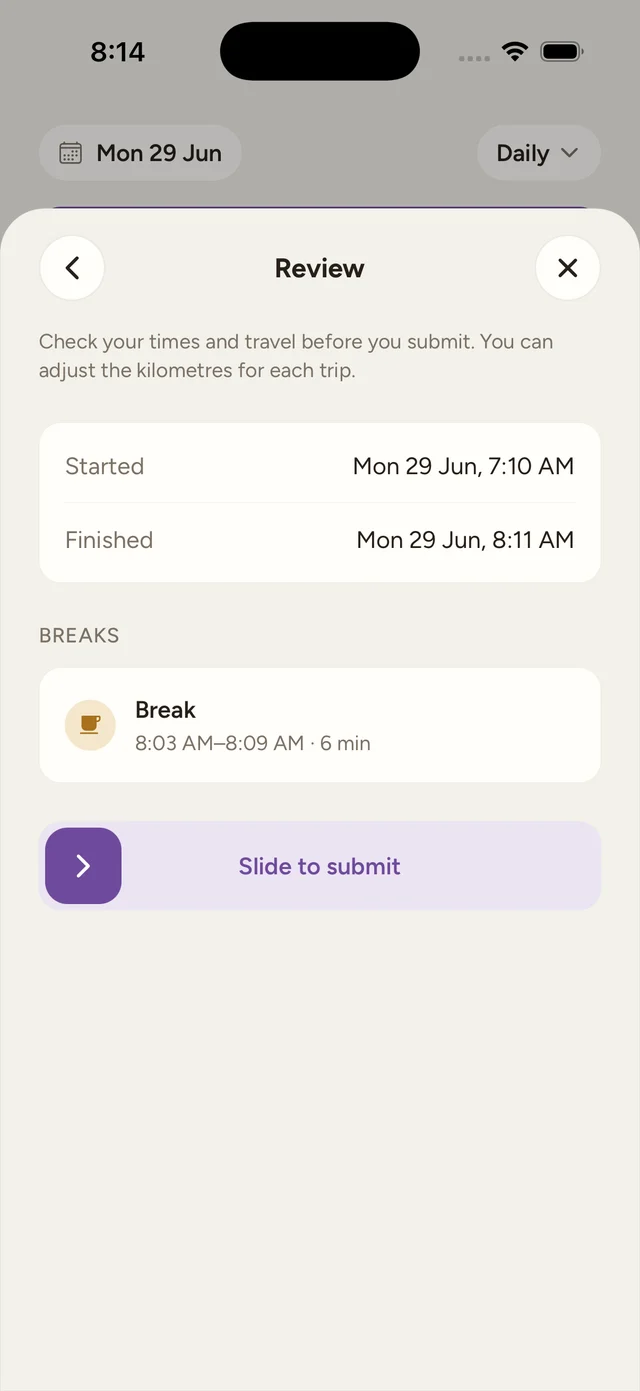
The review screen shows your Started and Finished times, a Travel section, and a Breaks section. You can adjust the kilometres for each trip here by editing the km field on a travel row; a trip where you never actually moved arrives prefilled with 0, which is a real answer and fine to leave. If you switched support codes during the shift, a Support section lists each stretch you worked in order with its minutes against it (a code you switched away from immediately reads 0 min). On a sleepover shift, an Active support line also appears, totalling the active-support periods you recorded overnight (or None recorded); see Sleepover active support.
Slide to submit
Drag Slide to submit all the way across. The shift then shows a Shift complete summary with a green tick, and the time your note was submitted.
A distance that looks off gets double-checked
If you type a kilometre figure a long way past what the app measured for that trip (more than three times its measured distance, or over 400 km outright), it asks you to confirm before saving. Confirm to keep your entry, or fix the number if it was a typo.
What you need before you can submit
To submit a shift you must have clocked out, written at least one support point, and resolved every task (completed, or marked not applicable by the office). The summary, photos and kilometre edits are all optional.
If you need to record a safety incident from the shift, see Report an incident.