Browse help topics
Create a shift
Fill the Add shift form and create an unassigned shift.
Last updated · 23 September 2026
A shift is one block of support: a type, a participant, a time and a place. You create it first, then assign the worker afterwards.
Note
A new shift is created unassigned. There is no worker picker and no NDIS support code on this form. You add the worker and choose the support code later in Assign a worker.
Open the create drawer
Go to Schedule›Scheduling and select Add shift at the top right. The form opens in a side drawer titled Add shift.
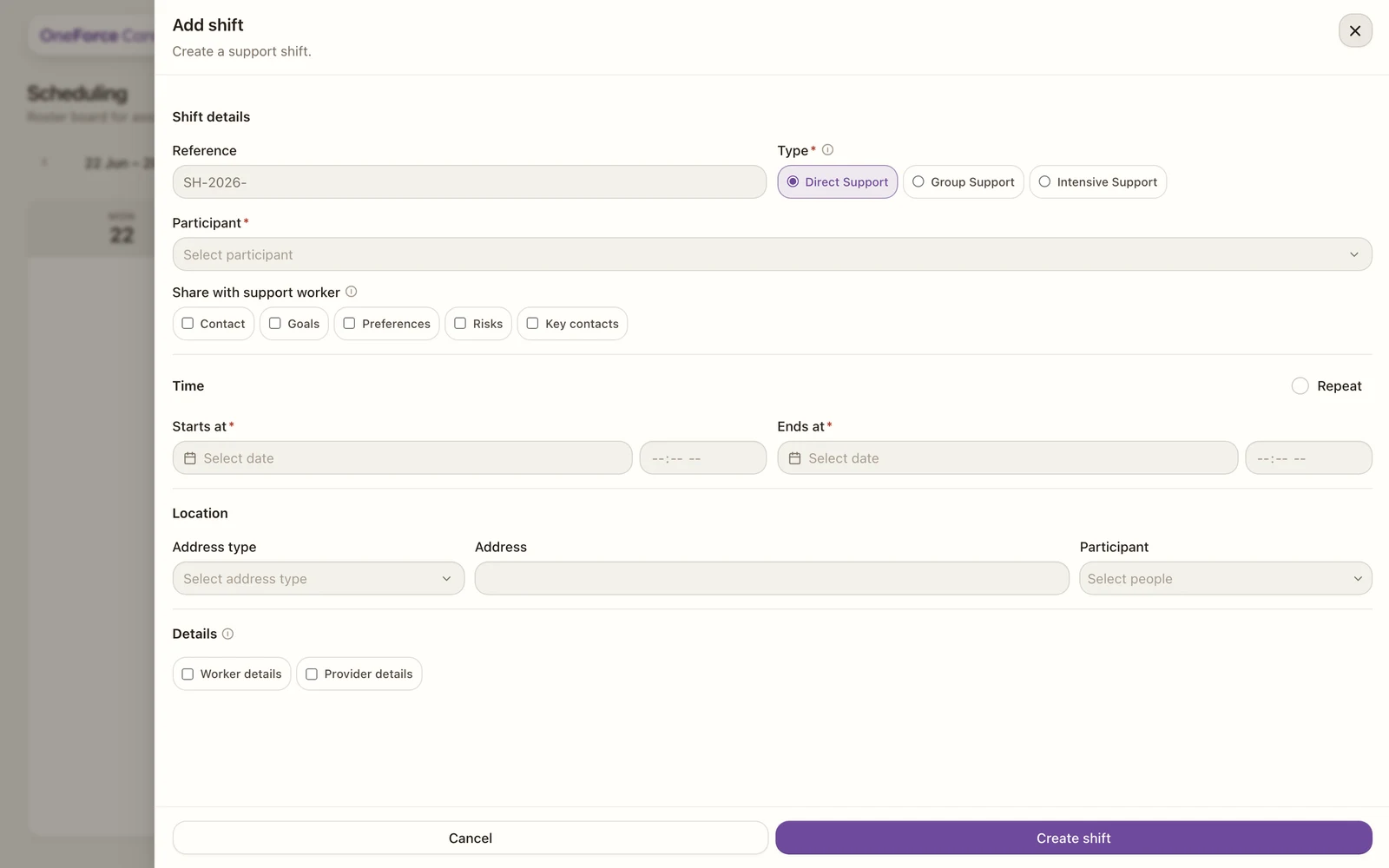
Complete the form
Fields marked with a red asterisk are required.
Shift details
| Field | Required | Notes |
|---|---|---|
| Reference | Auto | Read-only. Shows the prefix until you save, then becomes SH-YYYY-NNNN. |
| Type | Yes | Direct Support, Group Support or Intensive Support. Defaults to Direct Support. See Shift types. |
| Worker acceptance | No | Automatic (default) or Required. Required means the assigned worker must accept the shift in their app before they can clock in. See Assign a worker. |
| Participant | Yes | One participant for Direct or Intensive; several for Group. |
| Share with support worker | No | Care-plan sections the worker can see on mobile: Contact, Goals, Preferences, Risks, Key contacts. |
| Geofencing | Auto | Read-only. On, Off, or On, address not mappable. |
| Clock-in window | Auto | Read-only. N min before start (N is your workspace’s setting, 5 on a new workspace), or Off. |
| Available travel terms | Auto | Read-only badges drawn from the participant agreement. See Travel on a shift. |
Time
| Field | Required | Notes |
|---|---|---|
| Starts at | Yes | A date, plus a time you can type (for example 9, 930 or 2:30) with its own AM / PM toggle beside it, or pick from the 15-minute suggestions. Saving fails with Shifts must start in the future. if it is not ahead of now. |
| Ends at | Yes | The same date-and-time field. Must be after the start, or you see Shift end must be after shift start. |
| Repeat | No | Tick to make a series spanning up to 90 calendar days, including the first date. See Recurring shifts and copying. |
Location
For Direct or Intensive Support, the Location section is one row:
| Field | Required | Notes |
|---|---|---|
| Address type | Yes | Participant address or Other address. |
| Address | Yes | Mirrors the participant address, or search for another. |
Creating a shift with no location raises an alert in the drawer itself: The shift needs a location. Choose an address type in the Location section.
For Group Support, the Location section instead lists a pickup row per address: Address type, Address, and which of the selected participants are picked up there. It opens with one blank Other address row. Select Add another location for more pickup points (greyed out once every participant has one), and use the remove button to drop a row. Below the pickup rows sits a fixed Destination row: a Yes/No toggle for whether the shift has a drop-off address, on by default, with the address editable when it is Yes.
Details
| Field | Required | Notes |
|---|---|---|
| Notes for worker | No | Shown to the assigned worker. Tick the toggle to add them. |
| Internal notes | No | Provider-only. Tick the toggle to add them. |
Create the shift
Select Create shift at the bottom of the drawer. The shift is saved unassigned and appears on the roster with the status Booked.
The two clock-in gates on the form
Geofencing and Clock-in window are read-only echoes of your workspace settings, not per-shift choices. They are here so a scheduler can see what the worker will meet when they try to start the shift, without having to answer the same question on every shift.
| Field | Values |
|---|---|
| Geofencing | On (the worker must be within 150 m of where the shift starts), Off, or On, address not mappable. |
| Clock-in window | N min before start, or Off. |
On, address not mappable is the one per-shift signal worth acting on. It means this shift’s starting address could not be placed on a map, so no check will run for it. On a group shift the address checked is the first pickup, not the destination, because the first pickup is where the shift begins.
Both fields carry an info hover with the same detail. Change them for the whole workspace in Account›Features›Scheduling. See Workspace features.
Tip
Group support has an extra rule: every participant on the shift must share the same pricing region, checked as you select them. Next, assign a worker.