Browse help topics
Payroll overview
Read the weekly grid, filter to what needs attention, and open a worker's pay breakdown.
Last updated · 2 August 2026
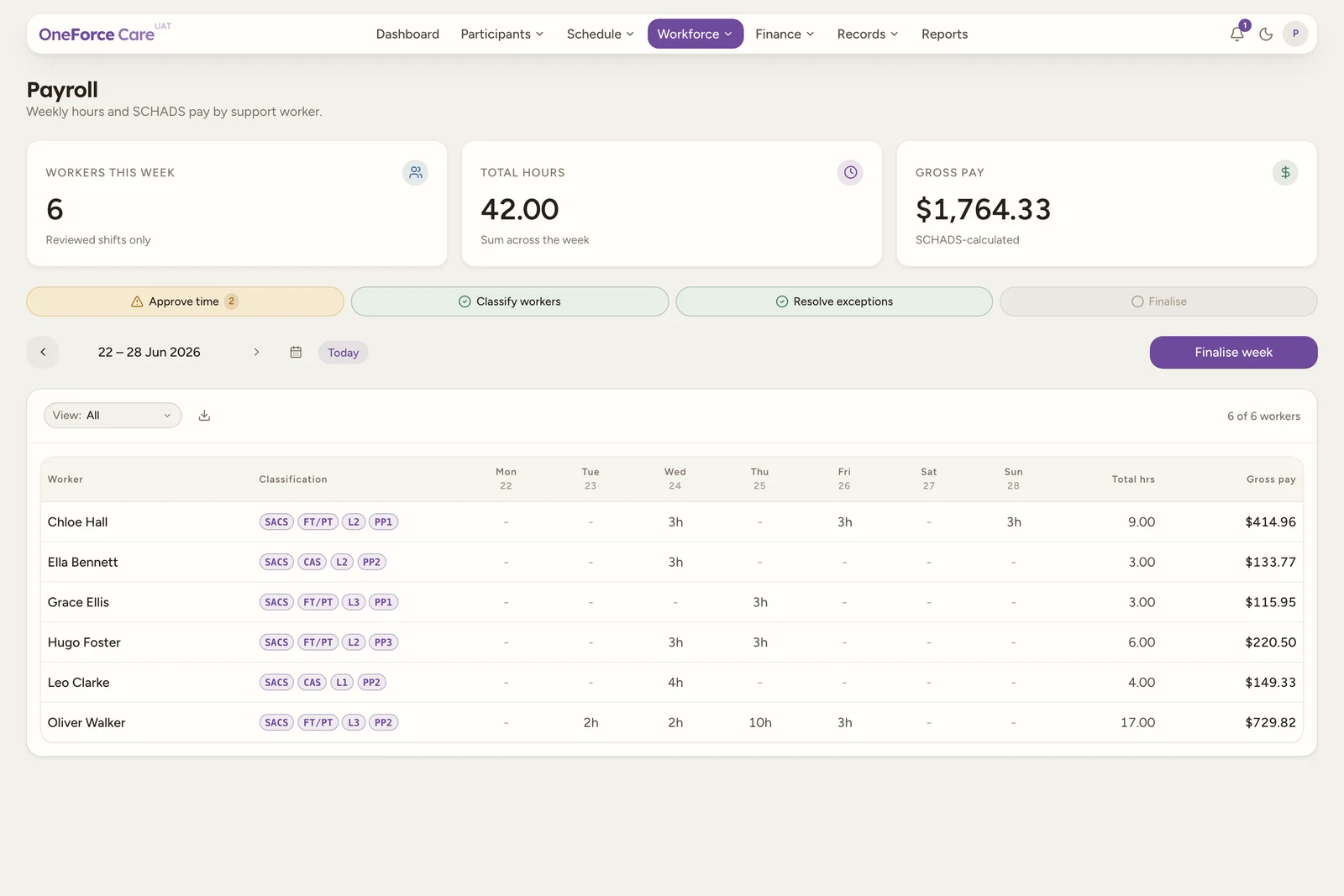
Payroll is the weekly SCHADS pay run for your support workers: a Monday-to-Sunday grid built from approved shift hours, paid provider travel time and paid cancellations, priced against each worker’s SCHADS classification and the award rates. Open it from Workforce›Payroll. The page title reads Payroll with the subtitle “Weekly hours and SCHADS pay by support worker.”
Note
Payroll is a desktop screen: it does not appear in the navigation on a phone.
If your role does not have payroll read access, the page shows “Your account does not have access to view payroll. Ask an owner to grant payroll:read.” instead of the grid.
Moving between weeks
The row under the stat cards and checklist controls which week you are looking at:
- The left and right chevrons step one week at a time.
- The calendar icon jumps straight to the week containing any date you pick.
- A Today pill appears whenever you are off the current week; select it to snap back.
- The week label in the middle reads as a date range, for example “29 Jun – 5 Jul 2026”.
Whatever week you land on, the grid, the checklist and the finalise controls all update to match it.
The three stat cards
- Workers this week, detail “Reviewed shifts only”: the count of rows in the grid.
- Total hours, detail “Sum across the week”: the sum of every worker’s total hours.
- Gross pay, detail “SCHADS-calculated”: the sum of every worker’s total gross pay.
These totals only count reviewed (approved) shifts; anything still awaiting timesheet review is excluded and called out separately (see Work the pay-run checklist).
The weekly grid
Each row is one worker who had payable hours in the displayed week. Workers with no shifts that week simply do not appear.
| Column | What it shows |
|---|---|
| Worker | The worker’s full name. |
| Classification | SCHADS tag pills (see below), or an UNCLASSIFIED warning pill, or a dash. |
| Mon dd … Sun dd | Hours worked that day, for example “7.6h” or “8h”. A red PH pill appears under a day that is a public holiday for the worker’s work state (or a national holiday), even on a day with no hours. |
| Total hrs | The week’s total hours, to two decimal places. |
| Gross pay | The week’s total gross pay, or a dash for an unclassified worker (see below). |
| Sync & pay | Two small icons per worker: their Xero timesheet state, and their payment record. See below. |
Classification shows up to four short code pills built from the worker’s SCHADS setup: the stream (SACS, HCD or HCA), employment type (CAS or FT/PT), classification level (L1-L8) and pay point (PP1-PP4). Hover any pill for its full label, for example “Social and Community Services” or “Casual”. A worker with no SCHADS classification set gets an UNCLASSIFIED pill instead, with the hover text “Worker has no SCHADS classification. Set it on the worker’s Payroll tab.” Their Gross pay cell shows a dash rather than $0.00, so an unclassified worker never reads as “processed at zero” by mistake. See Worker payroll for how classification is set.
Tip
Sleepover hours (SCHADS cl. 25.7) are counted in Total hrs for transparency but are paid through an allowance, not an hourly rate, so they never trigger the UNCLASSIFIED flag on an otherwise classified worker.
The Sync & pay column
The last column carries the two per-worker states that used to live elsewhere, side by side.
- A cloud icon shows how this worker stands with Xero payroll, and only appears for a connected organisation. Hover it for the detail: “Matched to a Xero employee”, or “No Xero employee named ‘[name]’. Add them in Xero payroll to include them.” when nothing matched, or “Pushed to Xero - Draft timesheet” (or Approved, or Processed) once their timesheet is across. If Xero rejected them on the last push, the icon turns amber and names the reason. A worker with no Xero state at all shows a plain dash.
- A banknote icon opens that worker’s payment drawer. It is green once they are recorded as paid and hovers as “Paid on DD/MM/YYYY. Ref: …”, and grey while they are not. It stays disabled until the week is finalised (tooltip “Finalise the week first”), and for anyone without the payroll create permission.
See Finalise a week and record payment for the payment drawer itself, and Export payroll and push to Xero for the timesheet push.
Filtering the grid
The View dropdown above the grid narrows the worker list:
- All: every worker with payable hours this week.
- Needs attention: workers who are unclassified, or who have at least one segment priced on a backdated rate.
- Unclassified: only workers with no SCHADS classification.
Beside it, a Search box matches on the worker’s name. The summary line at the right reads “N of M workers” and updates as you filter. If nothing is clocked yet, the grid’s empty state reads either “No payable shifts yet: N clocked shift(s) are awaiting timesheet review in Scheduling. Approved shifts appear here.” (when there is unreviewed time) or “No clocked-in shifts this week. Workers appear here once their actual shift times are recorded and reviewed.” (when there is none at all).
Opening a worker’s breakdown
Select any row (or, on a narrower screen, any worker card) to open that worker’s drawer, titled with their full name and “Week starting [date]” underneath.
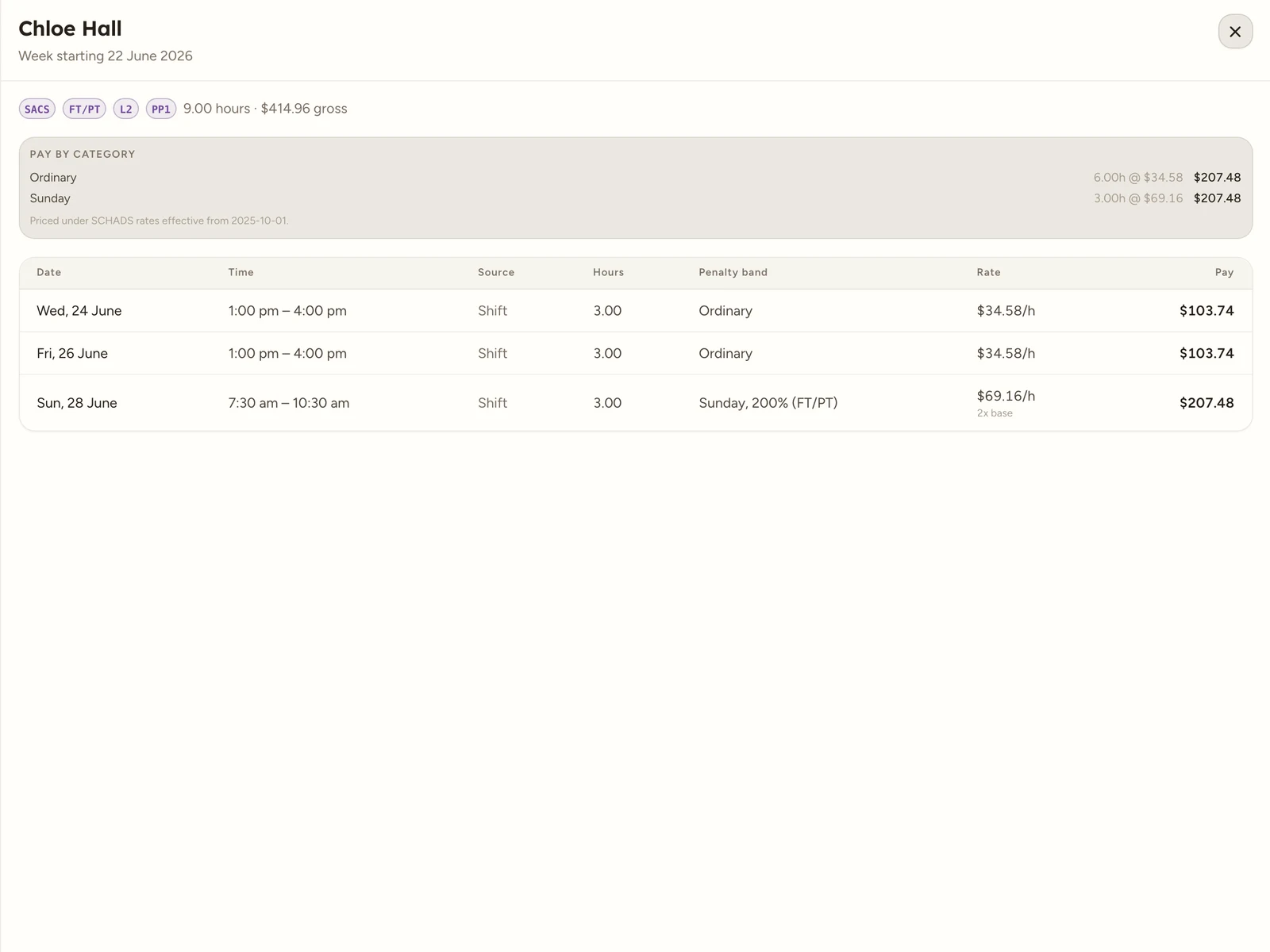
The drawer, top to bottom:
- The worker’s SCHADS tag pills (or an Unclassified badge), and the week’s total hours and gross pay.
- For an unclassified worker, when you have workers-edit access, a Set SCHADS classification button toggles the same classification form used on the worker’s Payroll tab open inline, so you can fix it without leaving payroll. It saves the same way as Worker payroll describes.
- An Allowances this week block, shown only when the worker earned one: Sleepover, Broken shift and/or Vehicle (km) amounts.
- A Pay by category rollup: one line per pay category (Ordinary, the penalty bands, overtime, allowances) with its hours, rate and dollar amount, plus “Priced under SCHADS rates effective from [date(s)].” underneath.
- A segment table, one row per shift or travel leg: Date, Time, Source (Shift, a Cancellation badge, or a T2P / RTB travel pill), Hours, Penalty band, Rate (with the penalty multiplier underneath, for example “1.5x base”) and Pay. A segment priced against an out-of-range rate shows the warning directly in its Penalty band text, for example “Ordinary; WARNING: shift predates all synced rate versions, priced at the [date] rates” - a sign the shift is older than any SCHADS rate version that has been synced, so double-check it.
Tip
Ready to act on the week? See Work the pay-run checklist to clear what is outstanding, then Finalise a week and record payment.