Browse help topics
Working offline and your settings
How offline queueing and the conflict dialog work, plus appearance, reminders, permissions and other settings.
Last updated · 2 August 2026
The app is built to keep working when you lose signal, and the Settings tab is where you control how it looks and behaves on your device.
Working offline
You do not need to do anything special to work offline. The core actions, accepting and declining a shift, clocking in and out, breaks, sleepover active support, travel, group pickups, completing tasks, saving a note draft, submitting a note, and reporting an incident, all keep working with no signal. The screen updates straight away, and your change is queued on your device and sent as soon as you reconnect. The one exception is clocking in on a shift with the location check: online, the app waits a moment for the answer so a refused clock-in never flashes as started.
On a shift where your provider has turned on the location check, the app takes your position at the moment you slide and sends it with the clock-in, so an offline clock-in is still judged on where you were standing when you did it, not on where you were when your signal came back. It is checked once it reaches the office, which means a clock-in slid from the wrong place can come back rejected rather than being refused on the spot. See Clock in and out.
When you are offline, an Offline pill floats above the tabs; while changes are queued it counts them (“Offline, 2 changes waiting to sync”). It clears itself once you reconnect and the changes go up. The app also retries automatically on a poor or dropping connection, on reconnect, and whenever you bring the app back to the foreground, so a queued change is never lost to a bad signal alone.
Photos need a connection
Photos are the one thing you cannot do offline. The add tile shows Offline and is disabled until you have signal. Add photos to a note or an incident once you are back online.
If a change couldn't be saved
Now and then the office genuinely rejects a queued change, most often because the office finalised or otherwise changed the shift while you were offline (a poor connection alone will not cause this; the app keeps retrying that on its own). When it happens, the app shows a dialog titled A change couldn’t be saved, naming which action it was, when you made it, and why. Reopen the shift to check where it is up to, and a copy of the rejected change stays under Settings, in Unsaved changes, until you dismiss it there.
Settings
Open the Settings tab to reach the following, grouped under Work, Preferences, Security and Troubleshooting, with Sign out on its own at the foot and the app version below it.
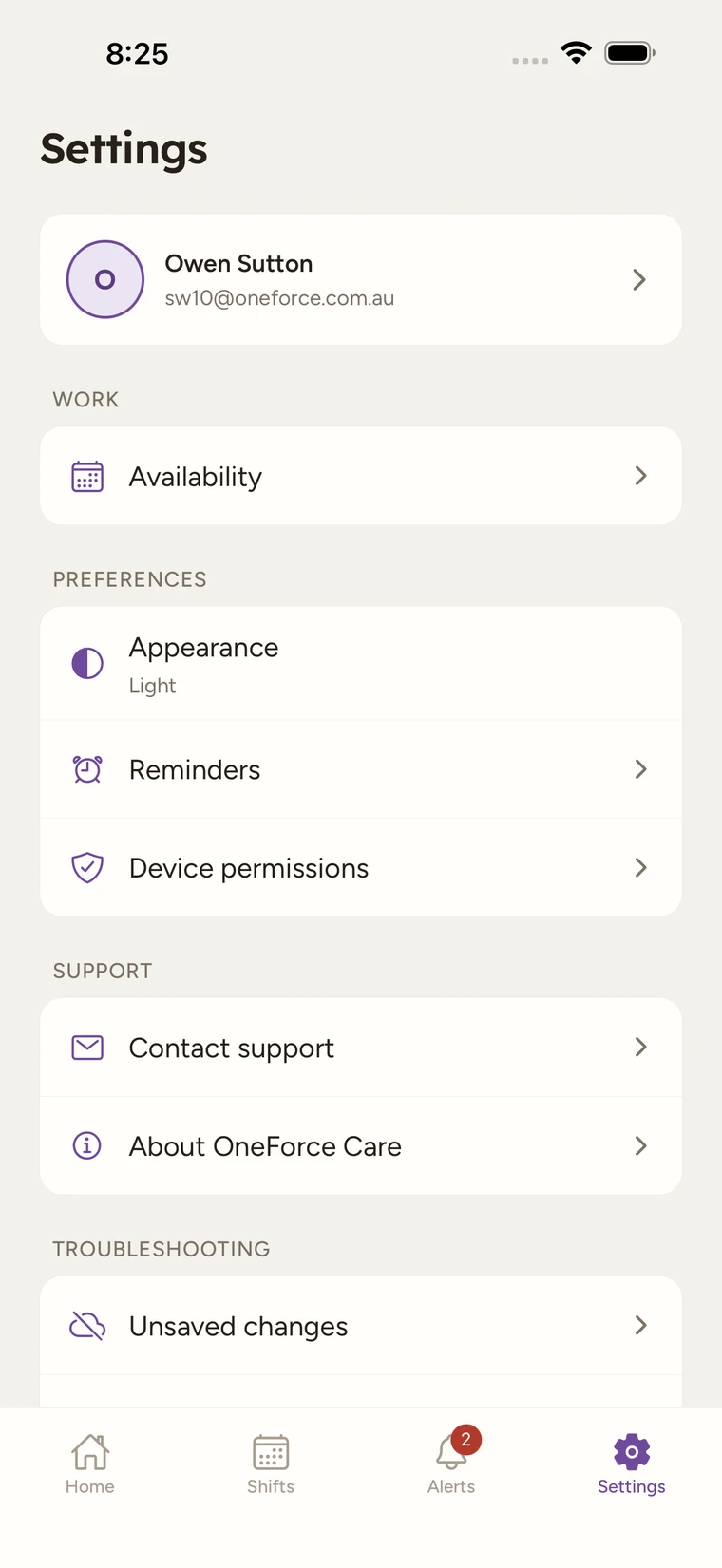
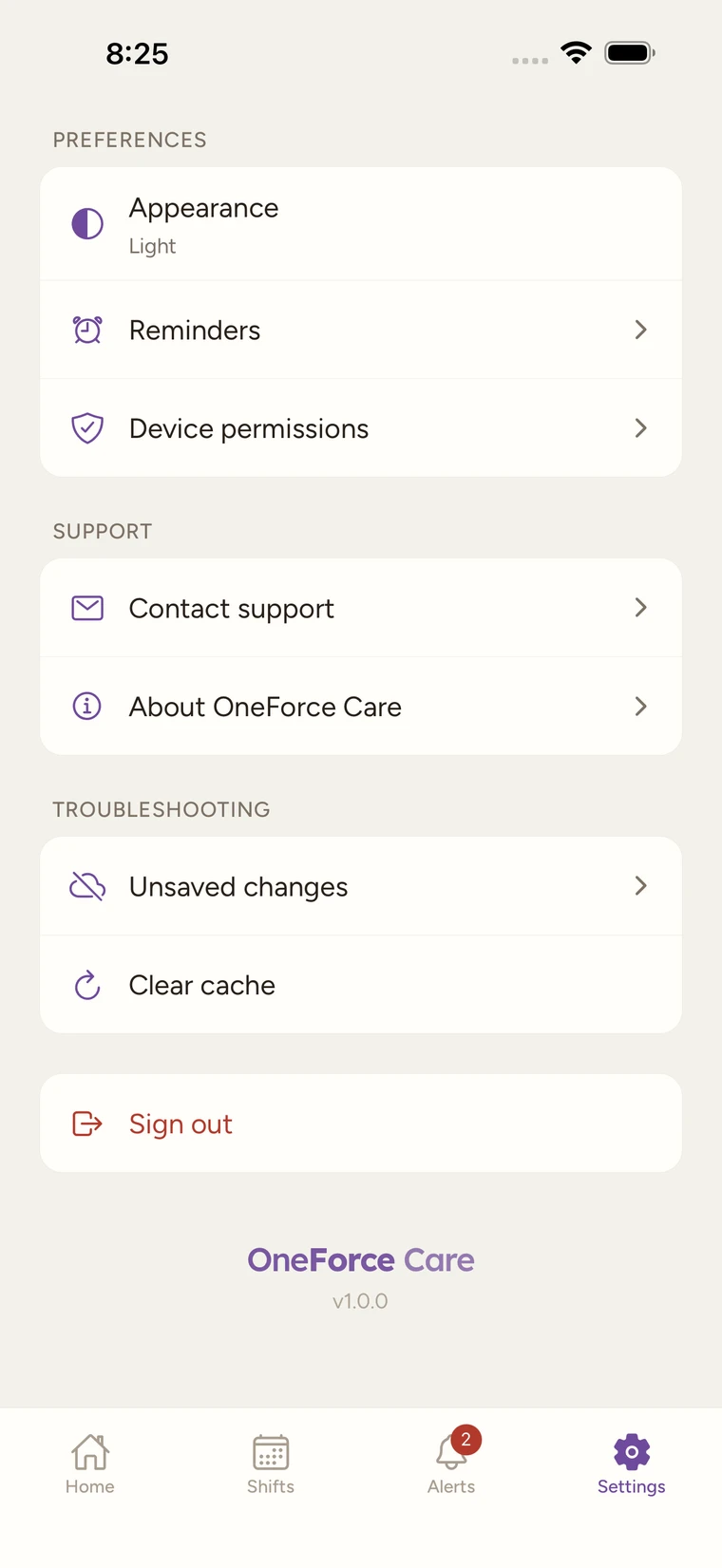
| Group | Setting | What it does |
|---|---|---|
| Work | Switch provider | Change which provider you are working in. Only shown if you work for more than one. |
| Work | Availability | Shows the days and times you are available, plus any leave. |
| Preferences | Appearance | Choose how the app looks: System, Light or Dark. |
| Preferences | Reminders | Five on-device nudges, all on by default: Before a shift (15 minutes ahead), Forgot to clock in (5 minutes into a shift), Forgot to clock out (5 minutes after it ends), Shift note due (once you have clocked out with a note still outstanding), and Still travelling? (while a trip looks stalled). Turn off any you do not want. These are separate from the Alerts tab: reminders are on-device nudges, Alerts is the record of what your office actually sent (office announcements, plus shift-lifecycle notifications like a new shift or a cancellation). |
| Preferences | Device permissions | Review and grant Location, Camera, Photo library and Notifications (plus Alarms & reminders on Android 12 and newer), or tap Open device settings. All of them are required, so anything switched off here sends you back to the permissions screen. |
| Security | Two-factor authentication | A read-only status showing On. Only shown if 2FA is set up or your provider requires it; it is set up once, at sign-in, not from here. |
| Troubleshooting | Unsaved changes | Offline changes the office permanently rejected. Carries a count badge while any are unresolved. |
| Troubleshooting | Clear cache | “Frees up space and reloads fresh data. You’ll stay signed in.” Confirm with Clear cache. |
| (own section) | Sign out | Sign out of the app. Confirm with Sign out. You can sign back in any time with your email and password. |
Unsaved changes
Tap Unsaved changes to see every offline change the server has permanently rejected (the same ones the A change couldn’t be saved dialog already named). Each entry shows the action, when you made it, and the reason it failed; a rejected progress note also keeps its text so nothing is lost. Dismiss an entry with its × once you have checked it with your coordinator. When there is nothing outstanding, it reads “Nothing here, all your changes have saved.”
Your profile and availability are read-only
Availability shows the days and times you are available, plus any leave, but it is managed by your provider, so you cannot edit it or request leave from the app. Your profile details are the same: read-only, and changed by the office. Contact your provider’s office to change either of these.
Some shifts do ask for an answer
Most shifts simply appear on your roster. On shifts where your provider has asked for it, though, you are asked to accept or decline before you are booked in. See Accepting or declining a shift.