Browse help topics
Work the pay-run checklist
Clear the checklist steps, review unapproved timesheets in place, and see what each step is telling you.
Last updated · 2 August 2026
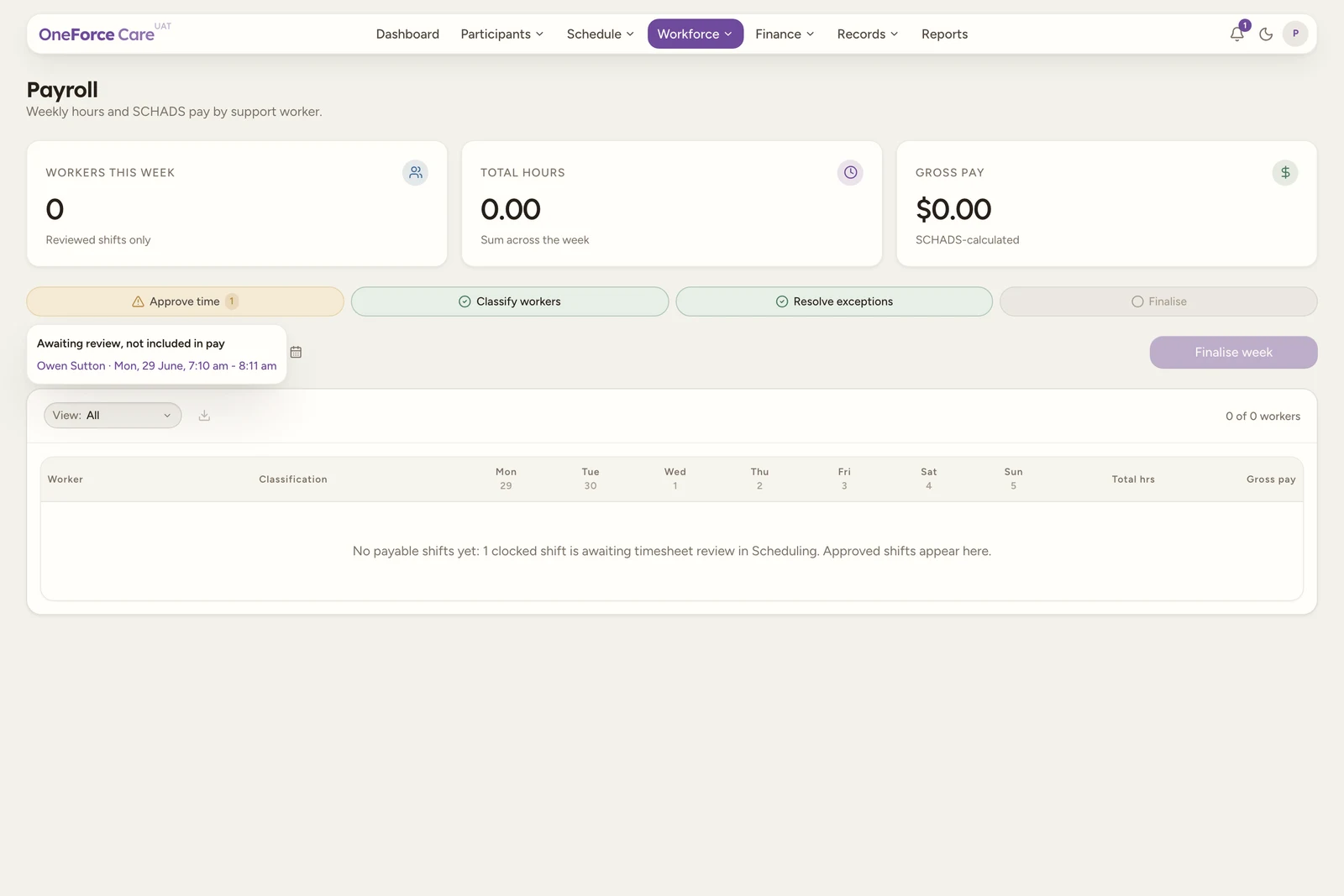
Above the weekly grid, a row of pills tracks the state of the displayed week: Approve time, Classify workers, Resolve exceptions and Finalise, plus a fifth Push to Xero pill when your organisation is connected to Xero. A clean step shows a green check; a step with something outstanding shows an amber warning triangle and a count beside its label; the Finalise step shows a quiet grey circle until it is done. Hovering any pill shows its full detail, and the two that can be acted on respond to a click.
Check Approve time
This step counts clocked shifts in the displayed week that have not yet been reviewed and approved in Scheduling. Unapproved hours are excluded from every total on the page until they are approved, so a shift can be clocked and still not show up anywhere in payroll.
- Clean: “All clocked shifts reviewed” (or “No clocked shifts this week yet” if nothing has been clocked at all).
- Attention: “N clocked shift(s) (Xh) awaiting review in Scheduling”, with the shift count as the pill’s badge.
Select the pill while it is in the attention state to open a popup headed “Awaiting review, not included in pay”, listing each unreviewed shift by worker name and time (for example “Ella Rossi · Tue, 28 Jul, 4:39 pm - 4:50 pm”, with the month abbreviated), capped at six with “and N more in Scheduling” below if there are more. Select any listed shift to open the same worker-assignment review drawer used on the Assignments register, right there, without leaving Payroll. Approve it there; see Review and approve assignments for the full approve flow. Closing the review drawer refreshes the checklist and the grid immediately.
Check Classify workers
This step counts workers in the displayed week who have no SCHADS classification set. An unclassified worker’s shifts still show up in the grid, but their gross pay is $0 until they are classified.
- Clean: “All workers classified”.
- Attention: “N worker(s) without a SCHADS classification (paid $0)”, with the worker count as the badge.
Select the pill while it is in the attention state to switch the grid’s View filter to Unclassified, so you land straight on the workers to fix. Open each one’s row and use Set SCHADS classification in the drawer to fix it inline, or go to their Worker payroll tab.
Check Resolve exceptions
This step is informational only (the pill is not clickable); hover it to read the detail. It combines two kinds of pricing exception in the displayed week:
-
Backdated-rate pricing: a worker has at least one segment dated earlier than every synced SCHADS rate version, so it was priced using the oldest rate the platform has rather than the true rate for that date. Open the worker’s drawer and check the segment’s Penalty band text for the “WARNING: shift predates all synced rate versions” note.
-
Unseeded public holidays: a public holiday falls in the displayed week but is not in the platform’s public holidays table, so the day is being priced as an ordinary day and any penalty rate is missed. The page also raises its own amber alert above the checklist saying which date, and telling you to add it under public holidays so penalty rates apply before finalising.
-
Clean: “No pricing exceptions”.
-
Attention: the two reasons joined with a semicolon, for example “2 workers priced on a backdated rate; 1 unseeded public holiday”, with the combined count as the badge.
Note
Unseeded-holiday warnings only show for a week that is not yet finalised - a finalised week is read from its frozen snapshot and is no longer re-priced, so the warning would be moot. Backdated-rate warnings still show for a finalised week, since they are preserved in the snapshot.
Check Finalise
This step mirrors the week’s state and is not itself a button:
- Pending (grey): “Freeze the week into the pay record”.
- Finalised: the pill’s own label becomes Finalised on DD/MM/YYYY, with the detail “Week finalised (immutable)”.
- Finalised and fully paid: the label becomes Paid on DD/MM/YYYY, with the detail “Week finalised and every worker recorded as paid”. This only happens once every worker in the week has a payment recorded against them.
The actual Finalise week control sits in the week navigation row on the right; see Finalise a week and record payment.
Check Push to Xero
This fifth pill only exists for an organisation connected to Xero. It is informational too, and reports where the week’s timesheets stand:
- Before the week is finalised: “Finalise the week first”.
- Finalised but not yet pushed: “Send this week’s timesheets to Xero payroll”.
- Pushed cleanly: Pushed to Xero, “Draft timesheets are in Xero payroll”.
- Pushed with some workers left out: Pushed to Xero in the attention state, “Some workers are not in Xero”, with the skipped count as its badge.
- Rejected: “The last push was rejected. Hover each worker’s cloud icon in Sync & pay for details.”
You rarely have to act on this pill, because finalising pushes the timesheets for you. See Export payroll and push to Xero.
Tip
These are soft gates: nothing here blocks you from finalising with outstanding steps. Each step exists so you know exactly what a run will and will not include before you commit it, the same information the finalise pre-flight repeats at the moment you confirm.
Note
Approve time keeps counting live unreviewed shifts even after the week is finalised, since new clock data can still arrive against a finalised week’s dates. It will not change what was already paid unless you reopen and re-finalise the week.